Everything your operation needs.
Shaped to how you run it.
From the first day of onboarding to the last entry in a care record, each part of the work has its own screen.
Here is every one of them, as your team sees it.
Everything, at a glance
Fourteen areas. Pick where to start.
Every tile is a real screen. Tap one to jump to it.
-
 01
Onboarding
From invite to active without chasing a single email.
7 screens
-
 02
Documents and signing
Your own forms, signed on screen.
4 screens
-
 03
Training
Courses your people finish on their phone.
4 screens
-
 04
Scheduling
Every shift, every site, one week.
6 screens
-
 05
Attendance and hours
Clock in from the phone, hours out as a file.
7 screens
-
 06
The daily log
Every shift leaves a record.
2 screens
-
 07
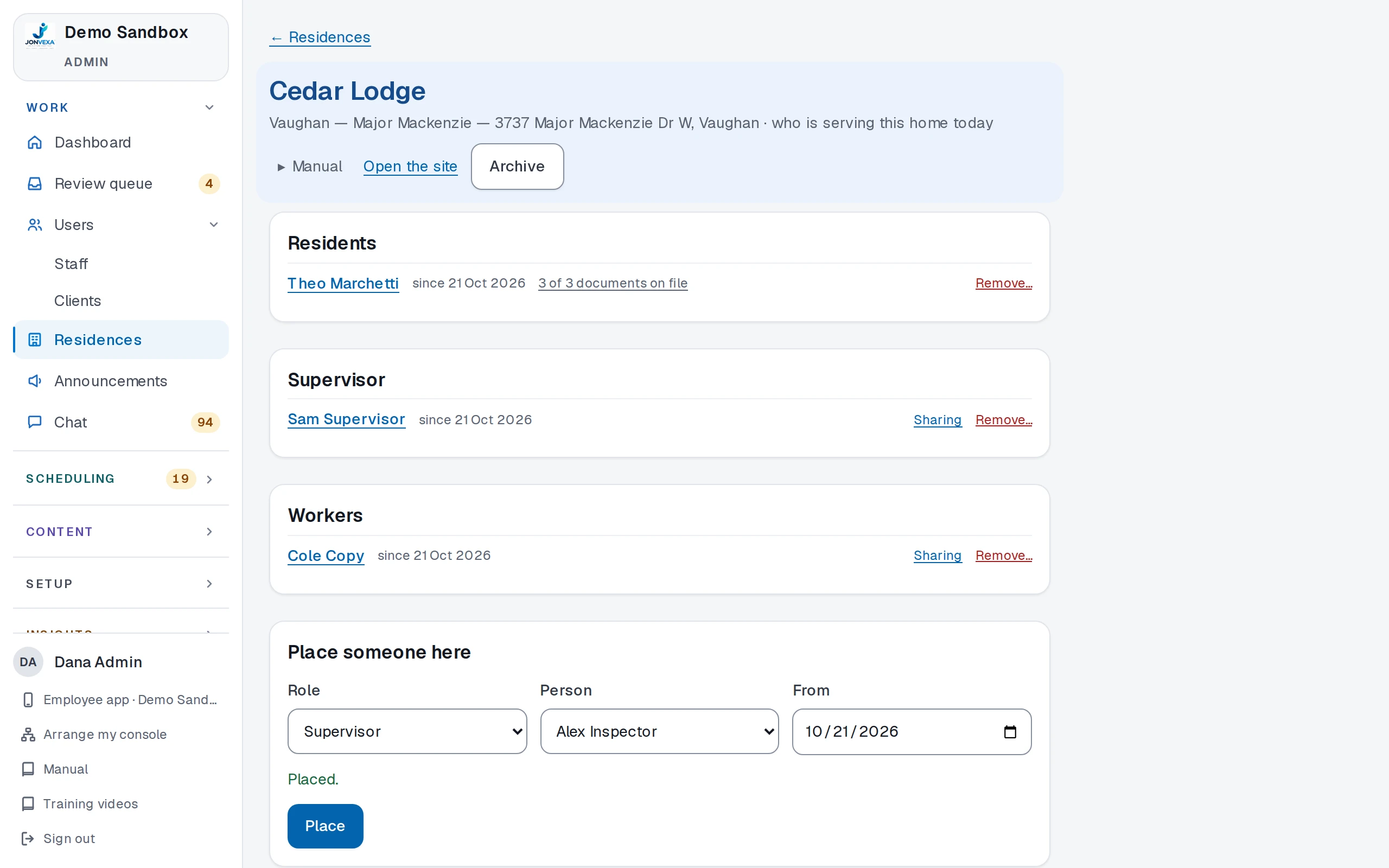
Care records
A file for every person you support.
8 screens
-
 08
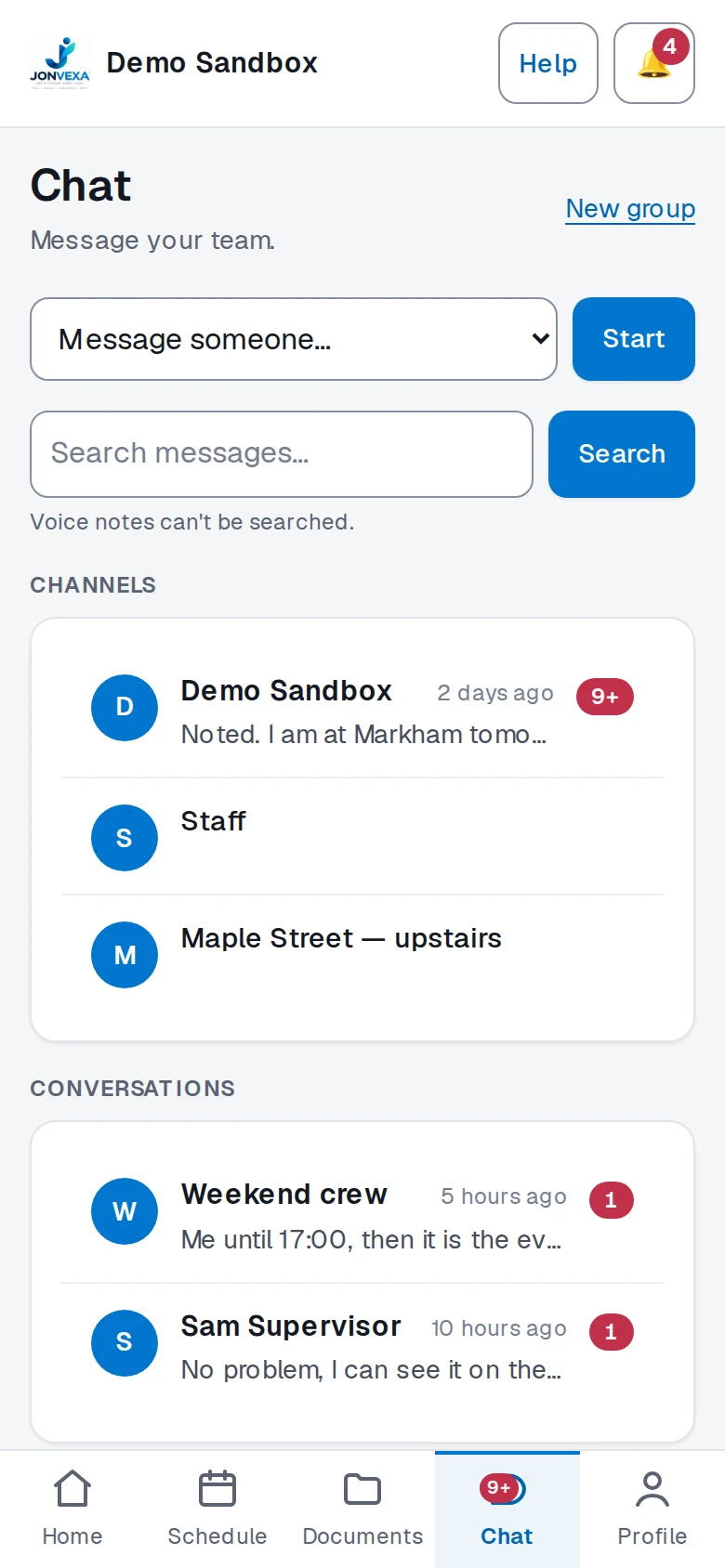
Chat
Your team's whole conversation, inside the platform.
6 screens
-
 09
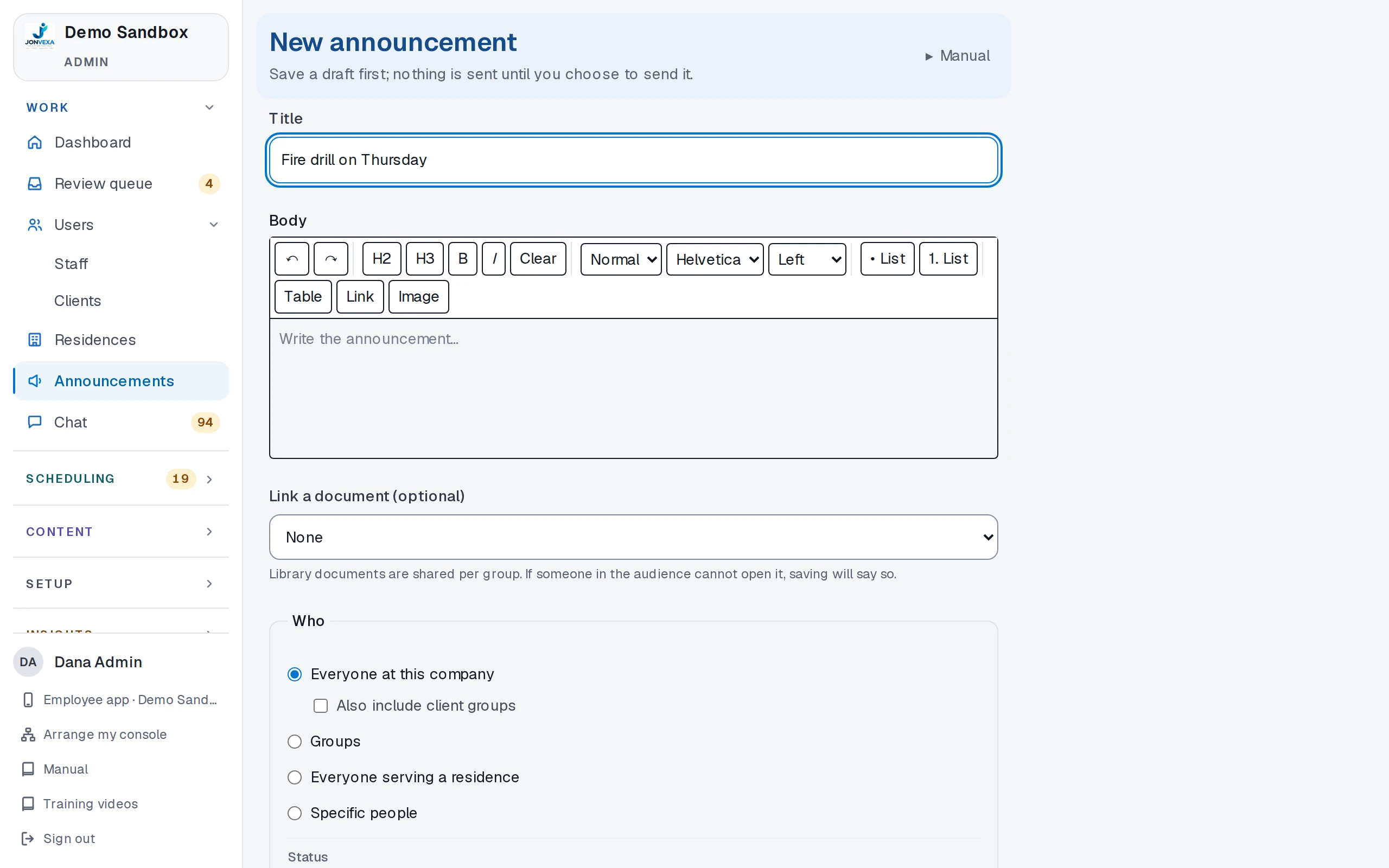
Announcements and notifications
Send it once, know who read it.
3 screens
-
 10
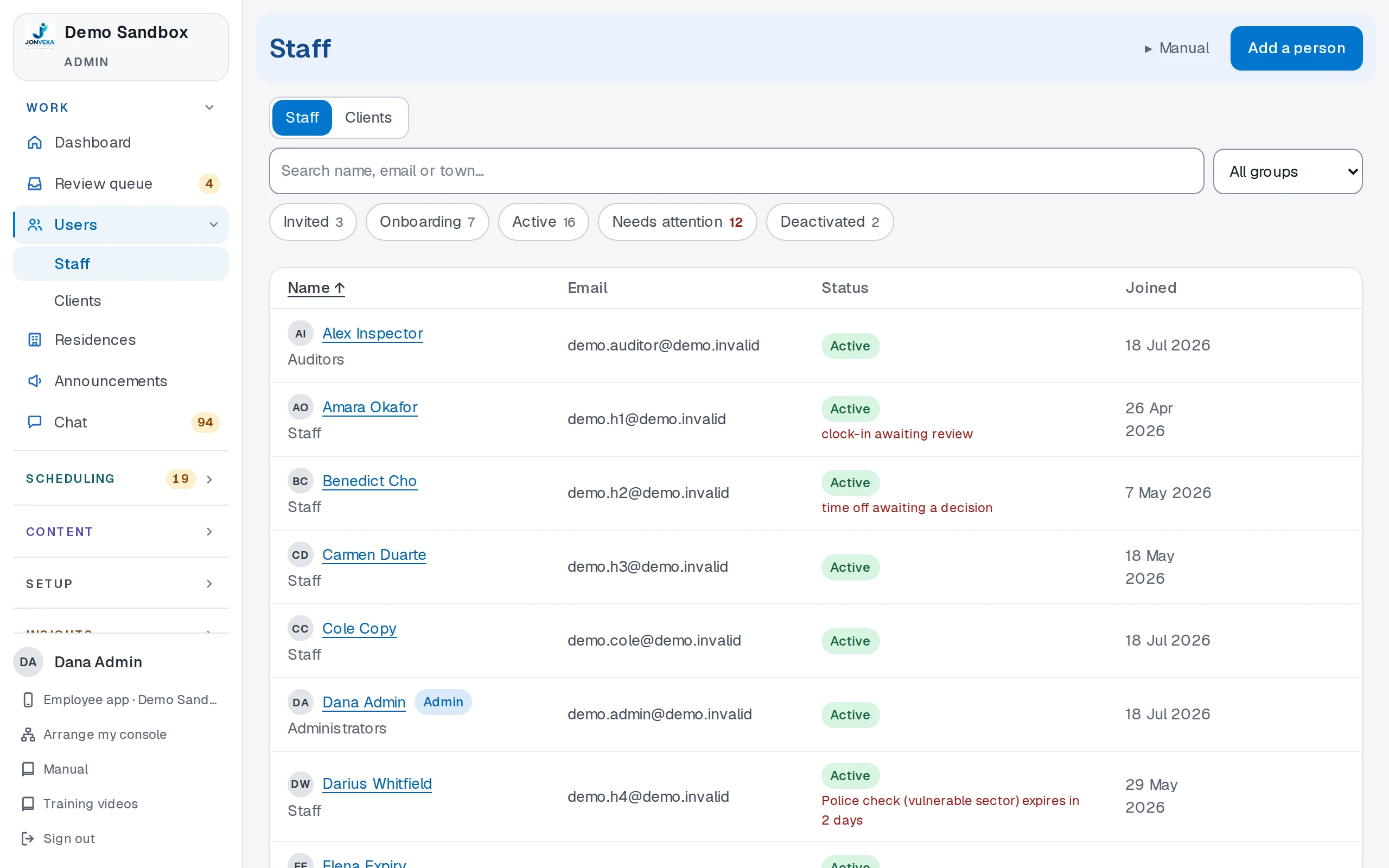
People and access
Groups, roles and permissions that match your org chart.
5 screens
-
 11
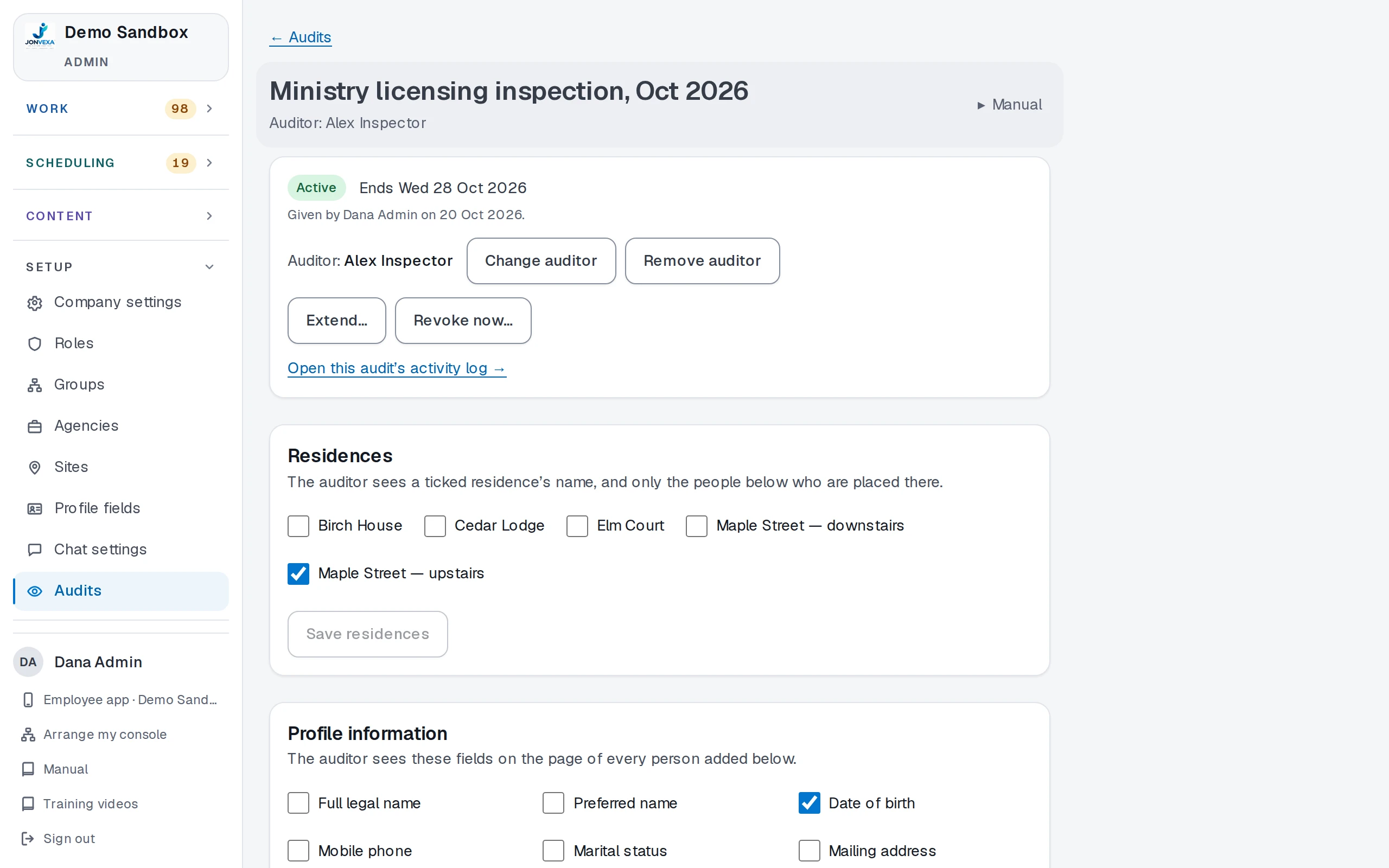
Audits and compliance
Give an auditor read-only access for one visit.
4 screens
-
 12
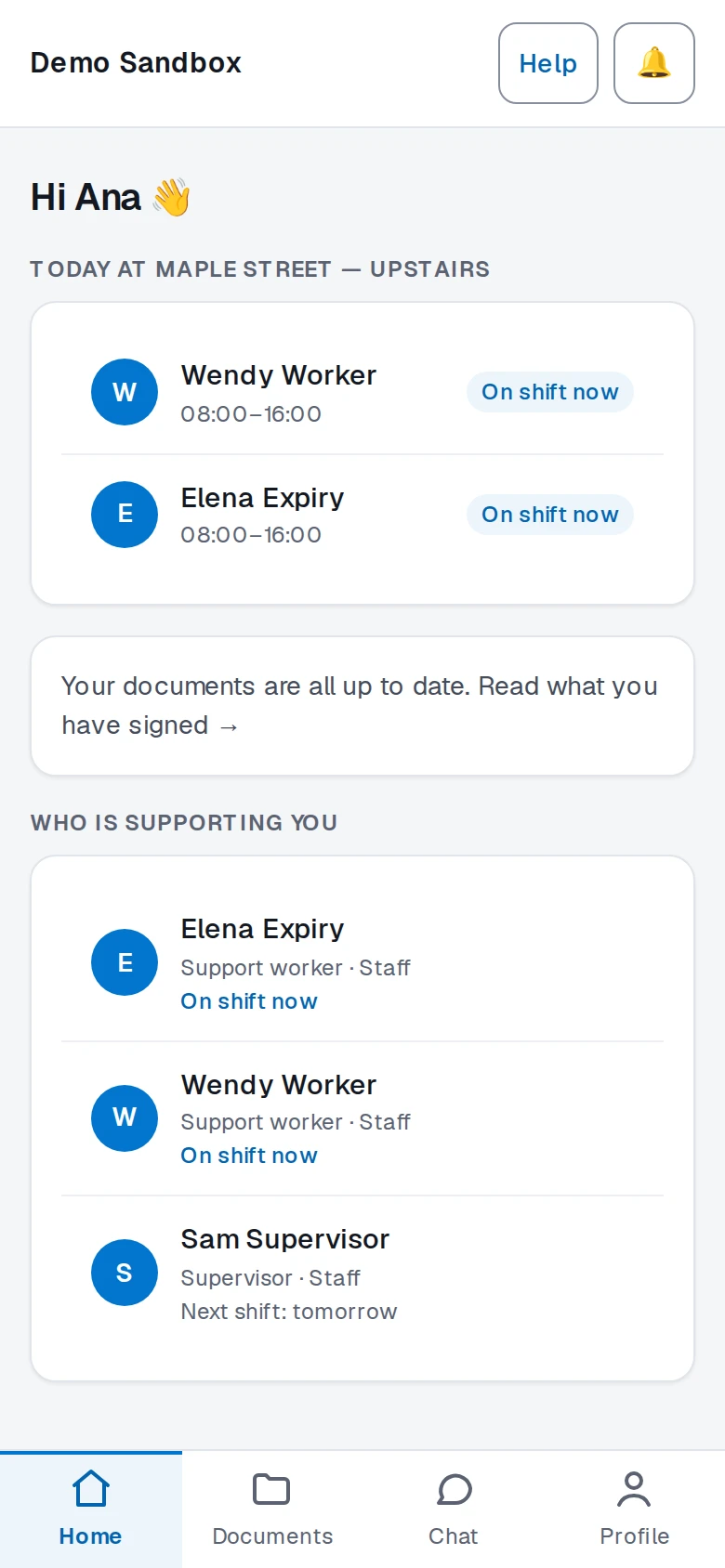
Clients and the public side
A client portal, and a record for every agency and site.
3 screens
-
 13
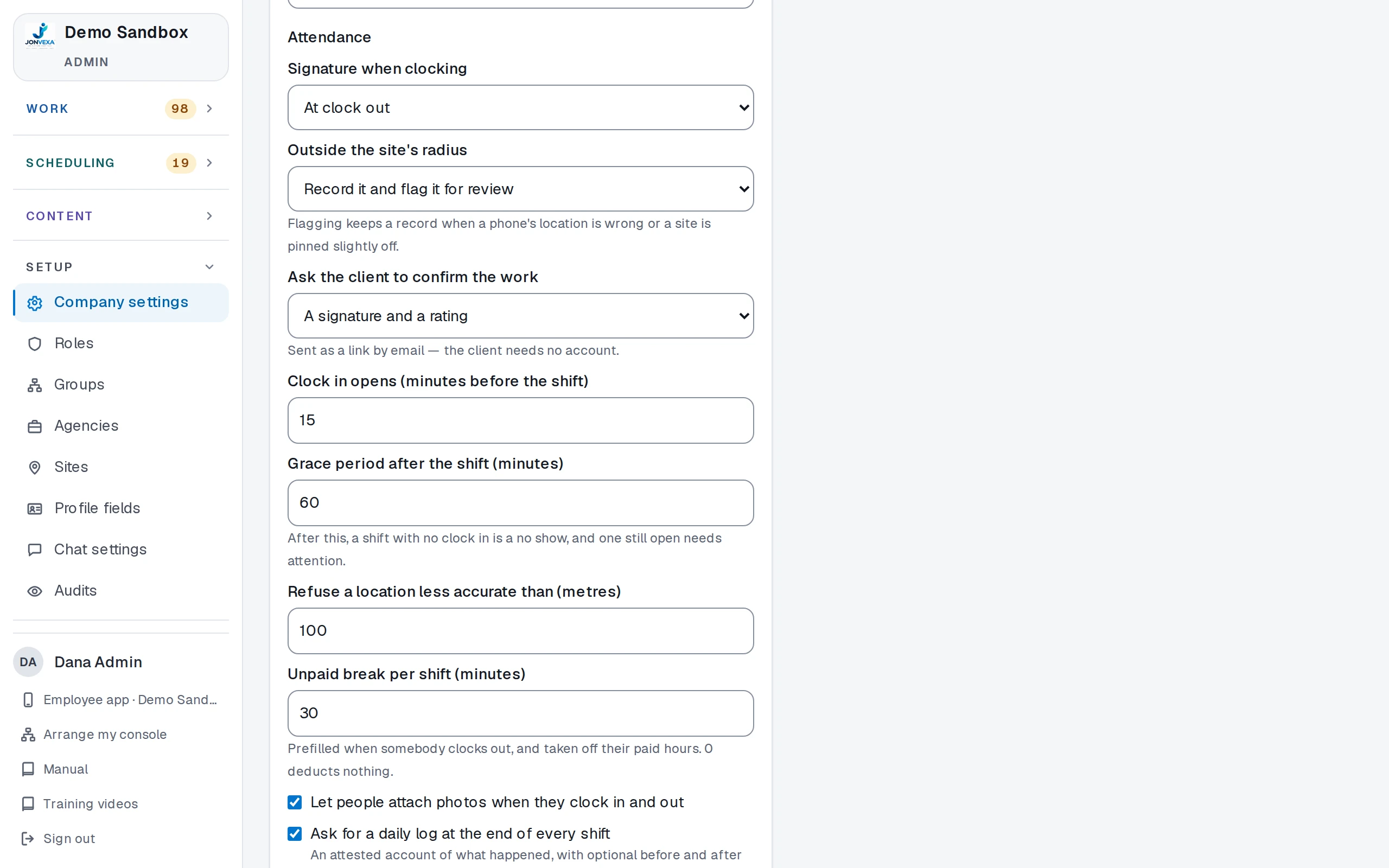
Shaped to your workflow
Call things what you call them.
4 screens
-
 14
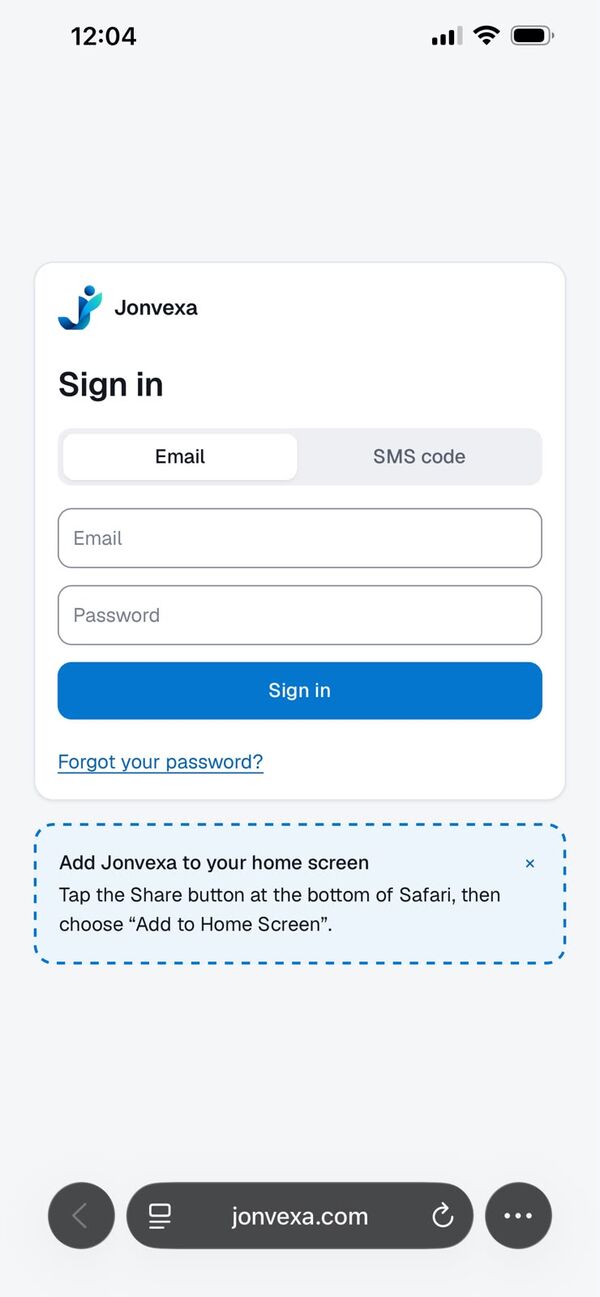
Mobile, security, privacy
A phone app with no app store.
2 screens
01 · Onboarding
From invite to active without chasing a single email.
Each group has its own list of what a new person hands in, fills in and signs. They do it on their phone; you approve it in one place.
-
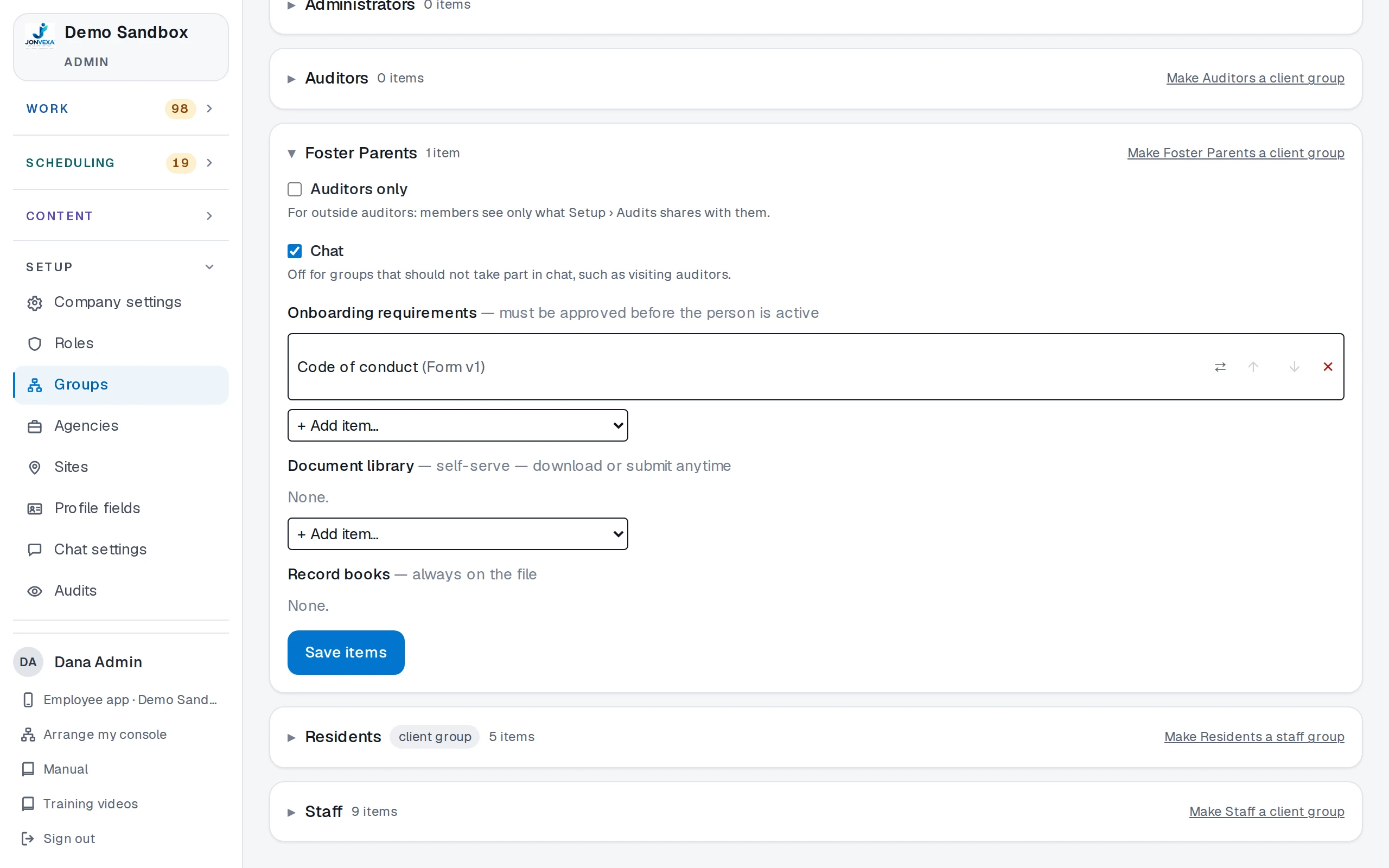
A checklist per group
Foster Parents, Staff and every other group get their own requirement list, in the order you set.
-
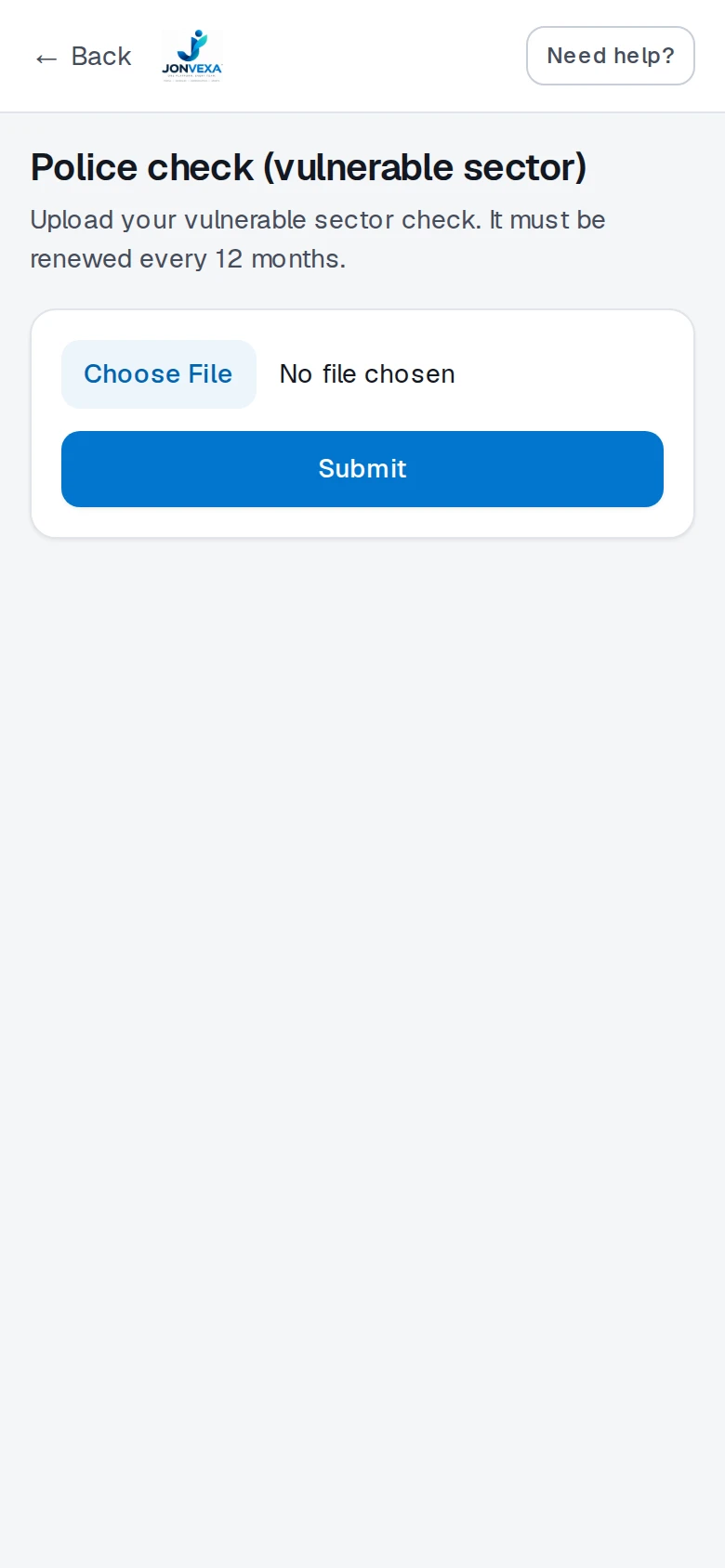
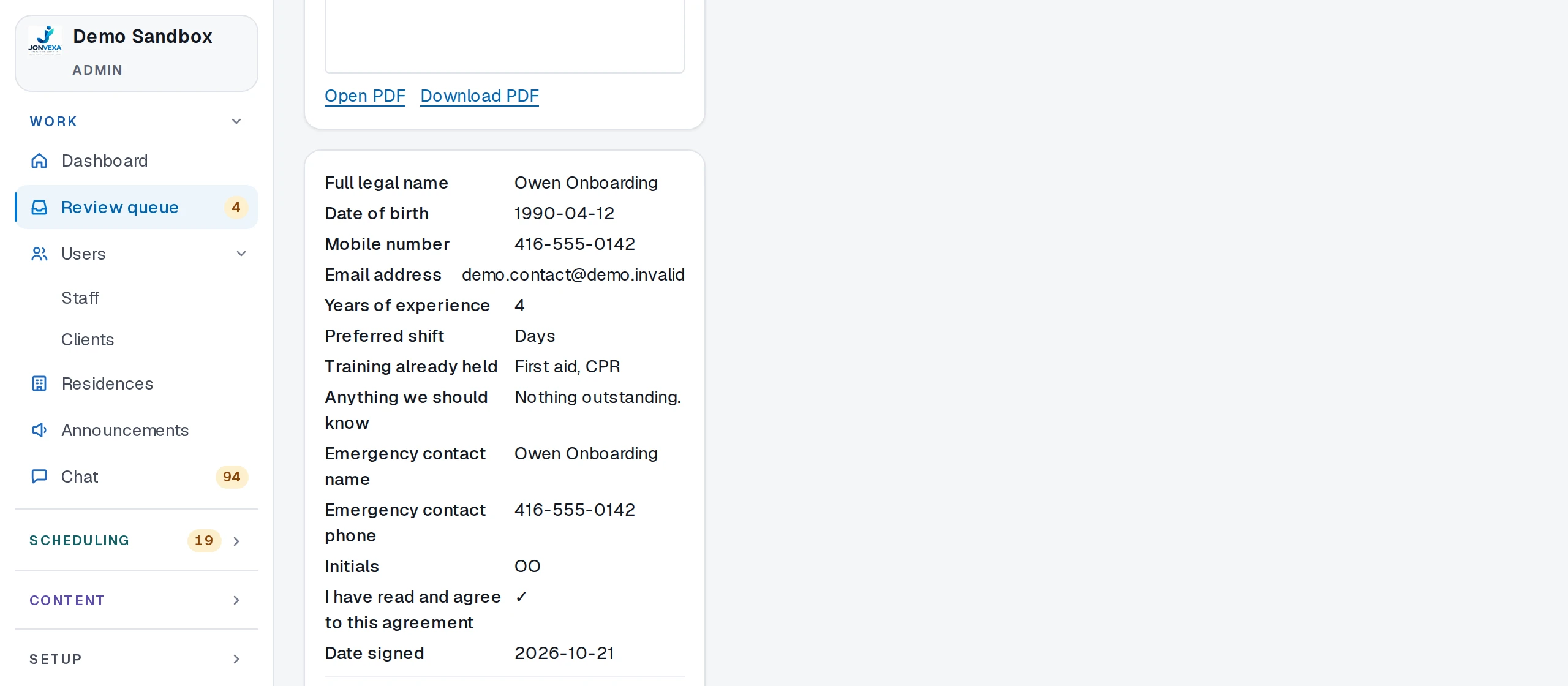
Upload, we verify
The new person uploads the document from their phone. You open it, check it, and approve or refuse it.
-
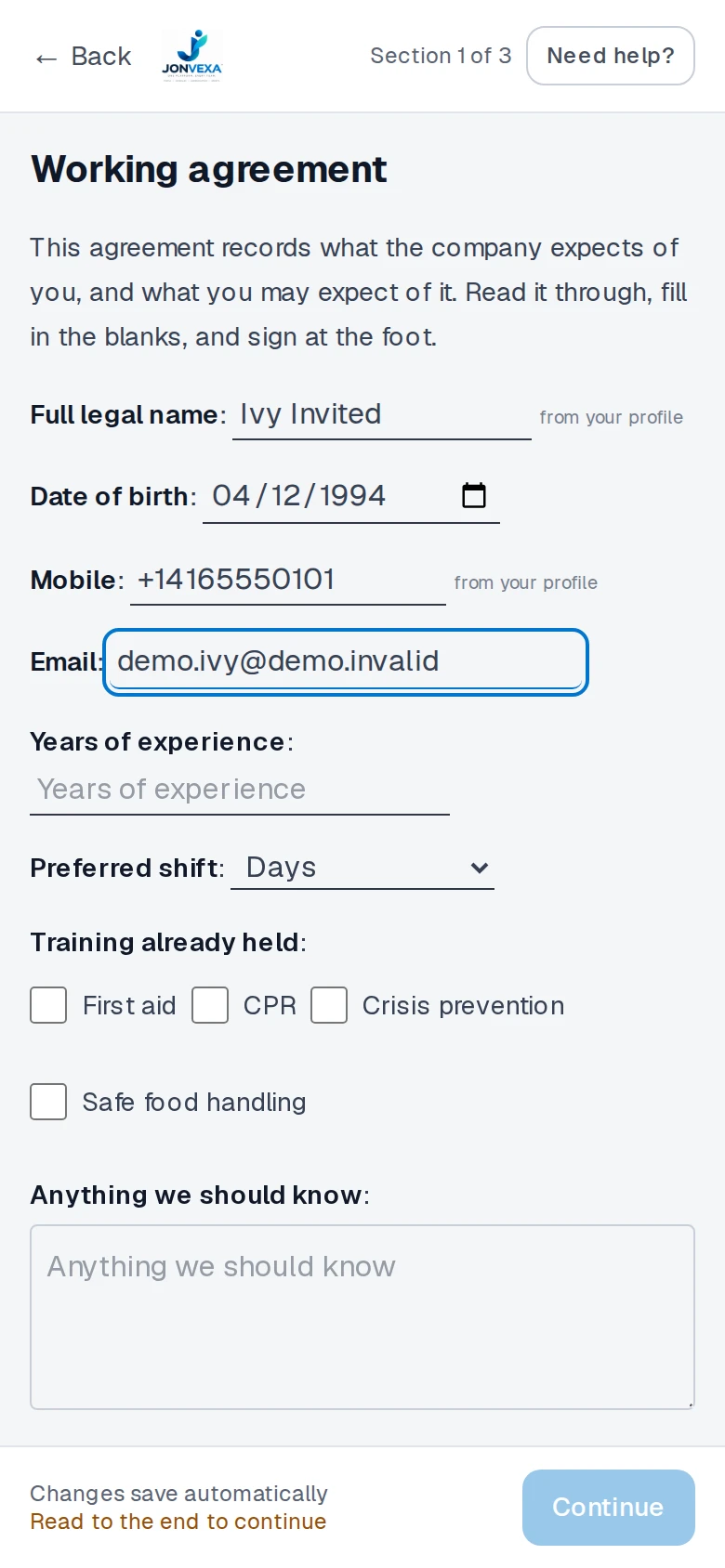
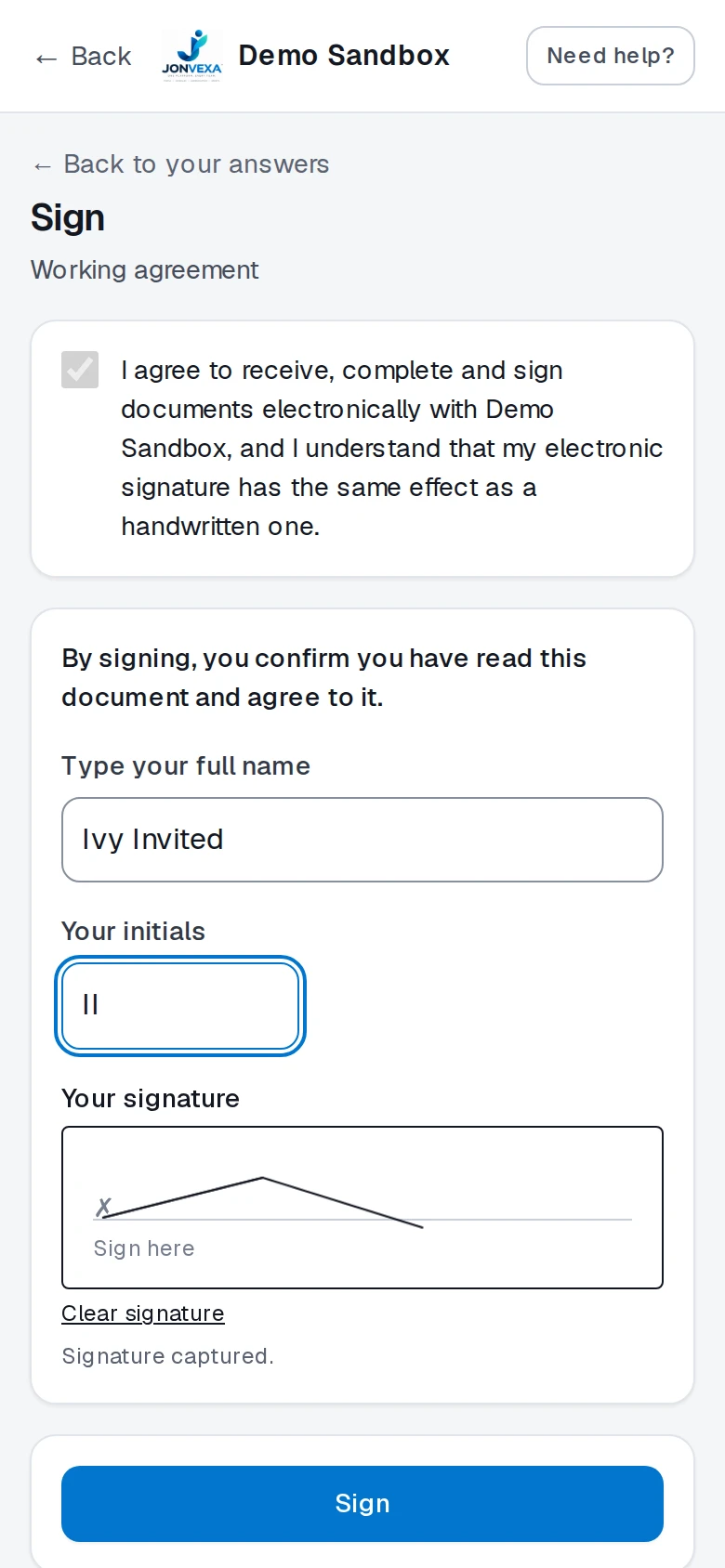
Fill the form, then sign
Forms arrive with blanks to fill, some already filled from the person's profile, and a signature at the foot.
-
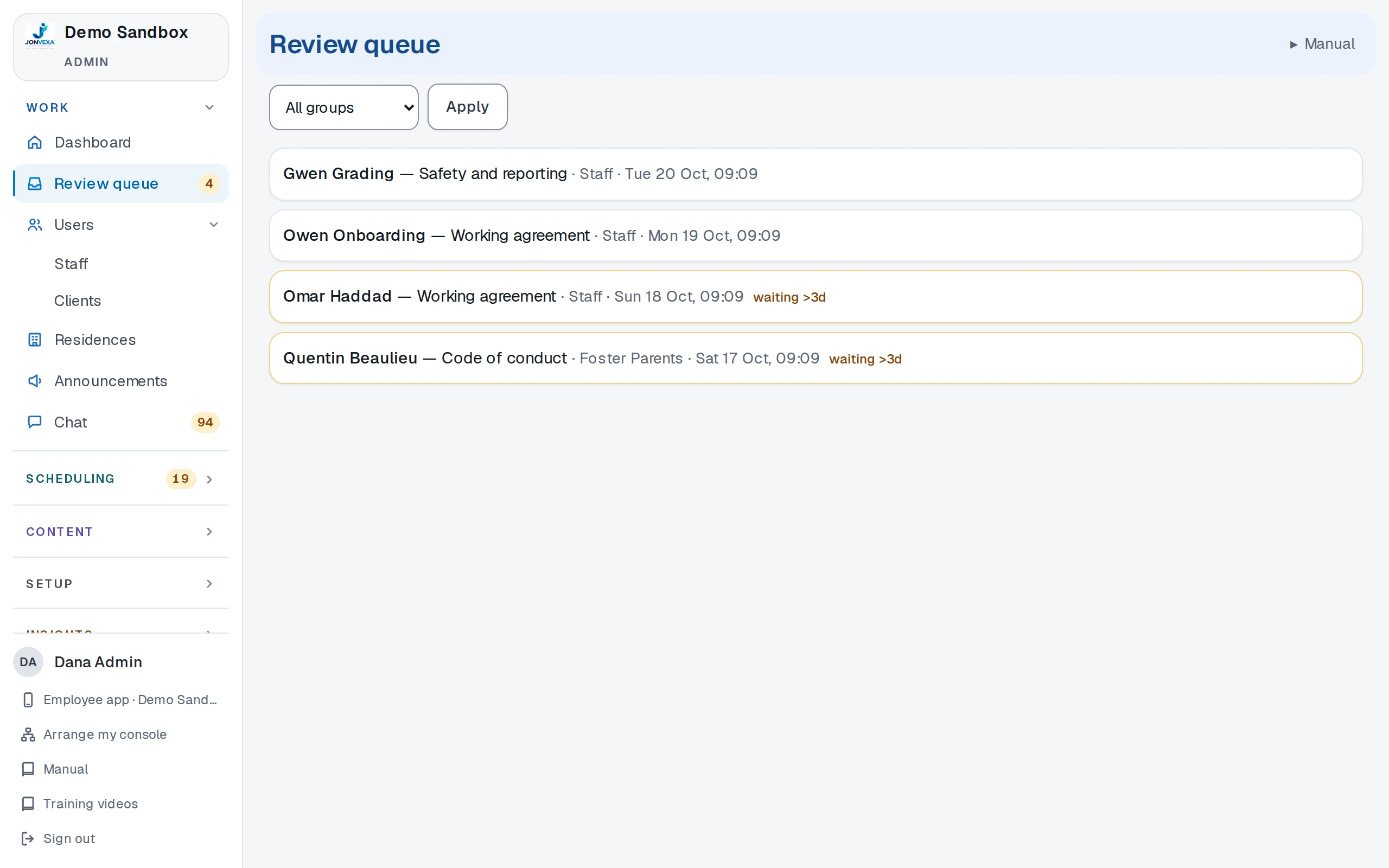
One review queue, activation your way
Everything waiting for approval sits in one queue, with the oldest flagged. Someone becomes active automatically once every required item is approved, or when you say so.

02 · Documents and signing
Your own forms, signed on screen.
Start from the PDF you already use. People fill it in and sign it on their phone, and every signed copy is sealed.
-
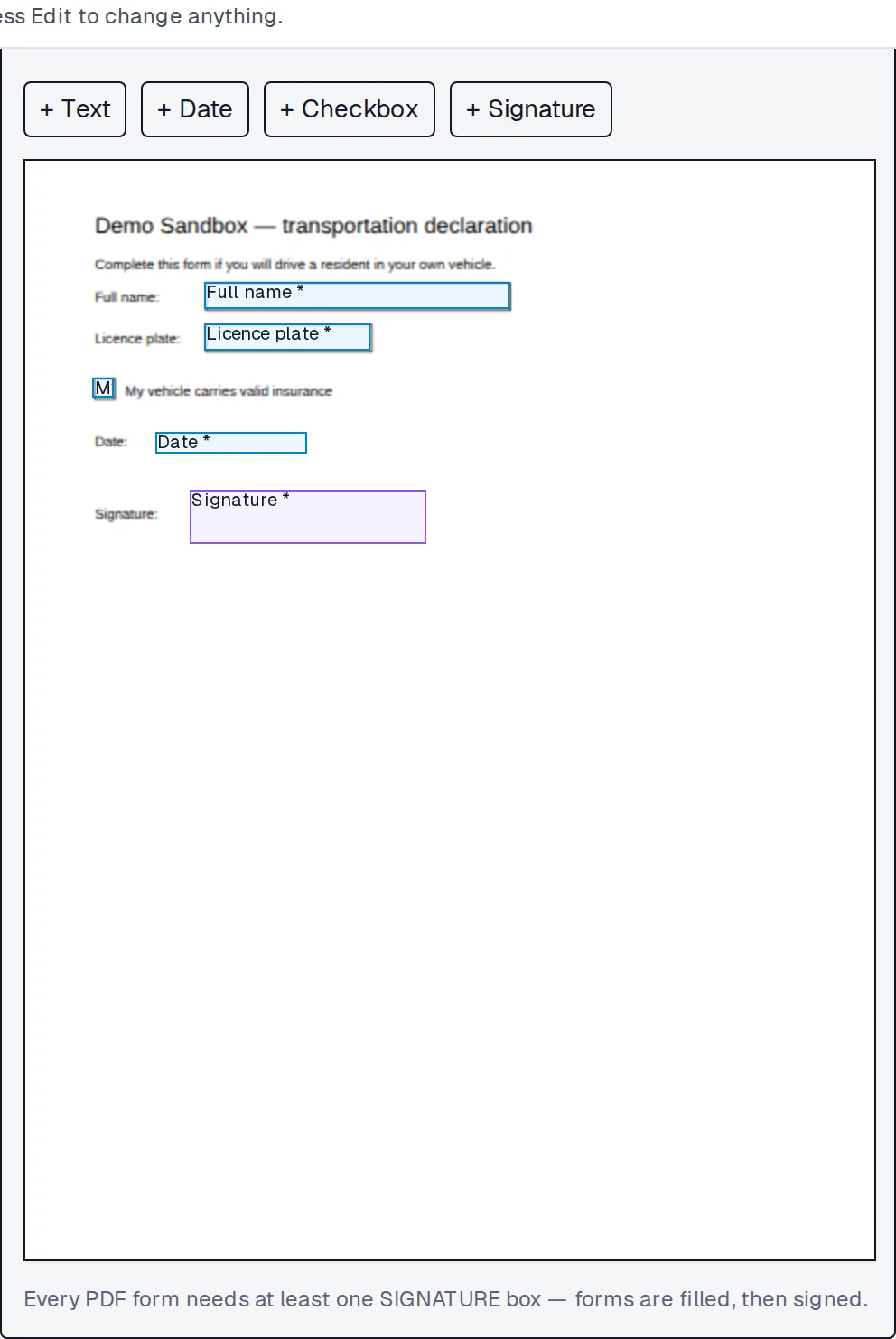
Build a form on your PDF
Drop text, date, checkbox and signature boxes onto your own PDF. People fill the blanks first, then sign.
-
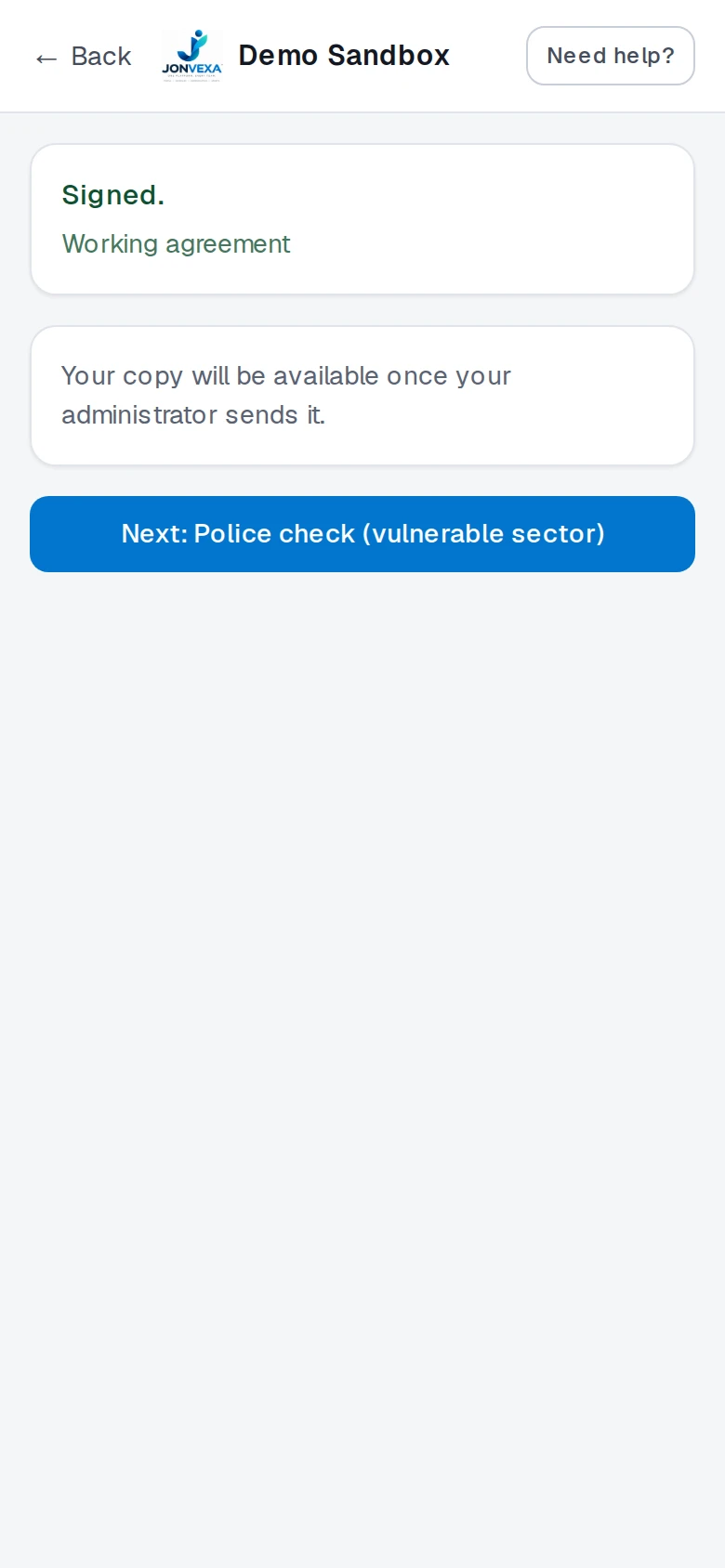
A sealed signature
The signer consents, draws, and confirms. The signed document is sealed with an evidence page and a tamper-evident hash, and the signer gets a copy once you send it.
-
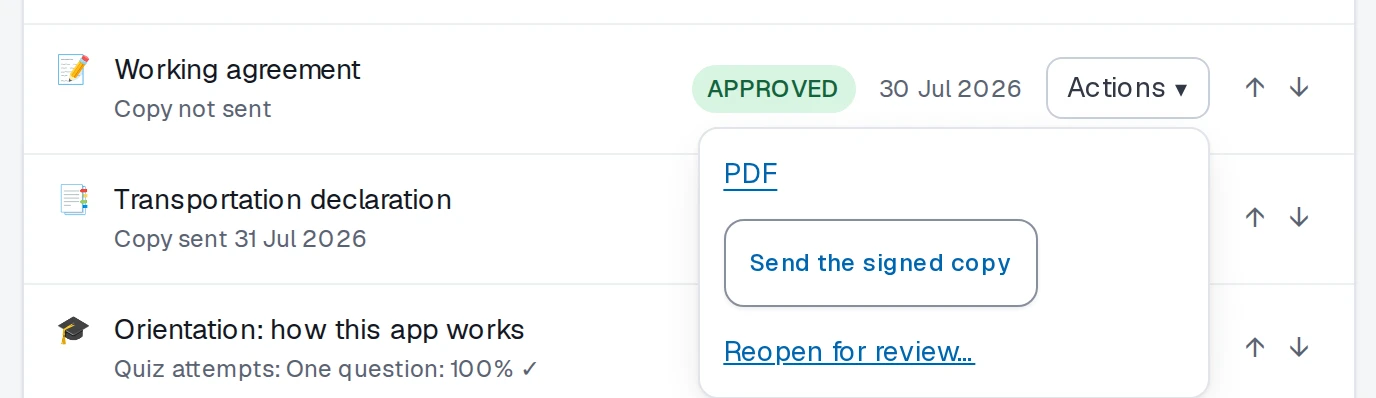
Expiry, send a copy, reopen
Expiring documents line up in one list. From a person's file you send the signed copy, or reopen an approved document when something has changed.
03 · Training
Courses your people finish on their phone.
Write a course once. Each person reads it section by section, agrees to each one and takes the quiz.
-
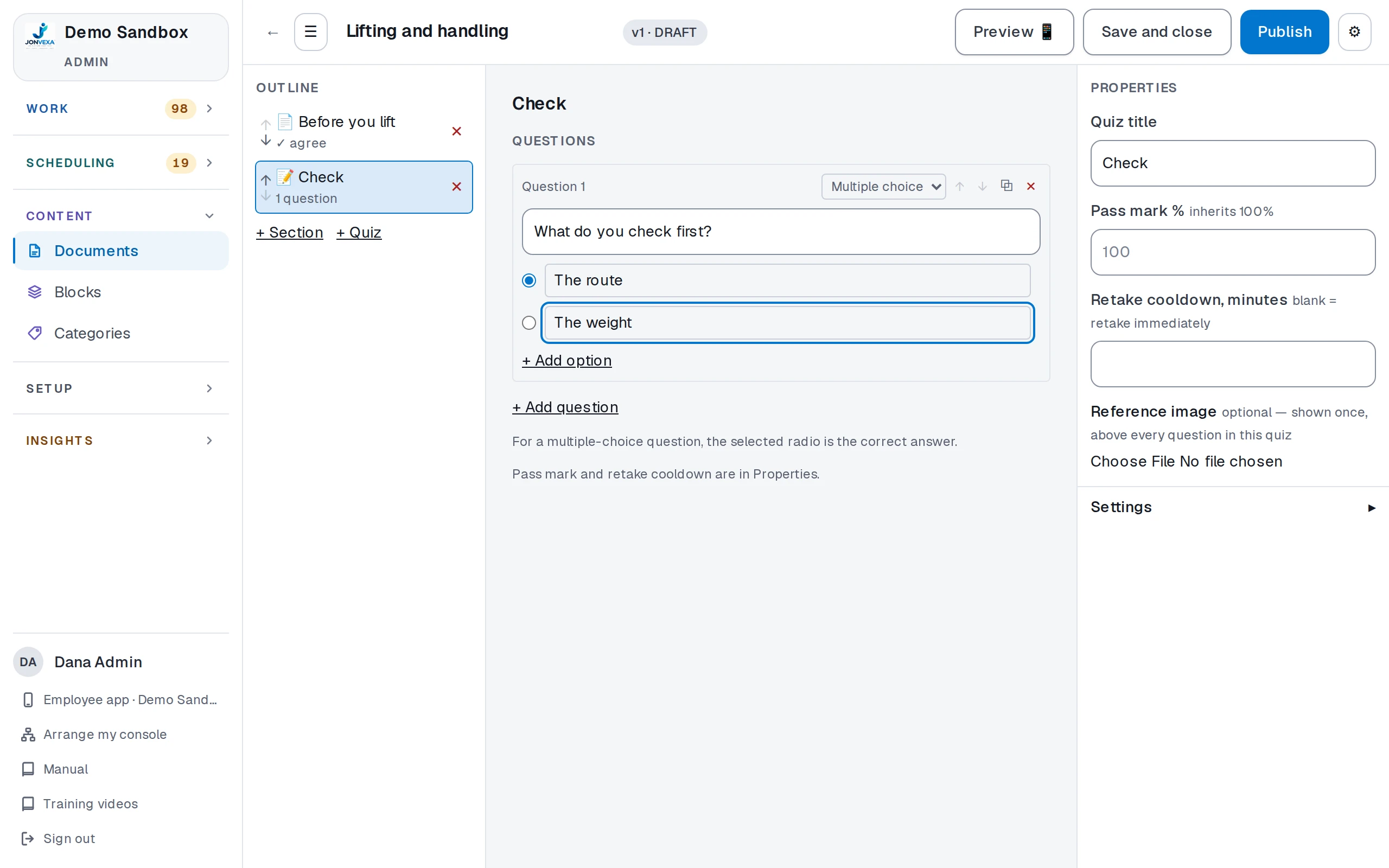
Build a course
Sections and quizzes in one outline, with a pass mark and a retake wait you set.
-
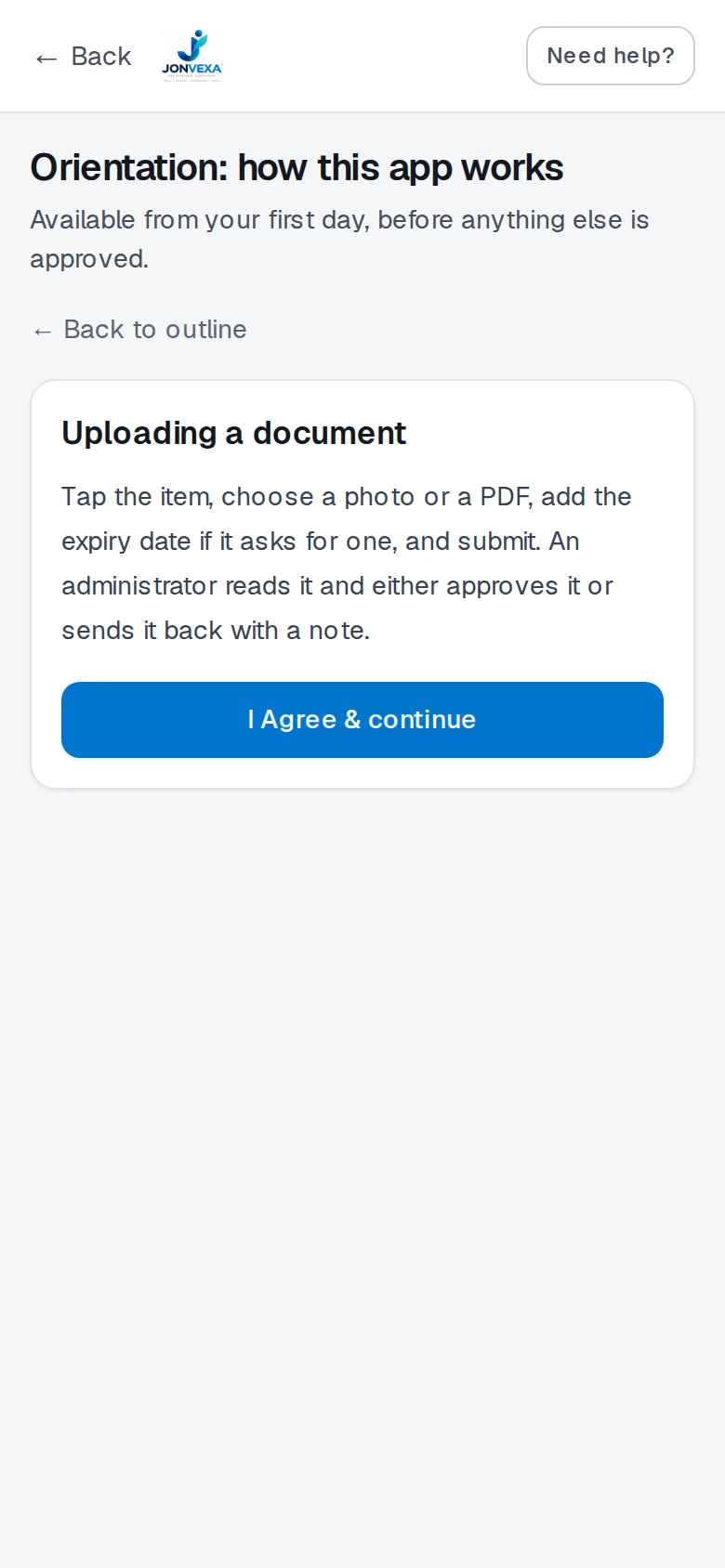
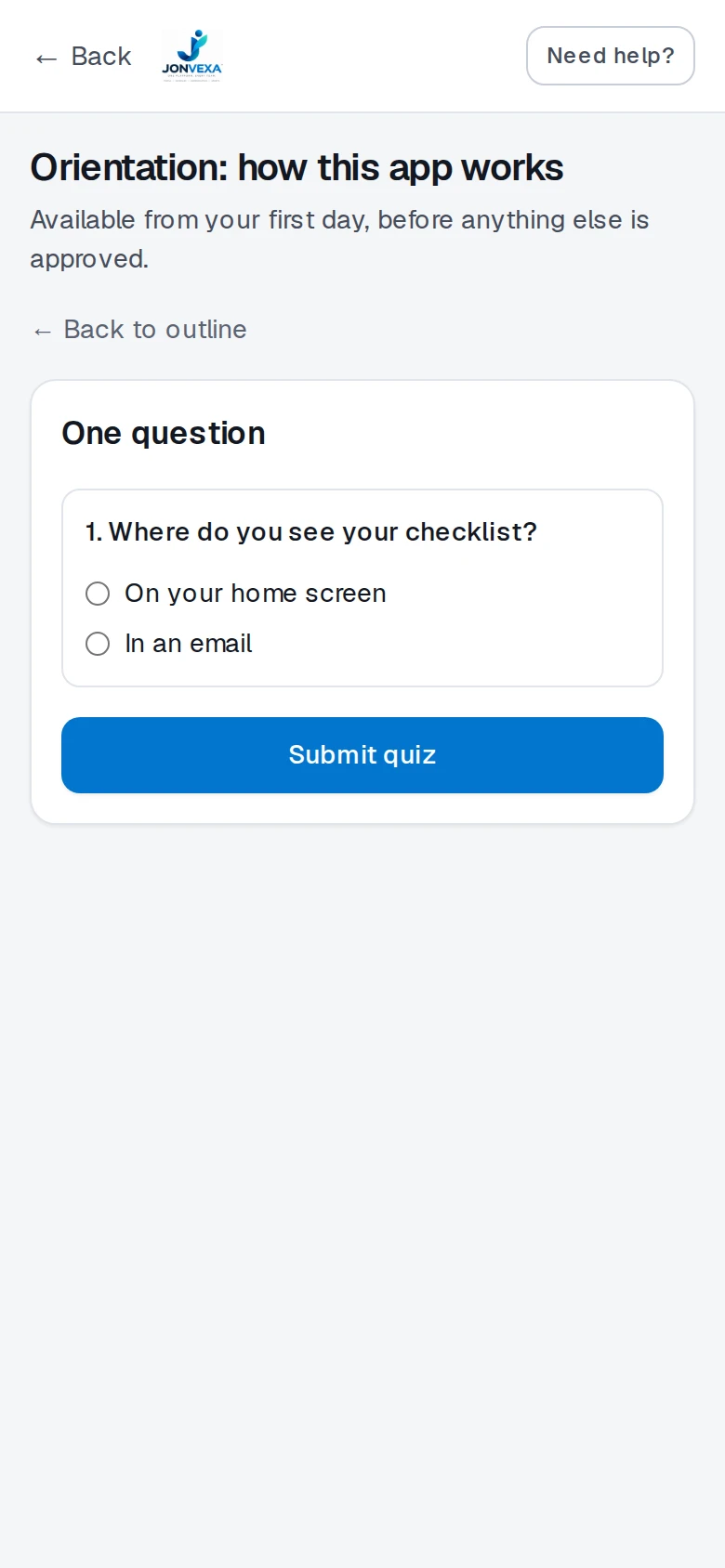
Read, agree, quiz
Each section ends with "I Agree"; the quiz comes after.
-
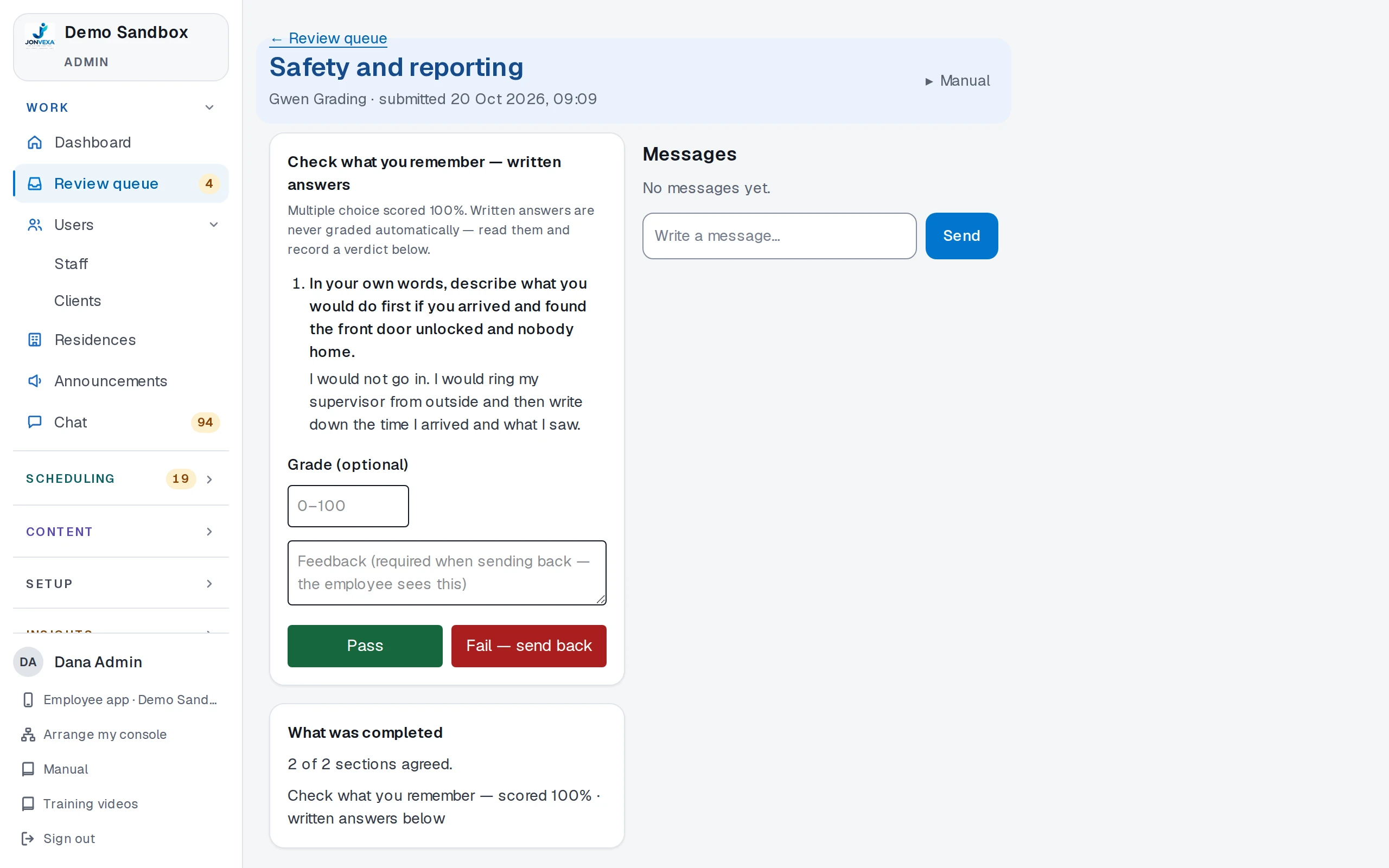
Written answers, graded by you
Multiple choice marks itself. A written answer waits in the review queue for you to read, pass or send back.
04 · Scheduling
Every shift, every site, one week.
Plan the week, fill the gaps and see who is free, without a spreadsheet beside you.
-
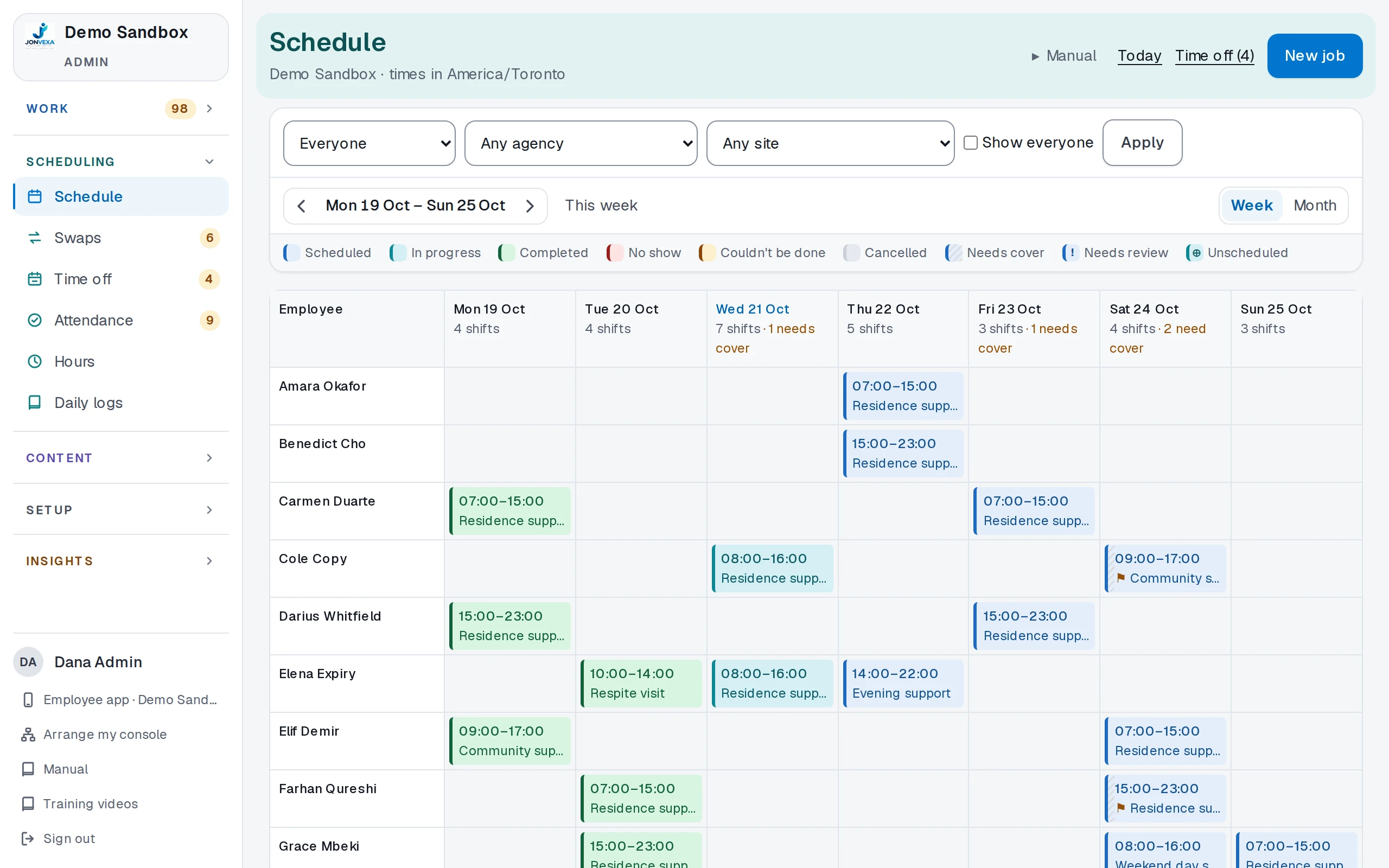
The week
Everyone's shifts by day, filtered by agency or site, with the days that need cover marked.
-
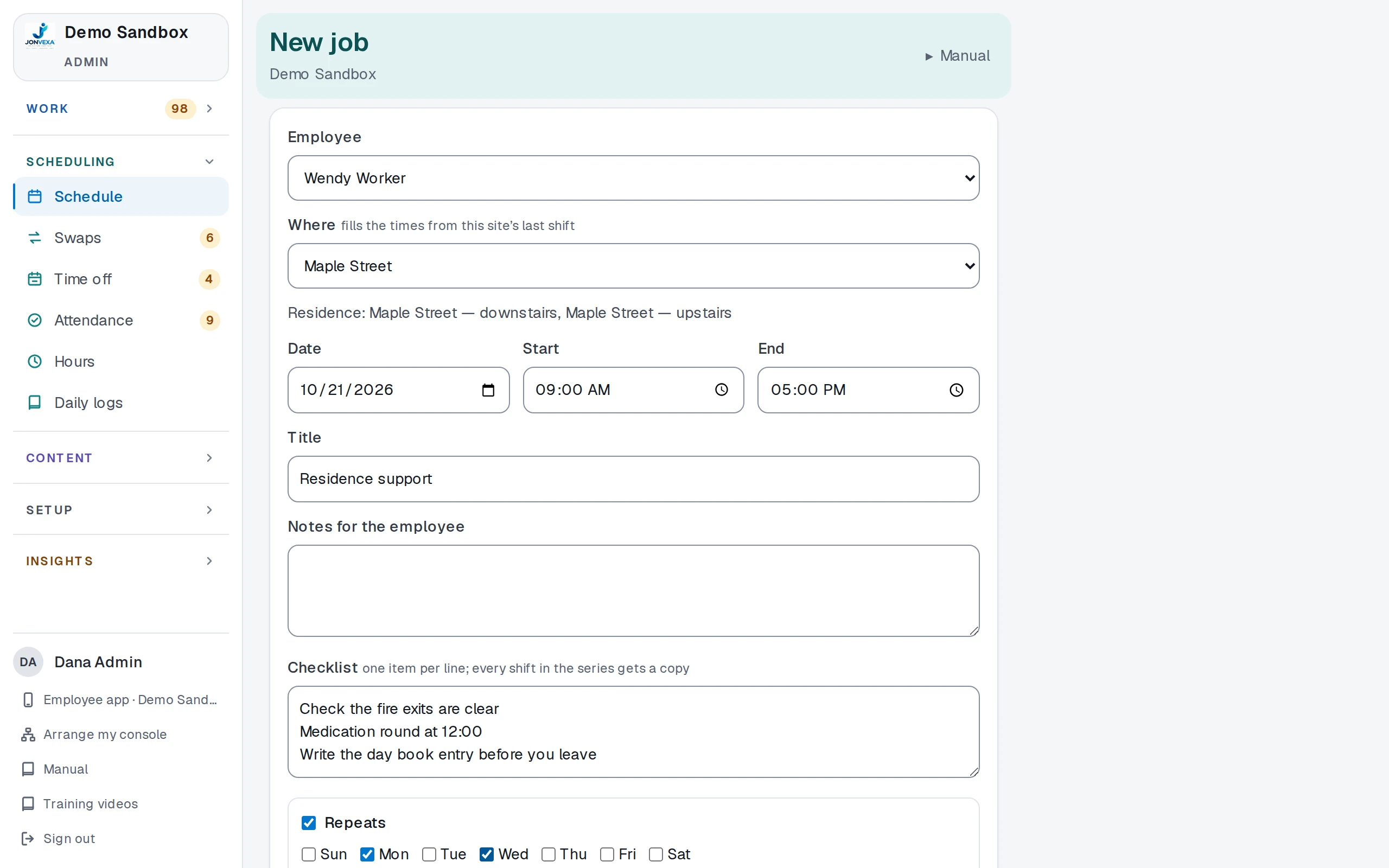
Repeating shifts, sites and residences
A shift belongs to a site and the residences there, and can repeat on the days you tick, each with its own checklist.
-
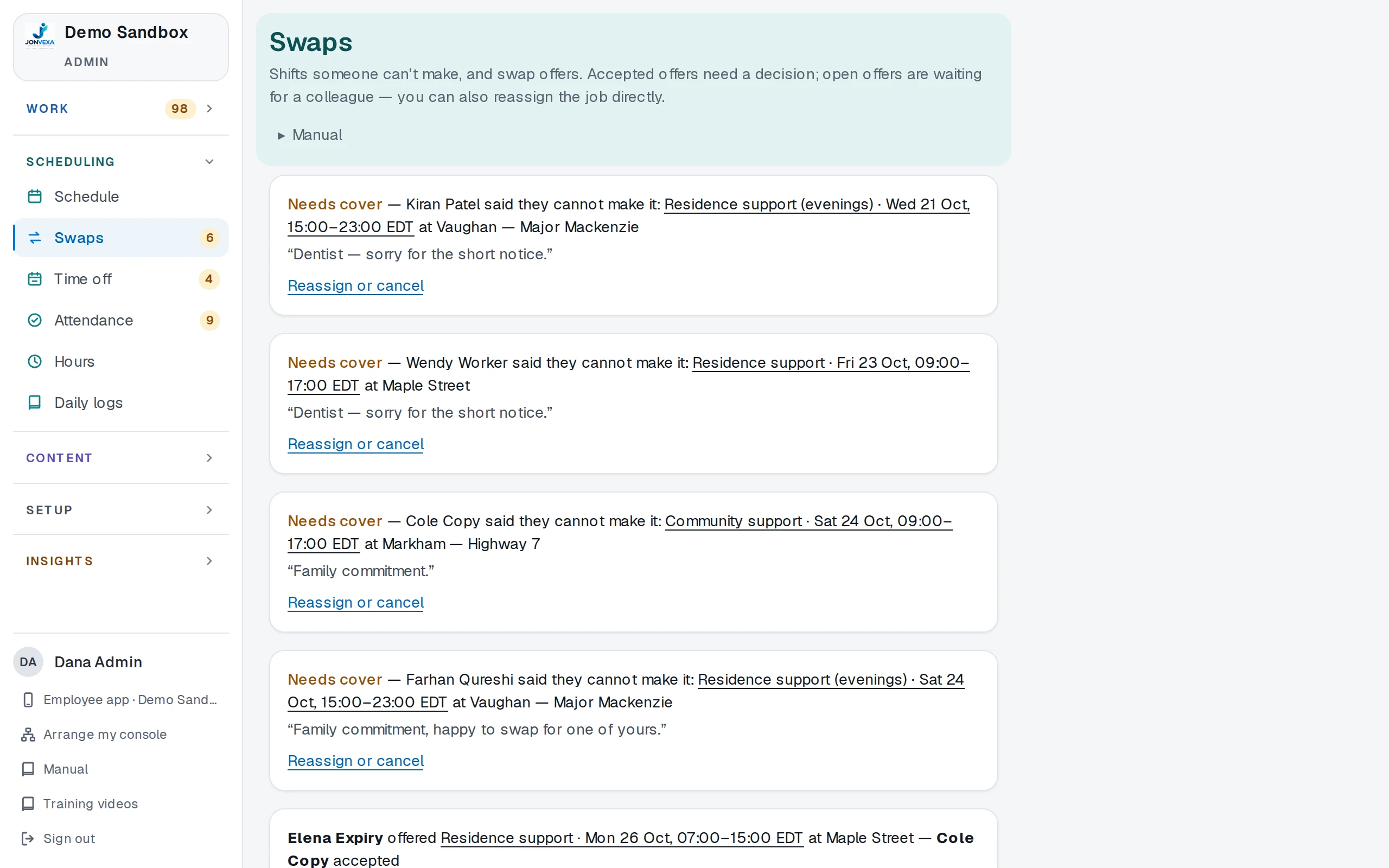
Swaps and cover
Someone who can't make a shift offers it to a colleague or tells you. You approve the swap or reassign the shift.
-
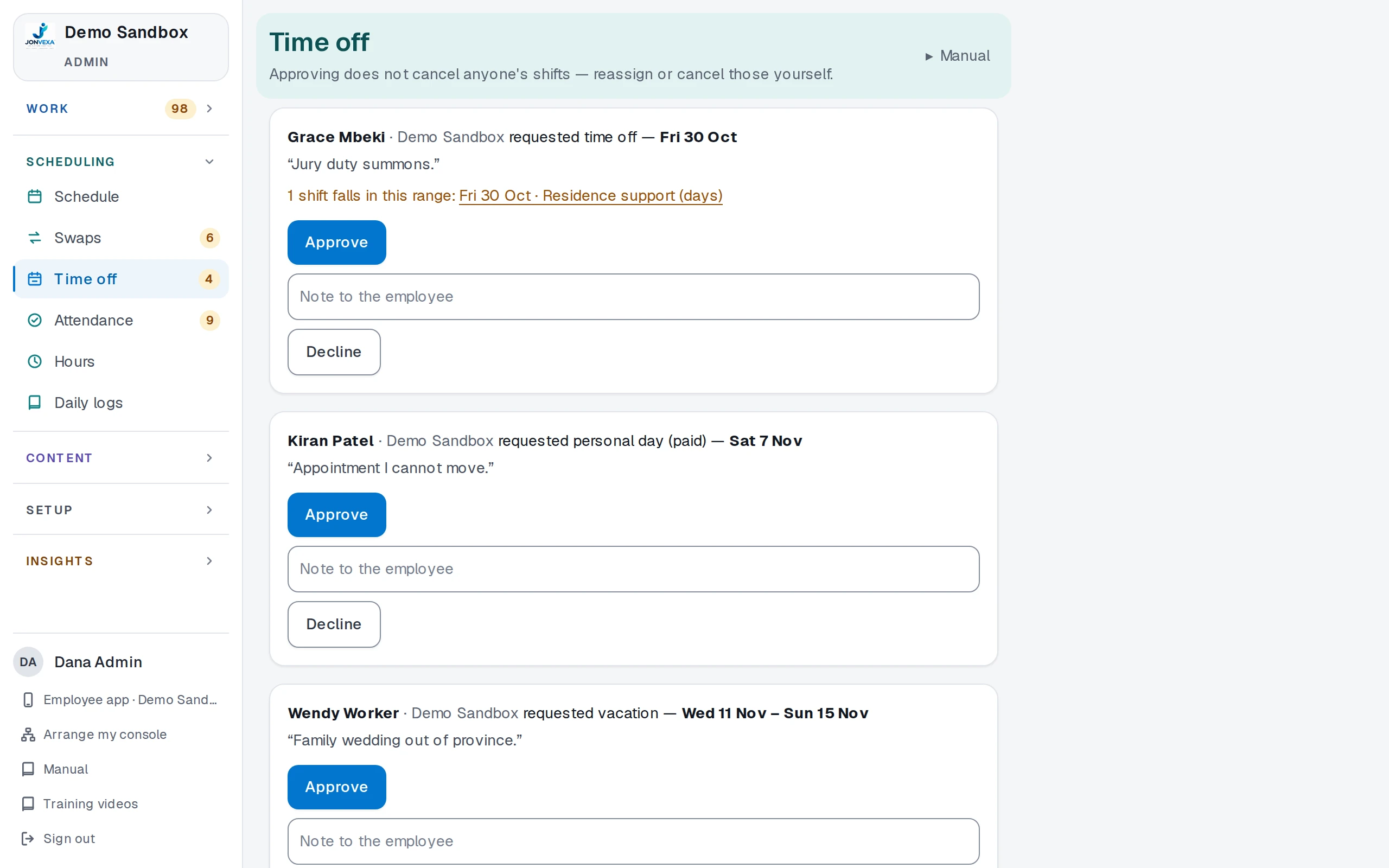
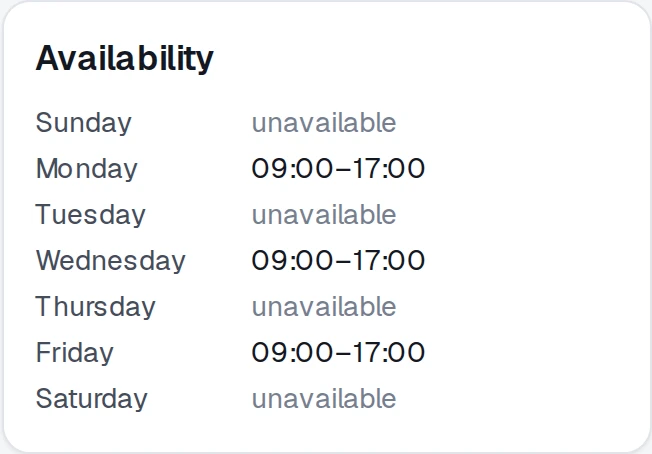
Time off and availability
Approve or decline a request with the shifts it touches shown beside it, and read each person's weekly availability.
05 · Attendance and hours
Clock in from the phone, hours out as a file.
Each clock-in is checked against the site's area. What comes out the other end is hours you can pay from.
-
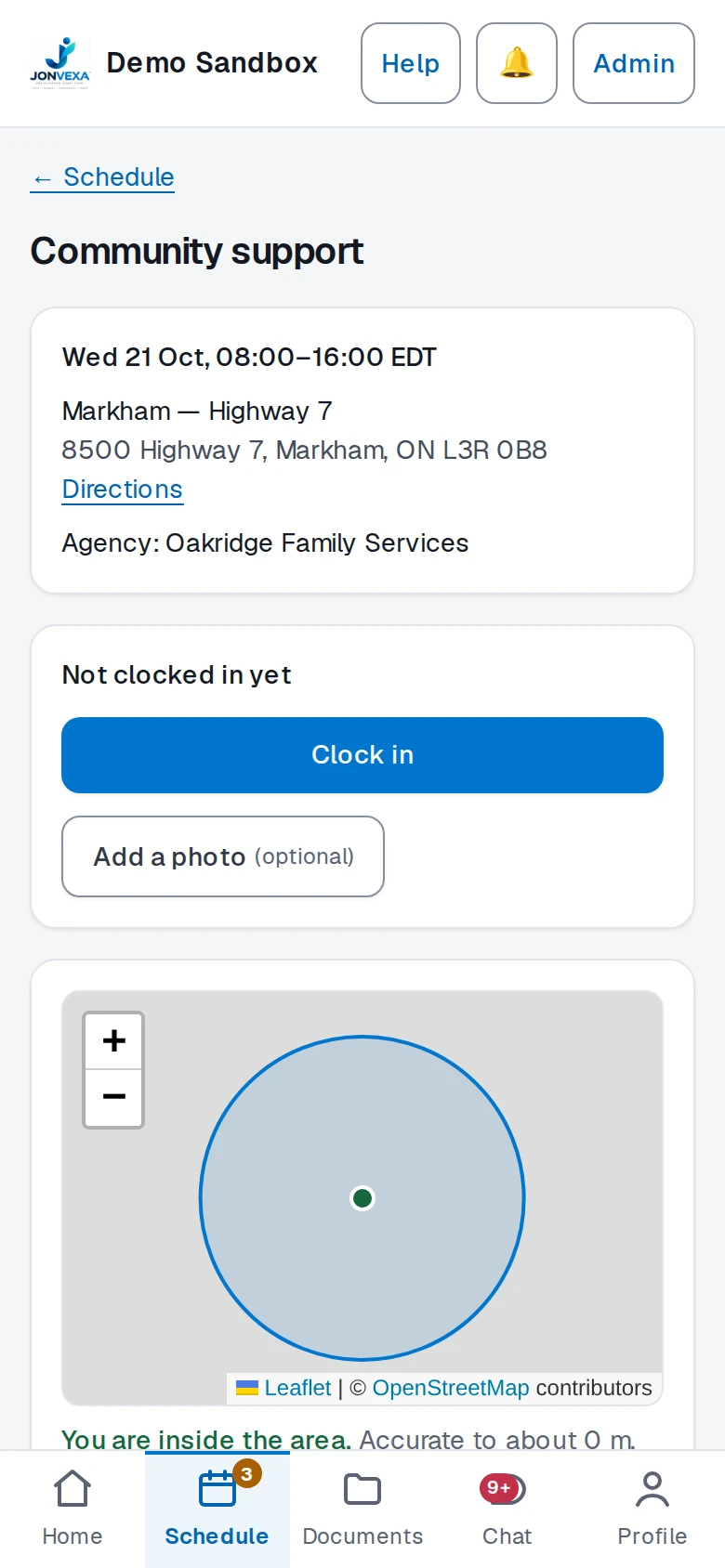
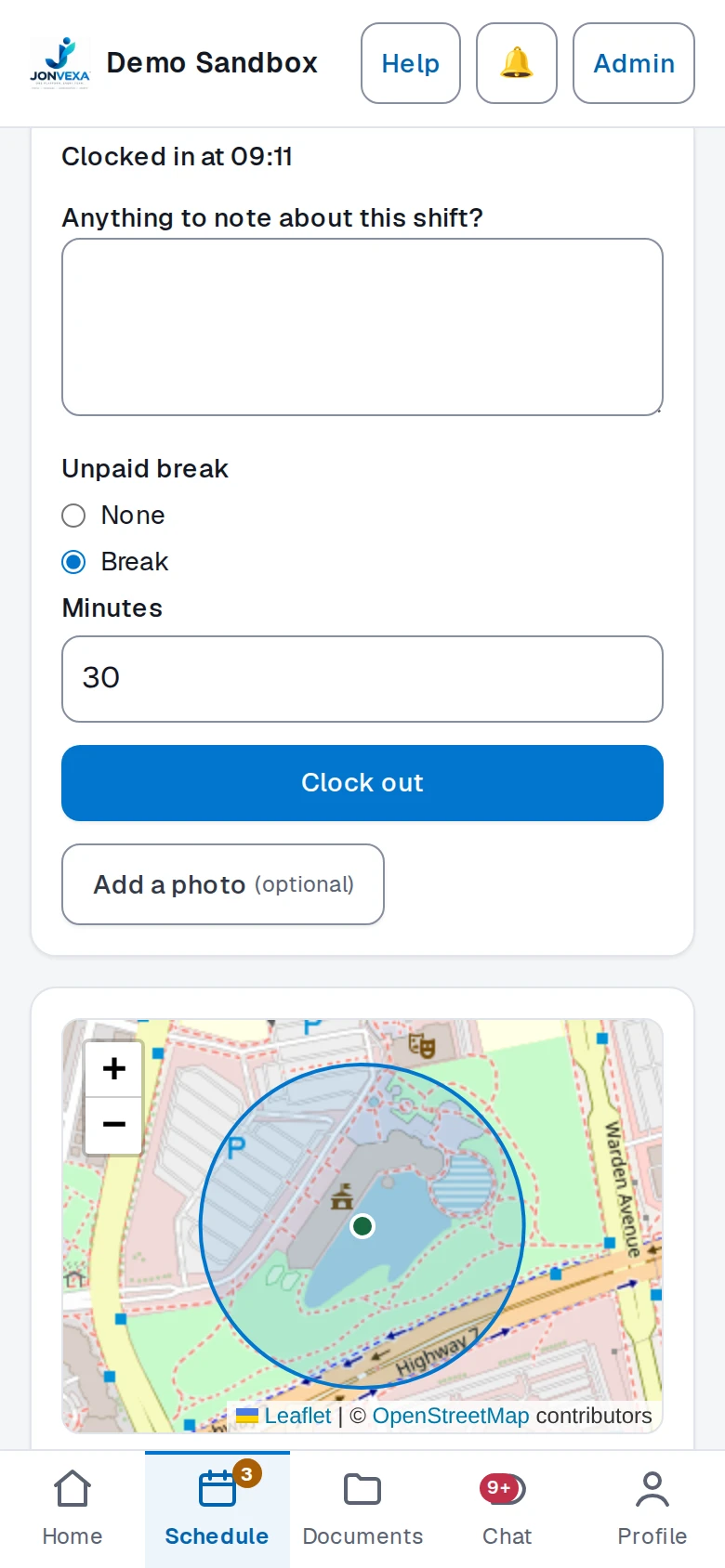
Clock in, clock out
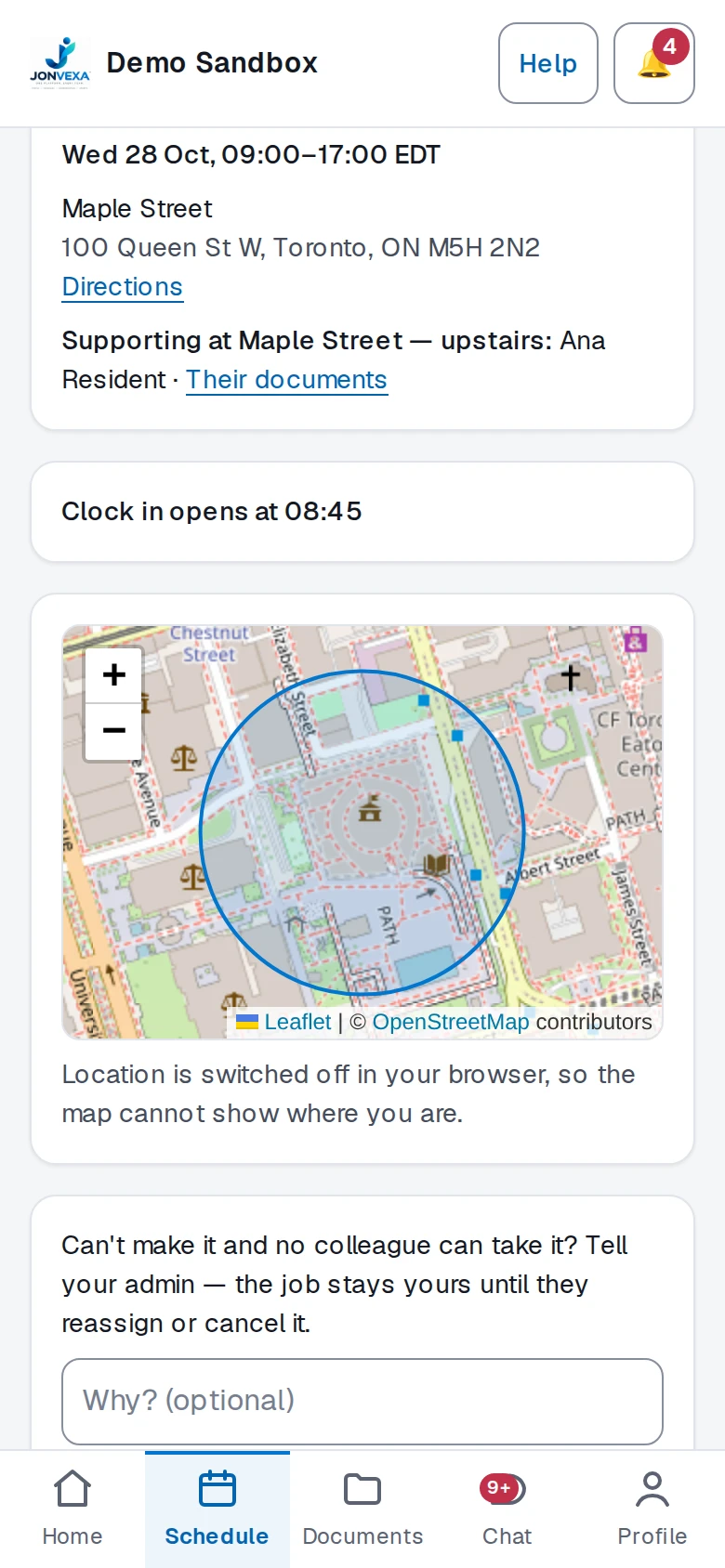
One button on the shift, a map of the site's area, and the unpaid break recorded at clock-out.
-
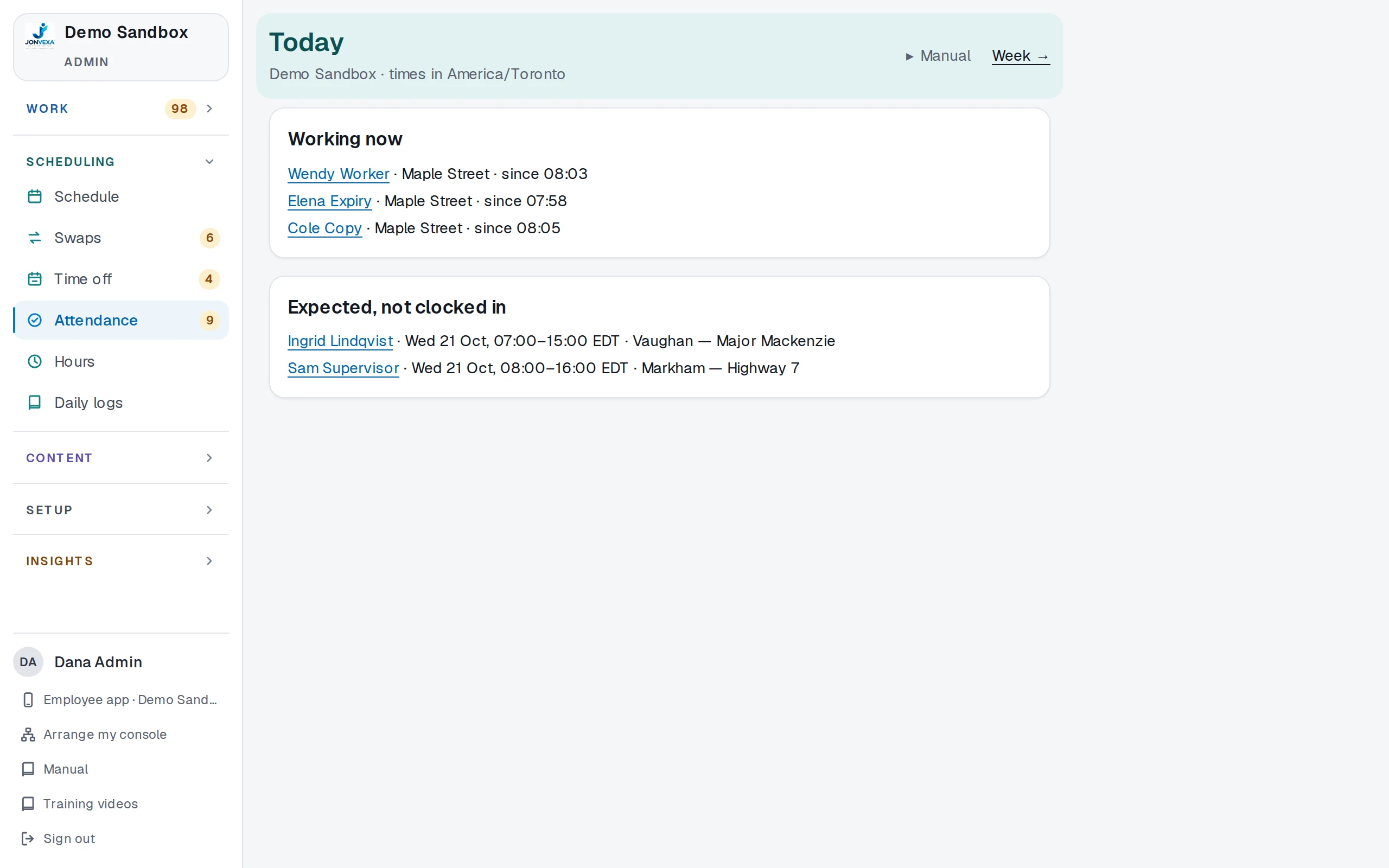
The Today board
Who is working now, where and since when, and who was expected but has not clocked in.
-
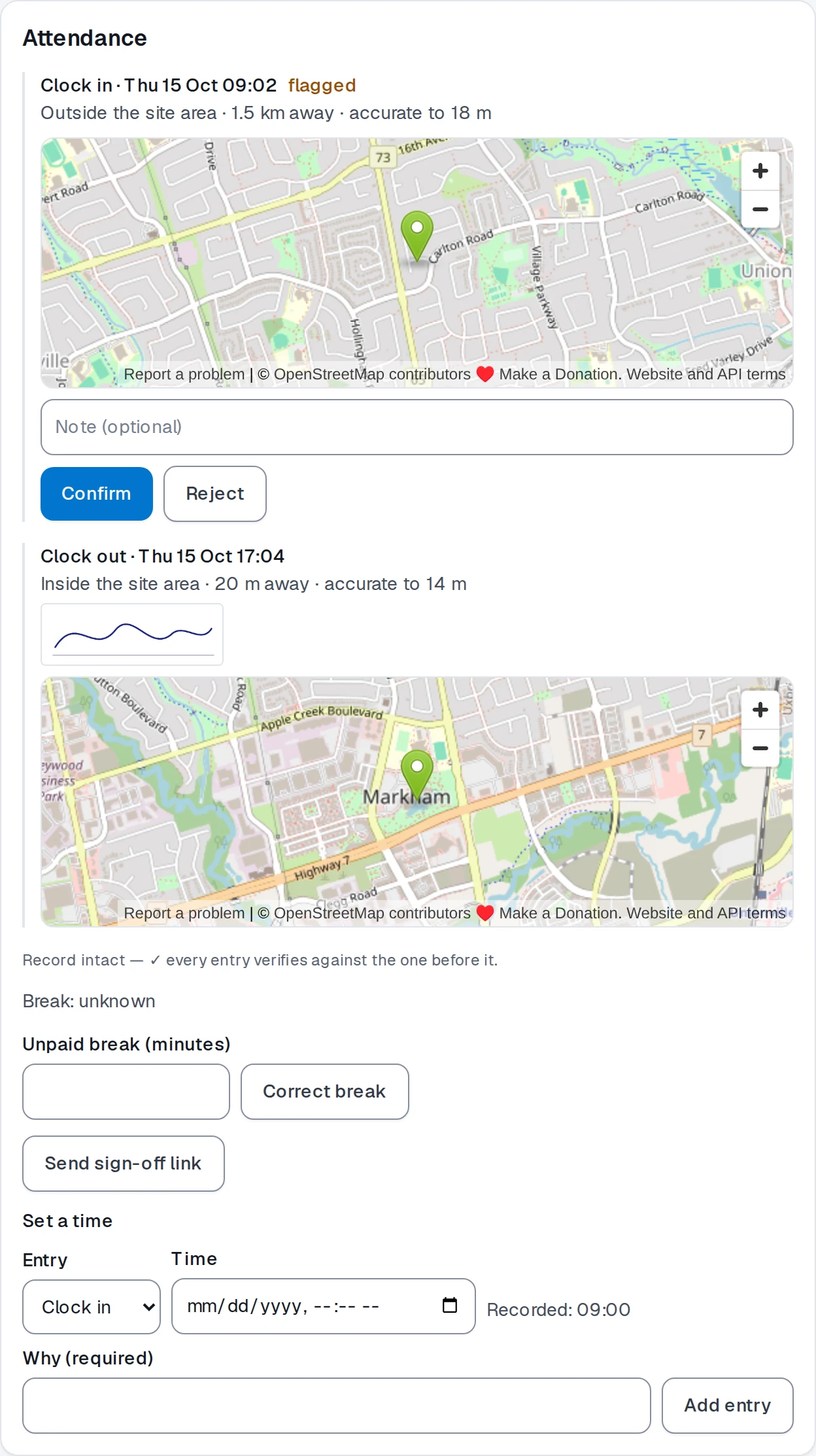
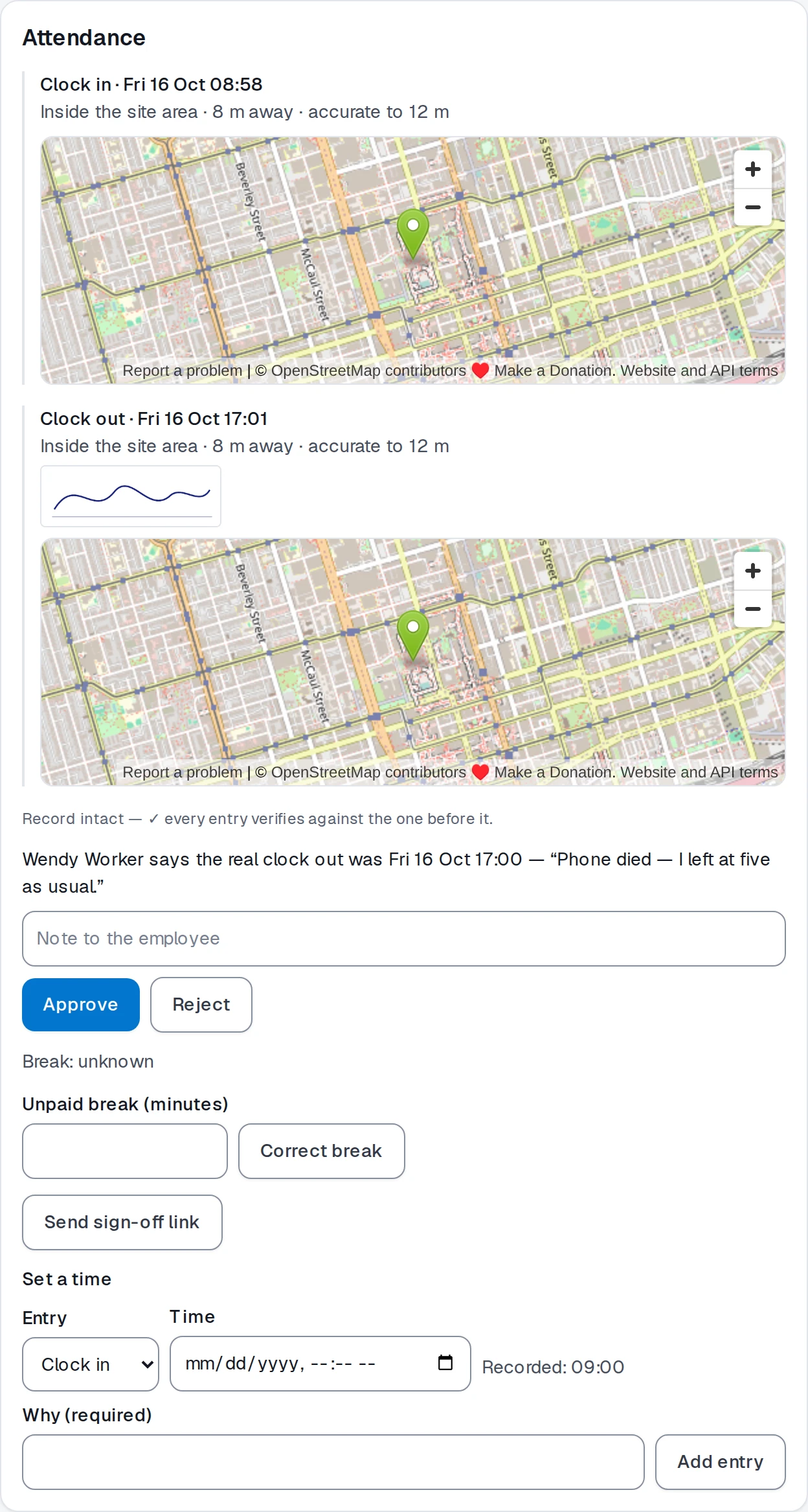
Flags and corrections
A clock-in outside the area is flagged for you to confirm or reject. A person can ask for a time to be corrected, and you approve it, with a reason kept on the record.
-
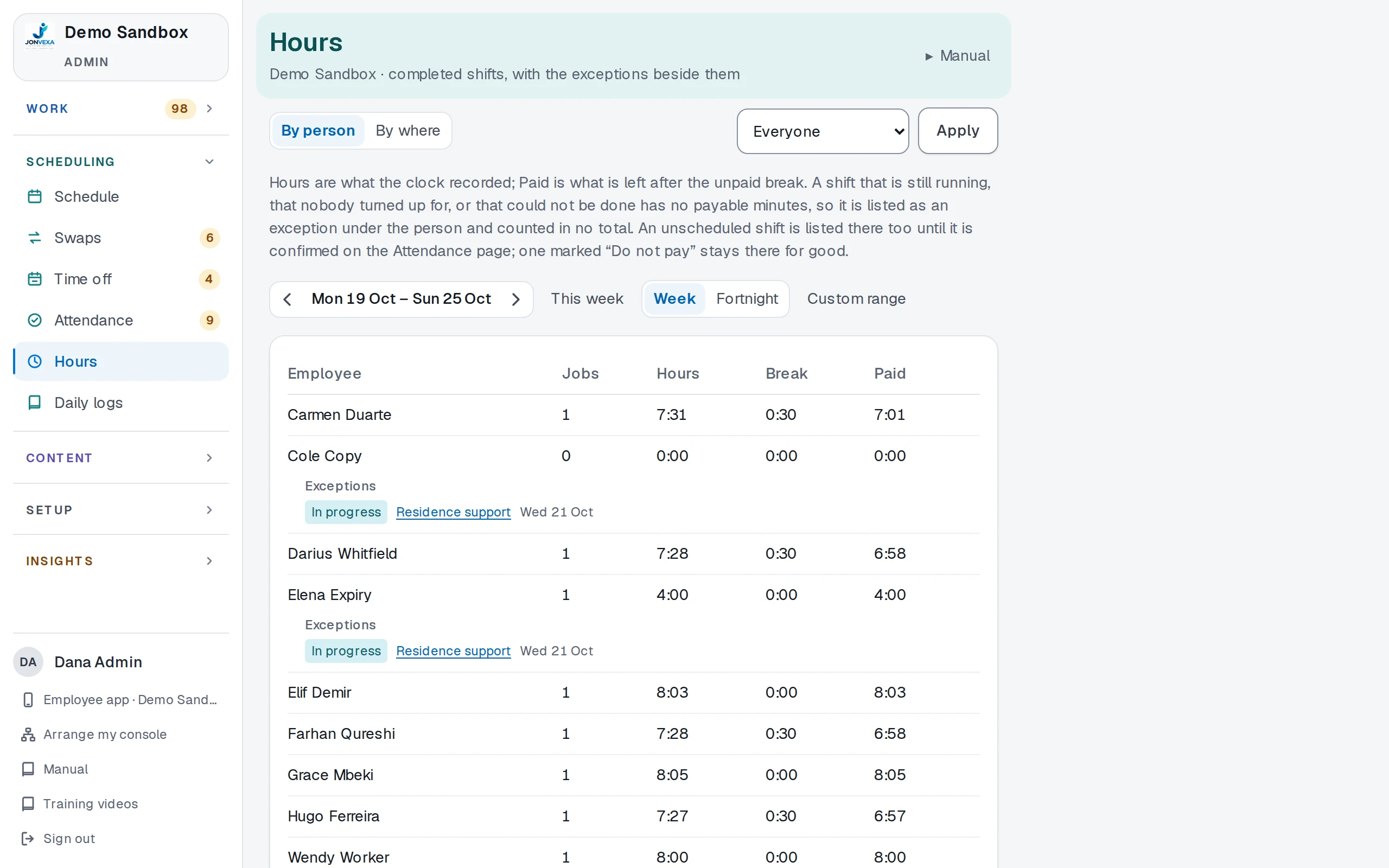
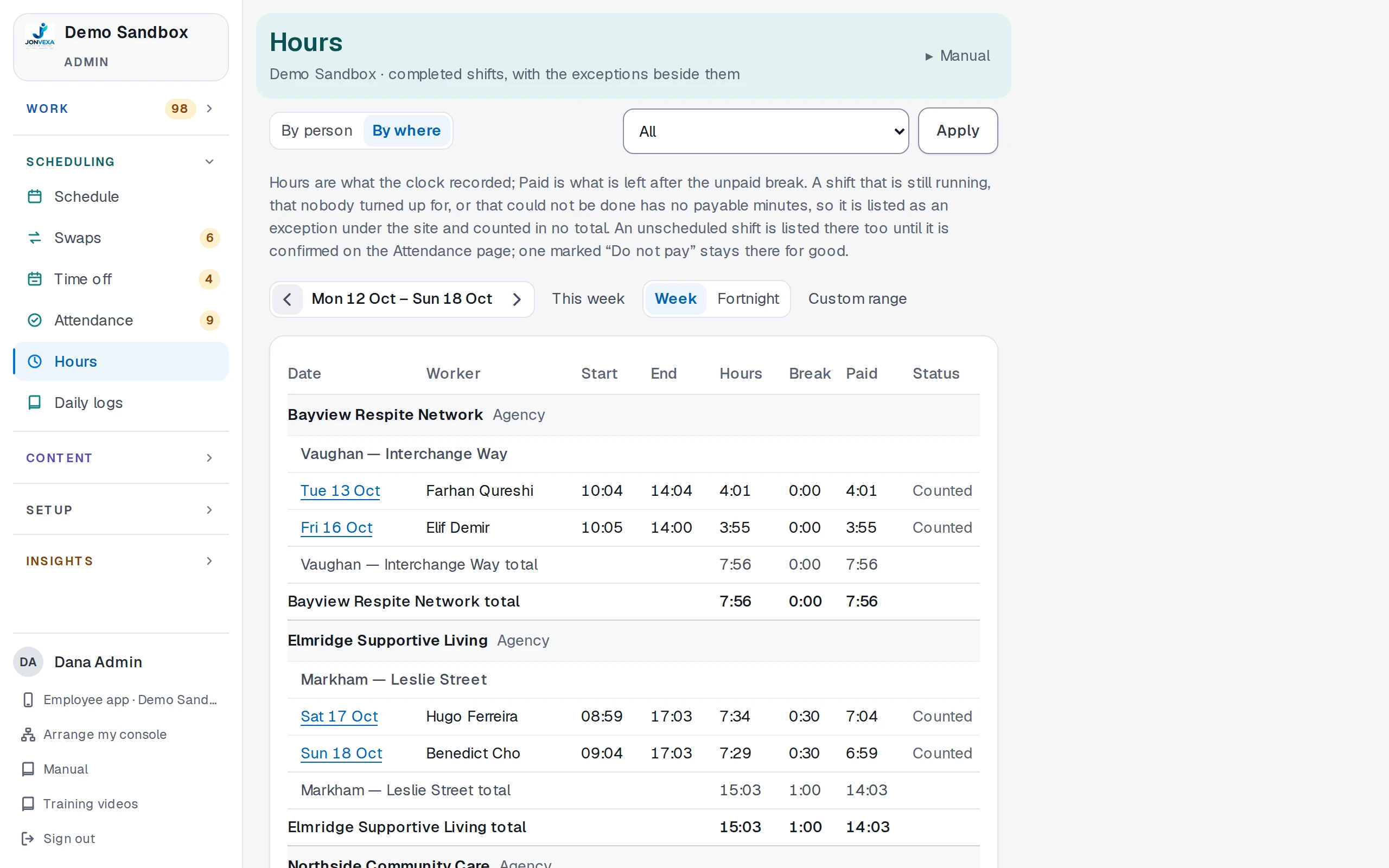
Hours by person, customer or residence
Hours, breaks and paid time for any week or range, by person or by where the work was done, and downloaded as a CSV.
06 · The daily log
Every shift leaves a record.
The daily log is written during the shift, on the phone, with a photo if it helps. The office reads every one.
-
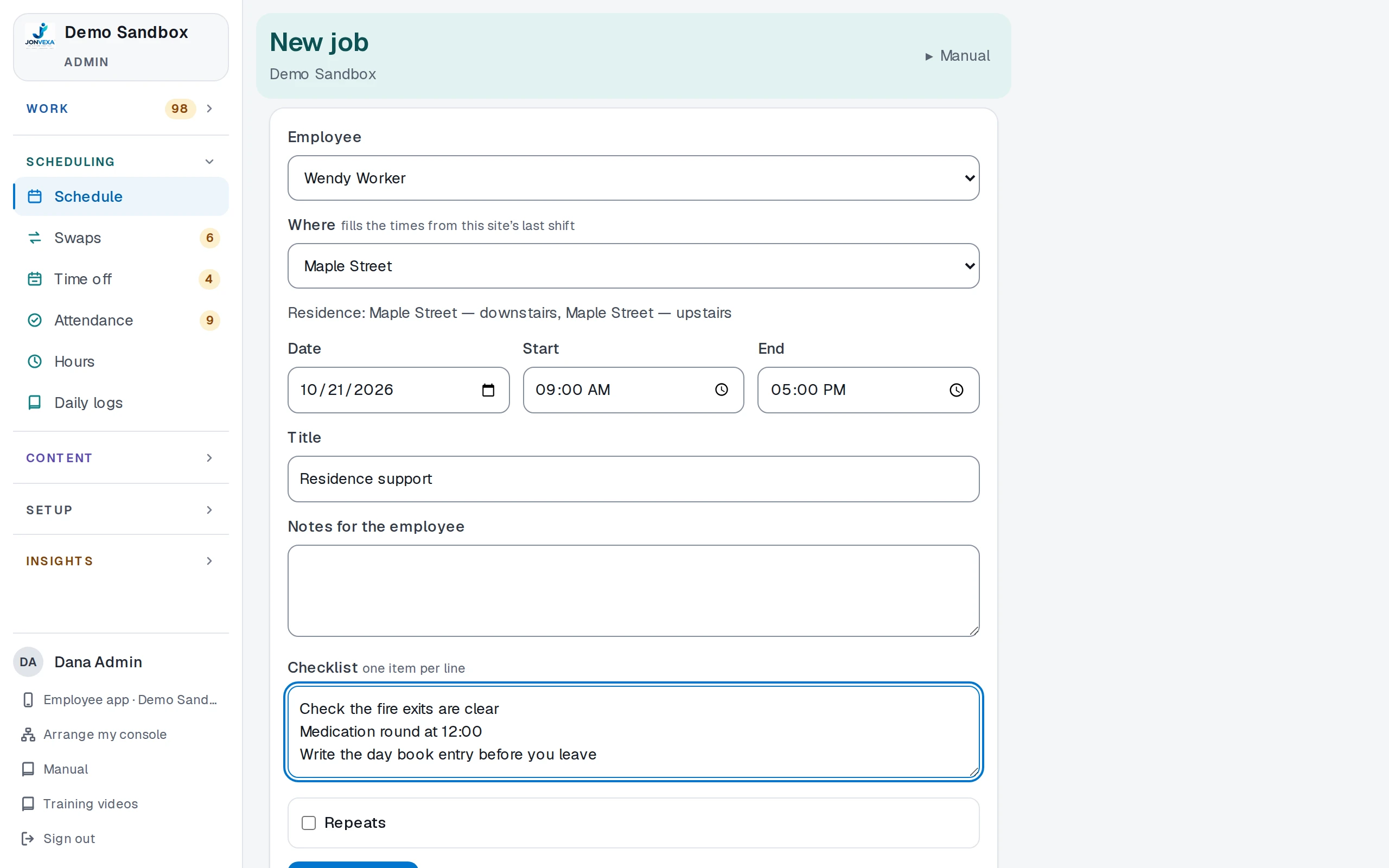
A checklist on the shift
Give a shift its checklist, one item per line, and it is ticked off on the shift itself.
-
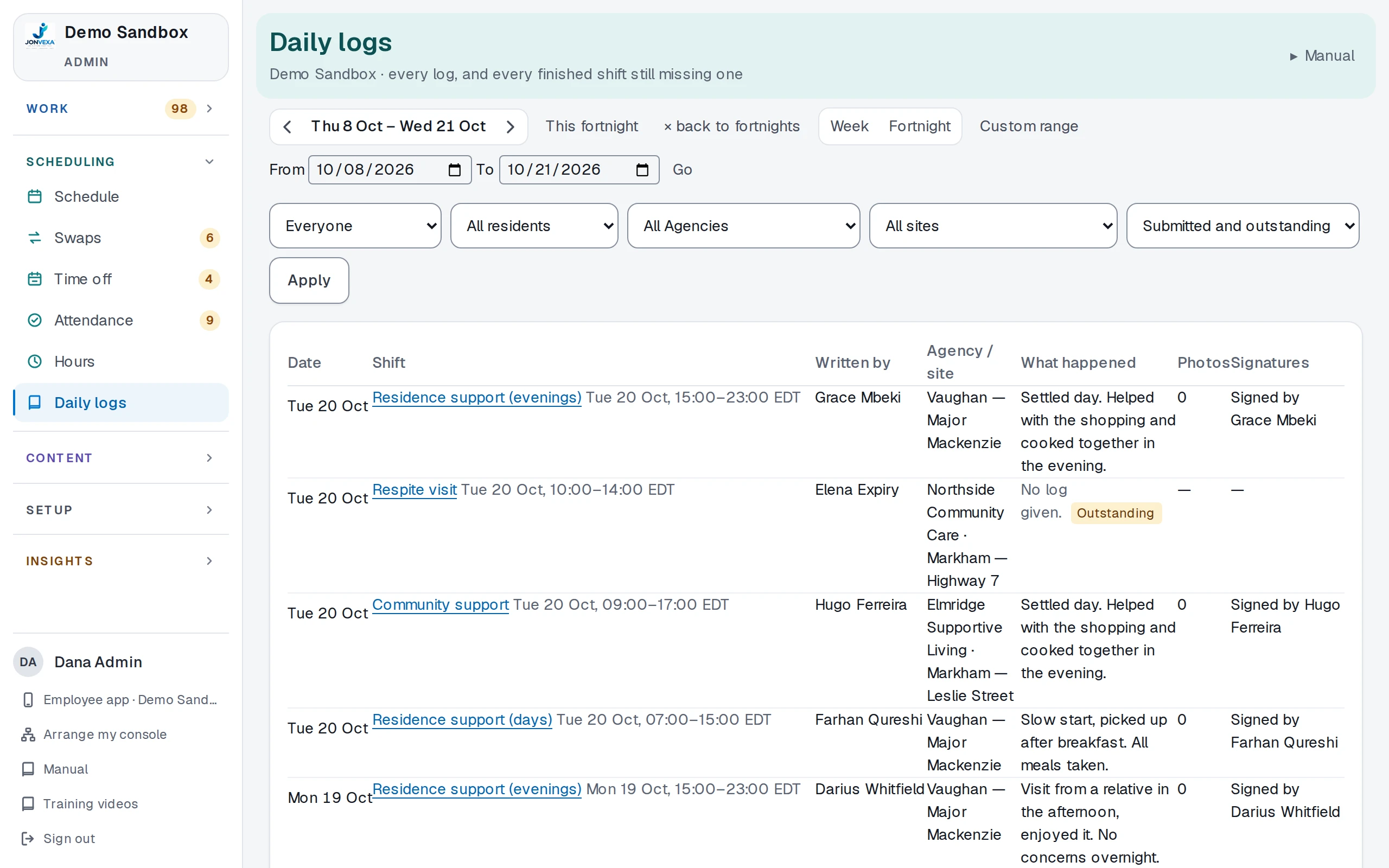
Read by the office
Every log in one list, with what happened, the photos and who signed, and every finished shift still missing one.
07 · Care records
A file for every person you support.
Details, placements, documents and record books for each resident, kept by the office and written by the people on shift.
-
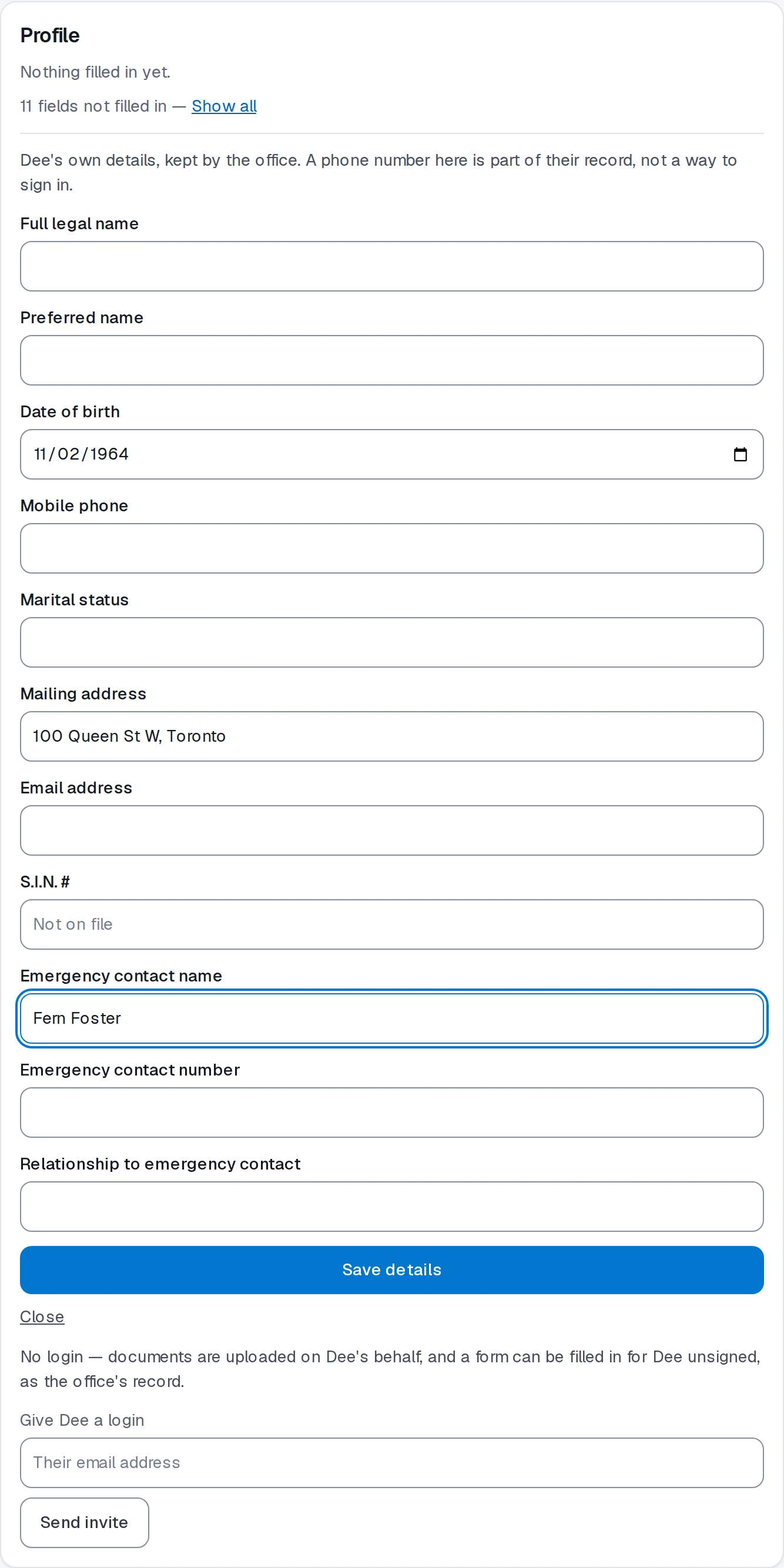
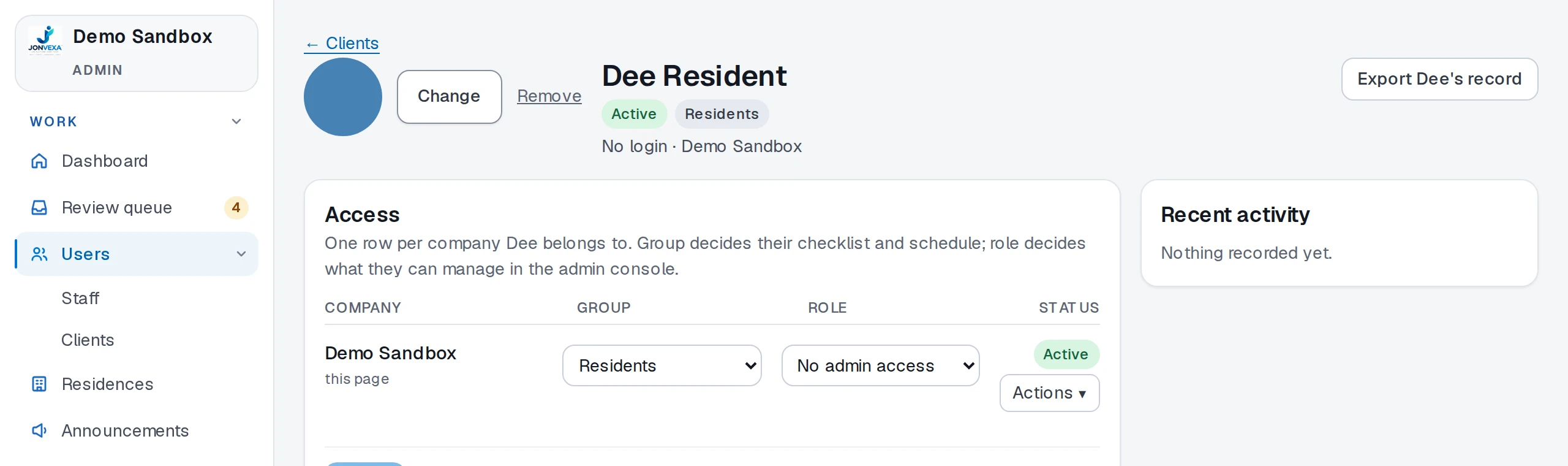
The resident's file
Their details, their photo and their emergency contact, kept by the office. A resident needs no login.
-
Placements and documents
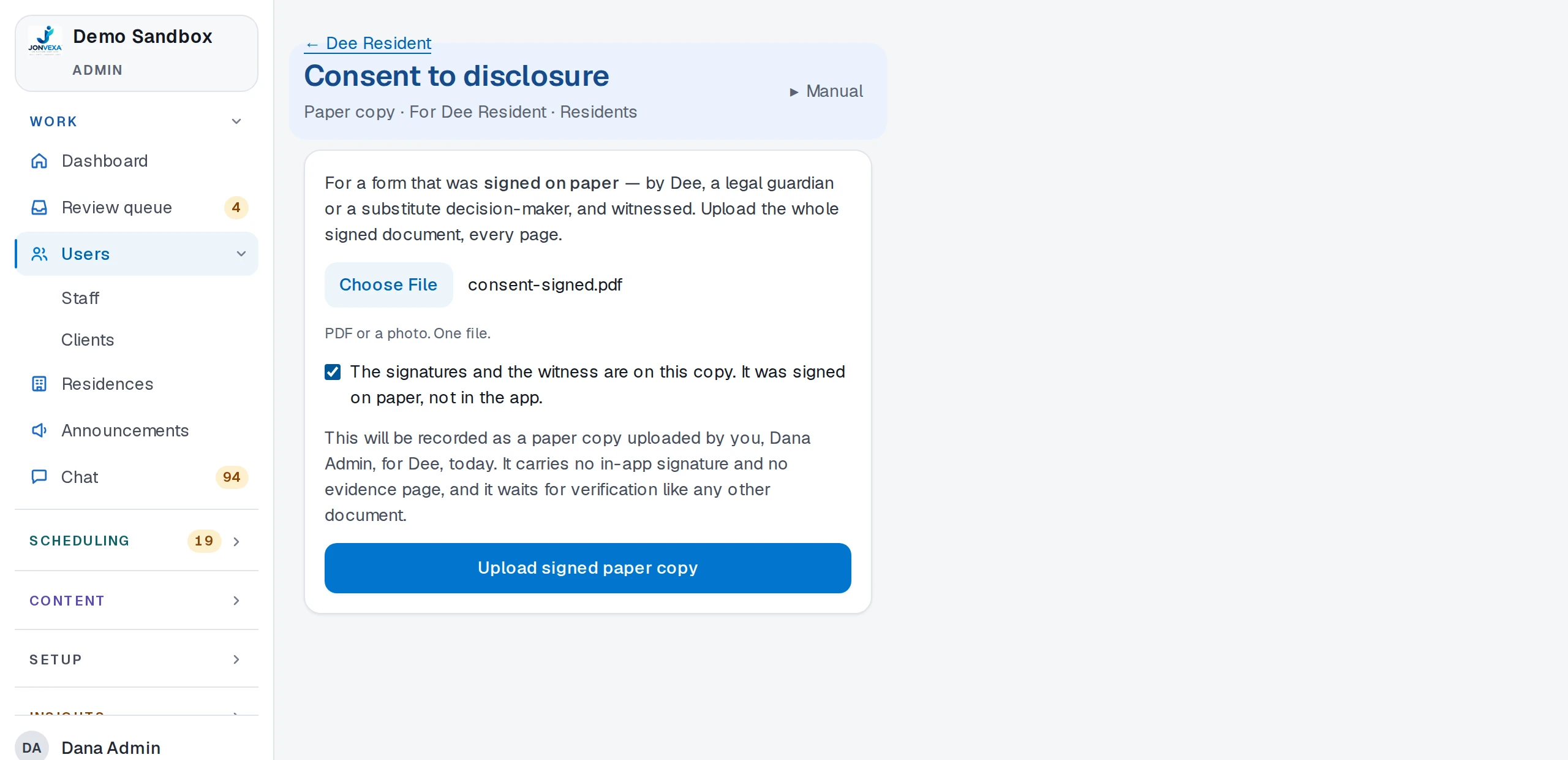
Place a resident, a supervisor and workers in a residence, and upload documents for the resident, including one signed on paper.
-
Record books from your own templates
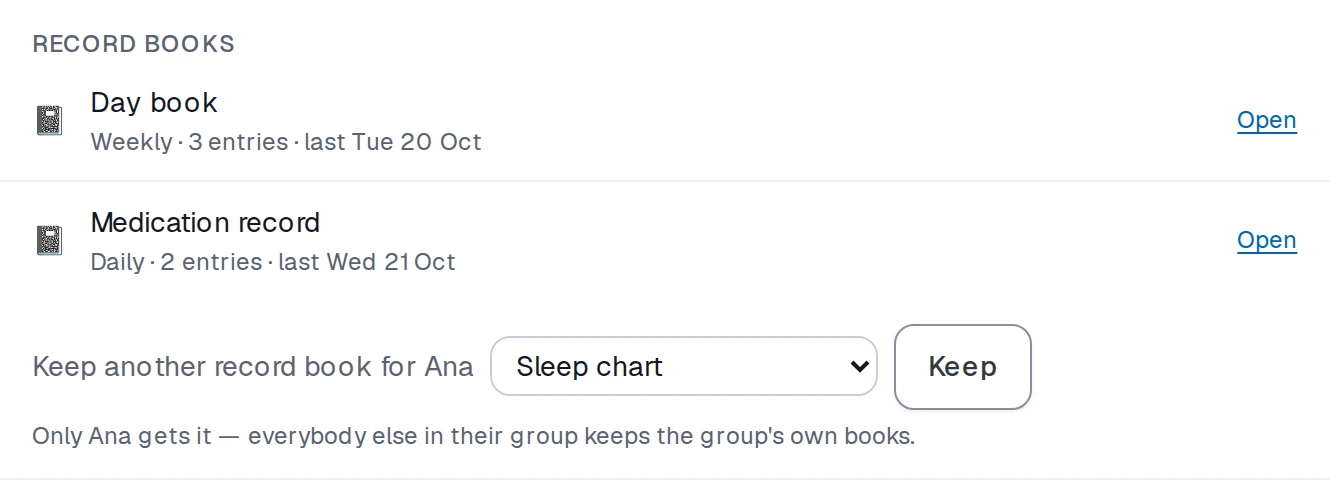
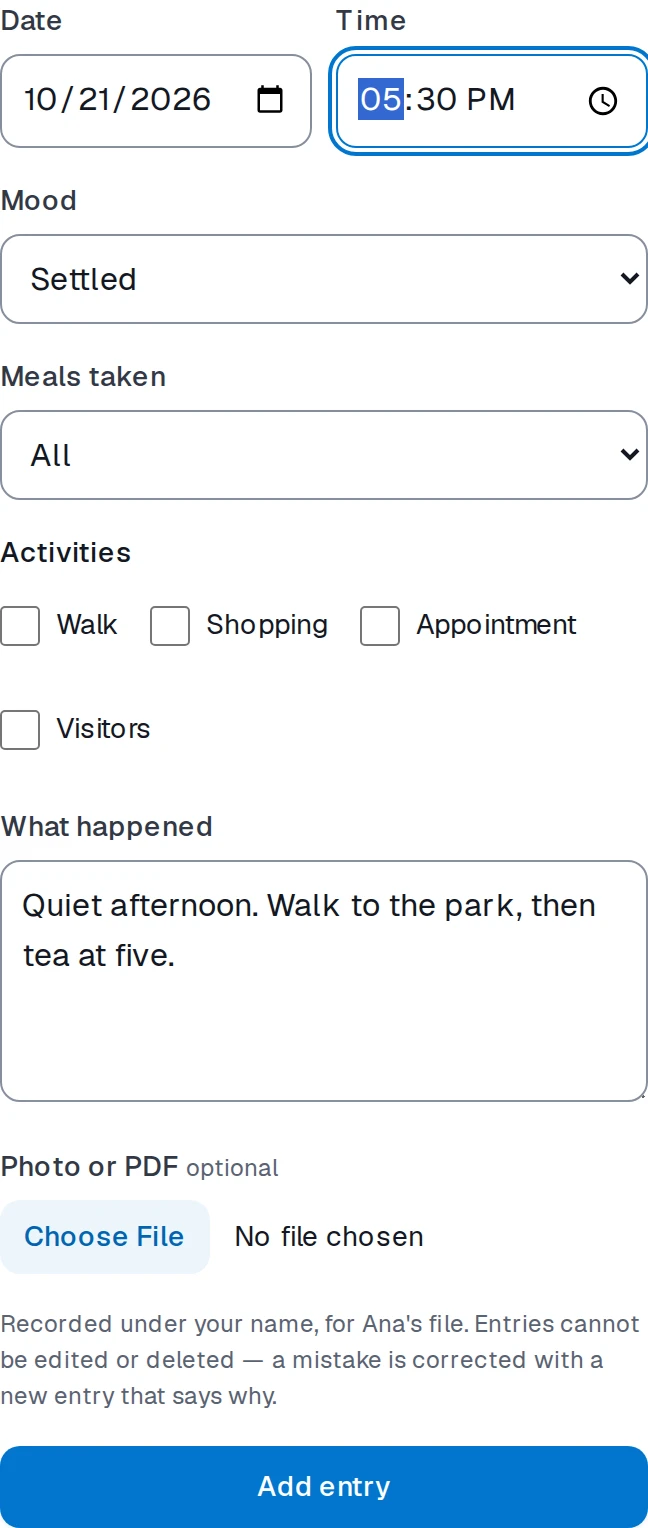
Keep the books you design for one resident or a whole group. Entries are written on the phone and can't be edited or deleted.
-
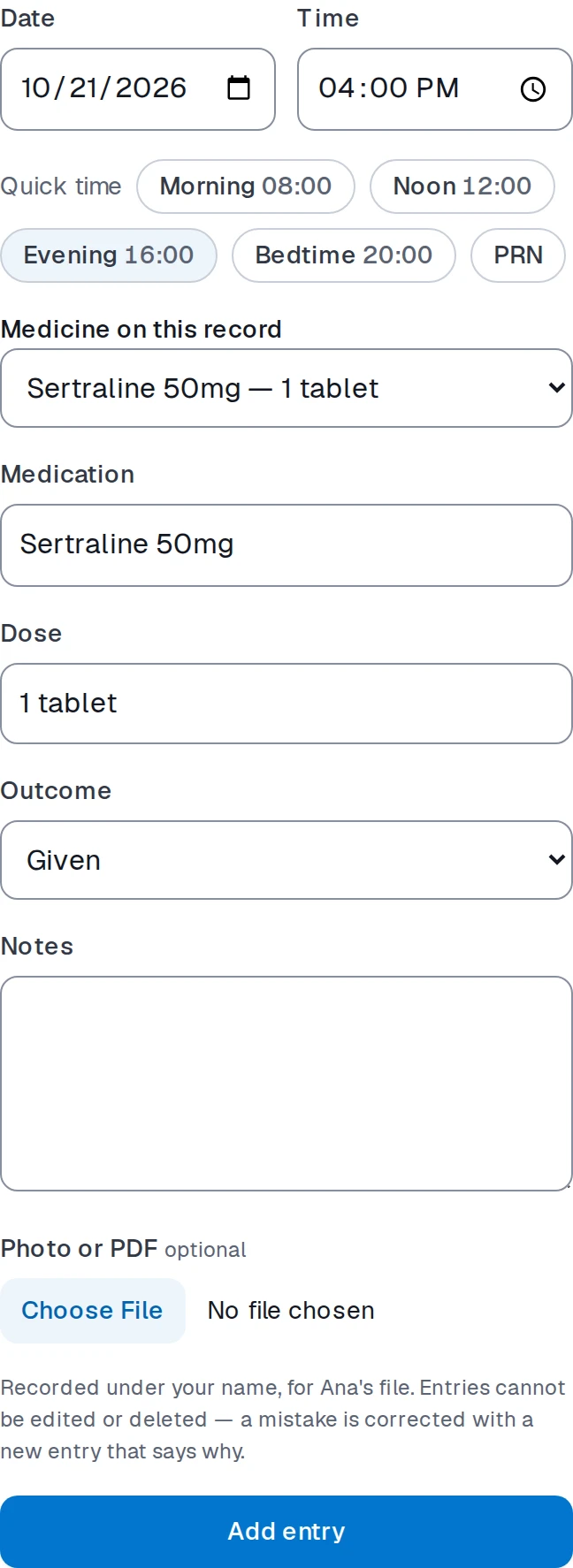
The medication record
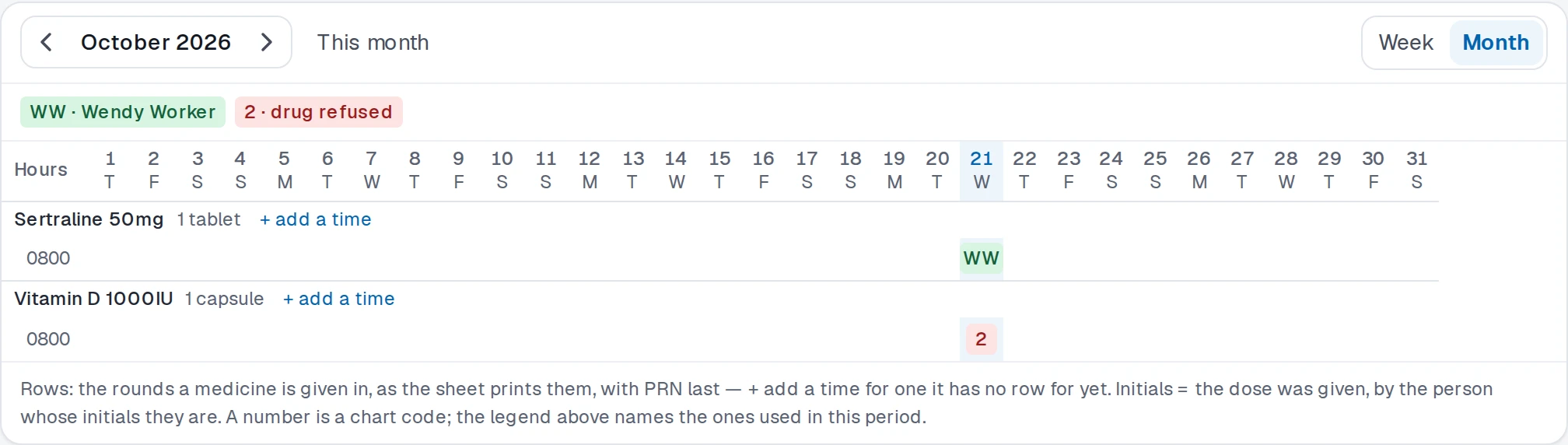
A month on one grid: initials for each dose given, a chart code for each one that wasn't. Each dose is recorded on the phone.
08 · Chat
Your team's whole conversation, inside the platform.
Direct messages, channels and groups, on the same phone app as the schedule, run by rules you set.
-
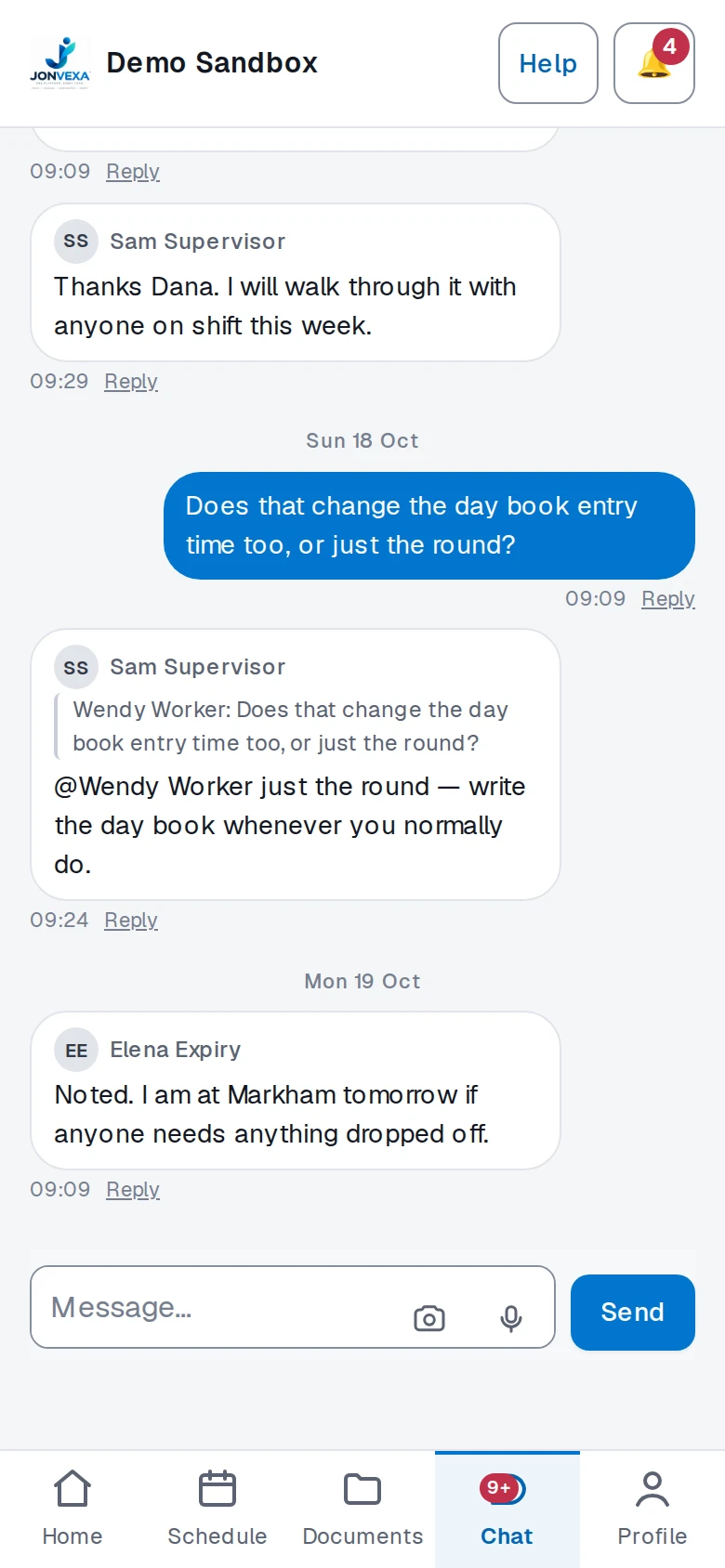
Messages, channels, groups
Channels you maintain, groups people make, and direct messages, in one list.
-
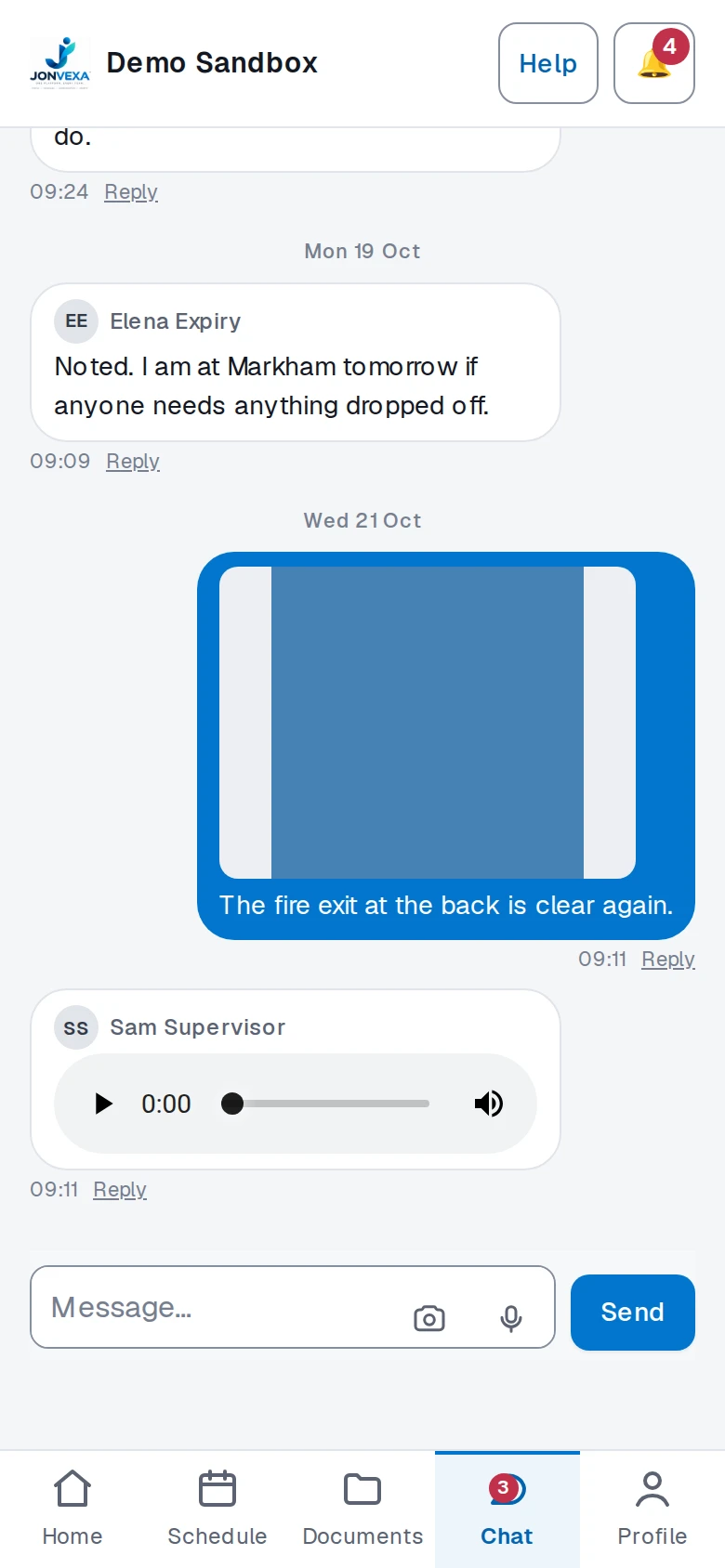
Photos, voice notes, mentions, replies, search
Send a photo or a voice note, mention a colleague, reply to one message, and search the rest.
-
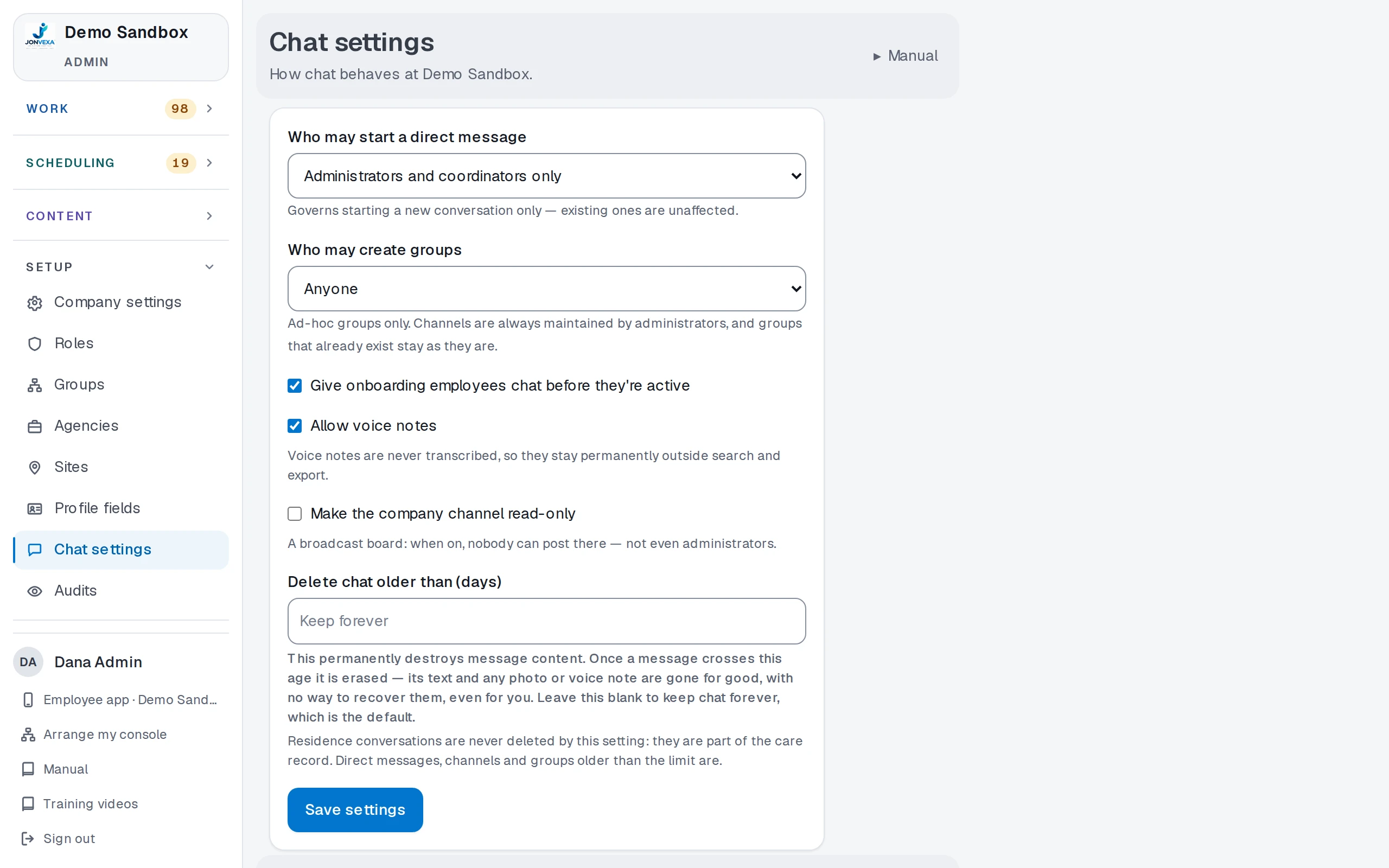
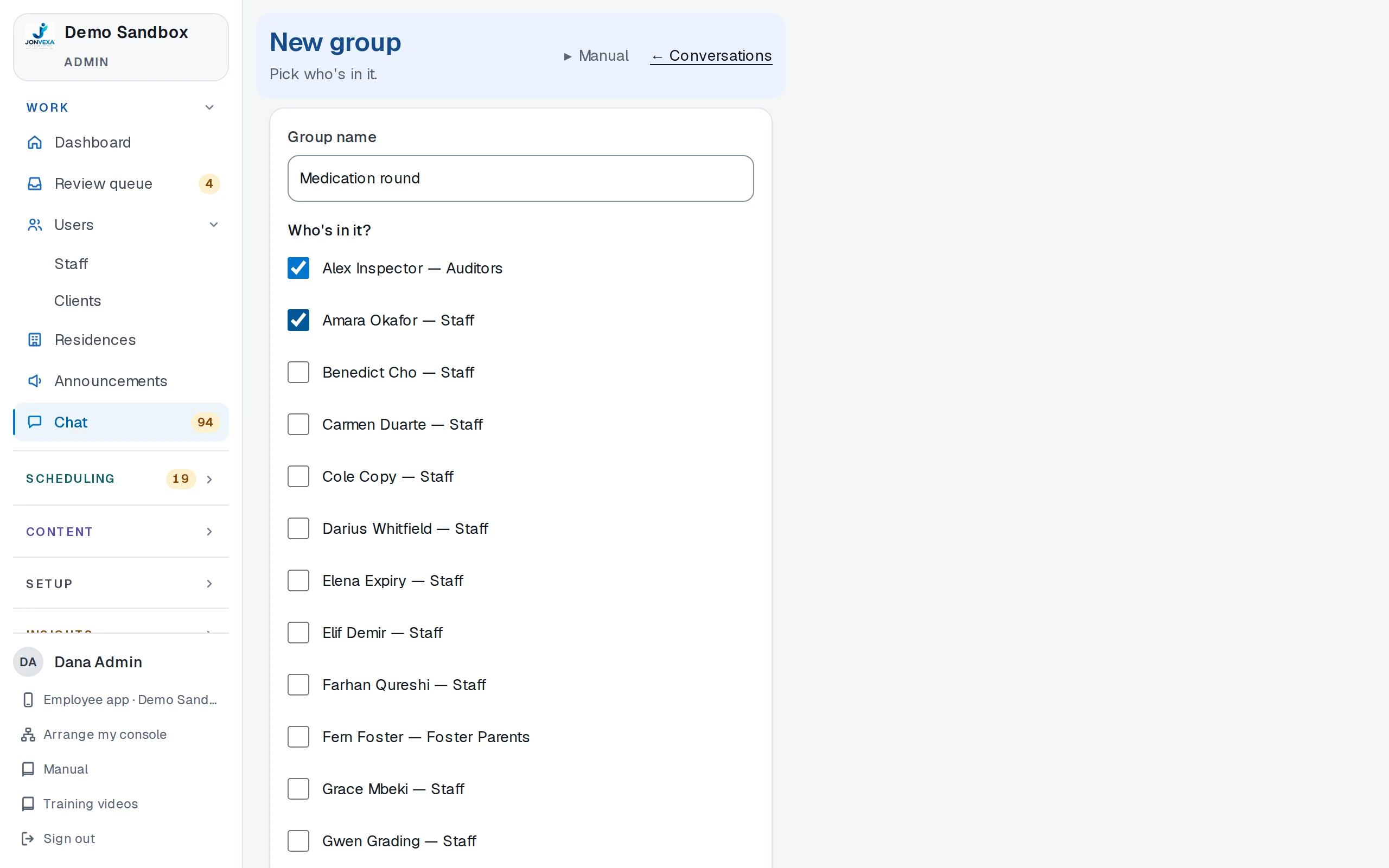
The admin console
Decide who may start a direct message or create a group, allow voice notes, and make the company channel read-only.
-
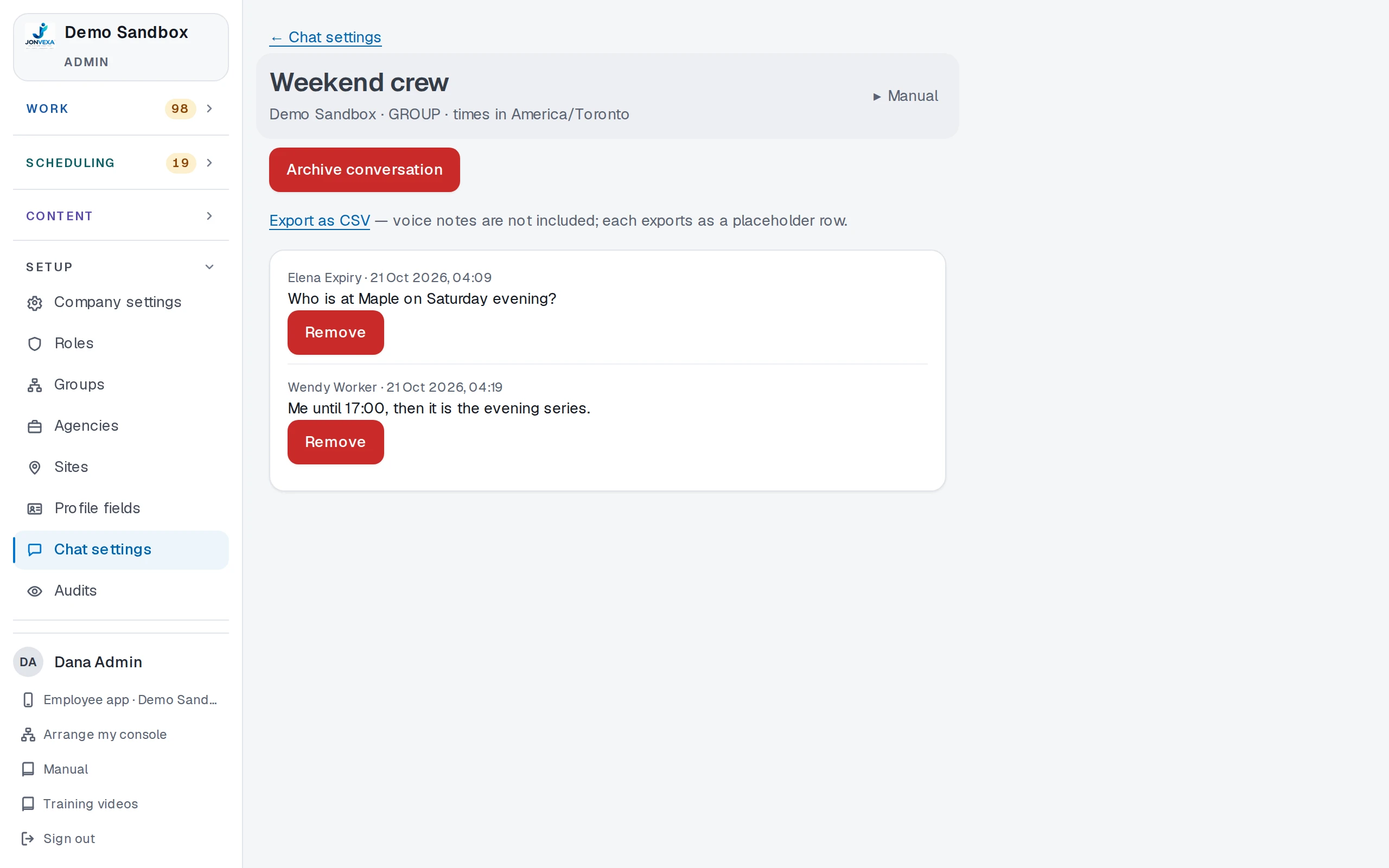
Oversight, moderation, export, retention
Open a conversation with every look logged, remove a message, export it as a CSV, and set how long chat is kept.
09 · Announcements and notifications
Send it once, know who read it.
Announcements go to exactly the people they are for, and you can see who has acknowledged them.
-
Send to an audience
Everyone, chosen groups, everyone serving a residence, or named people, with a document from your library attached.
-
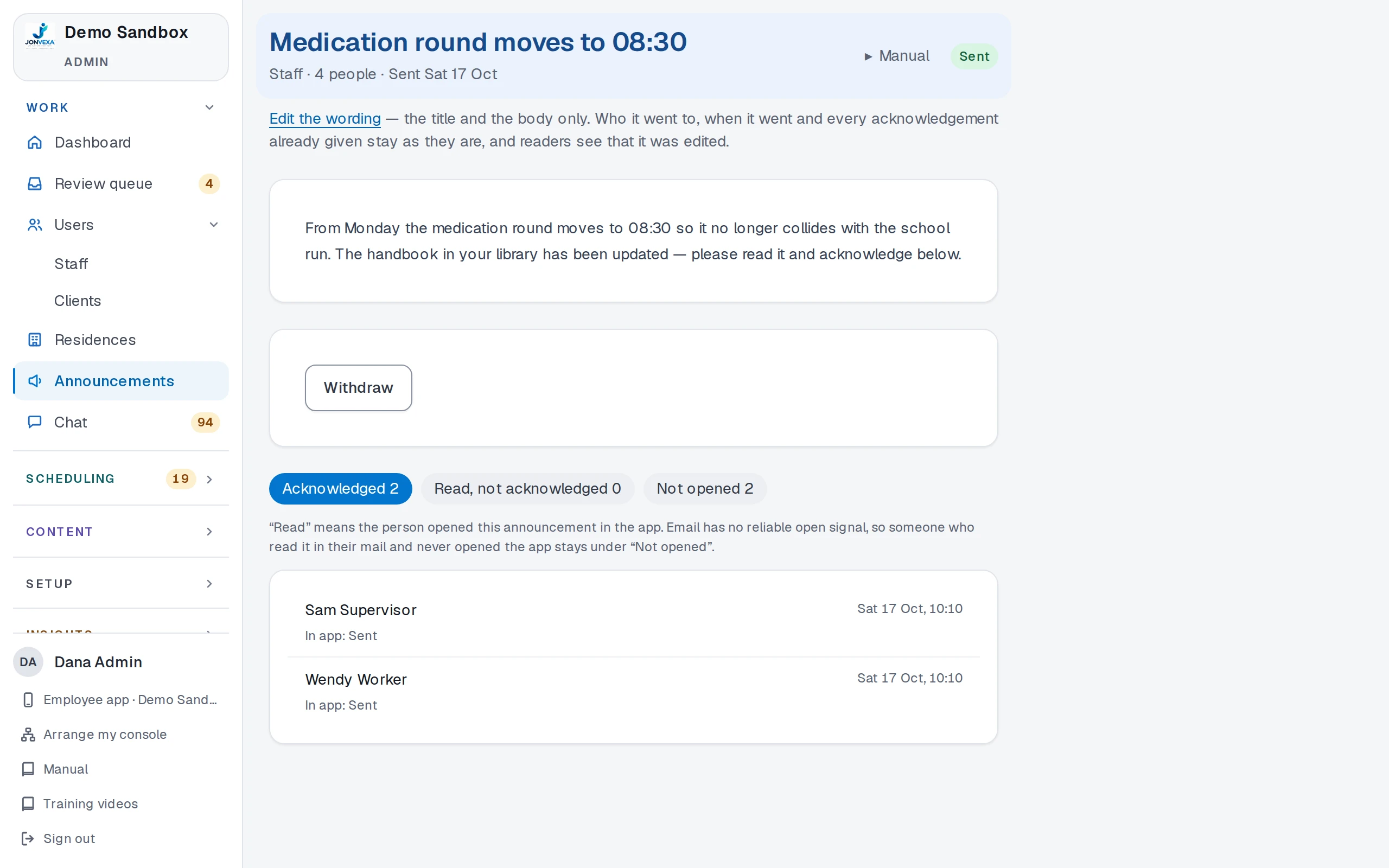
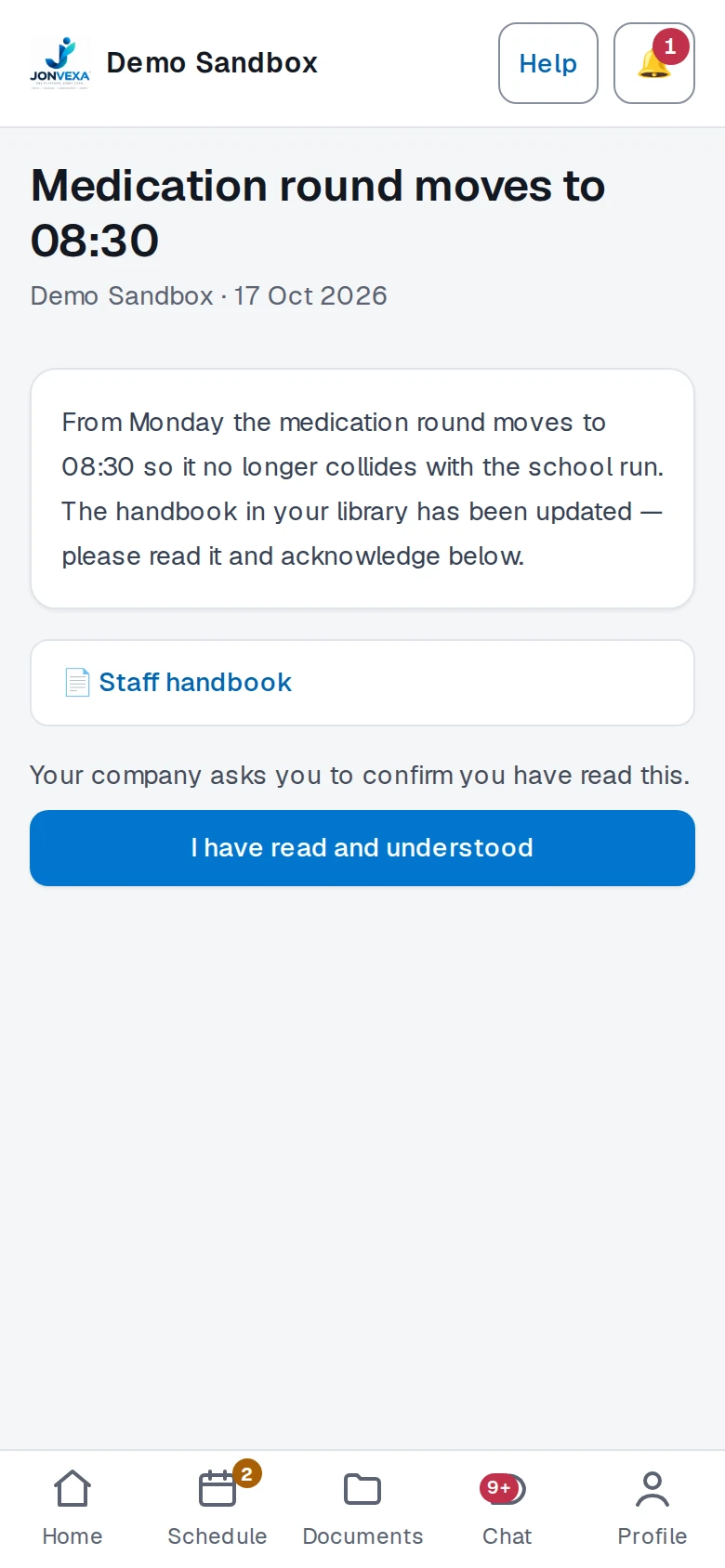
Acknowledgements and receipts
People confirm they have read and understood. You see who acknowledged, who only read and who has not opened it.
10 · People and access
Groups, roles and permissions that match your org chart.
Everyone has a group that decides their checklist and a role that decides what they can manage.
-
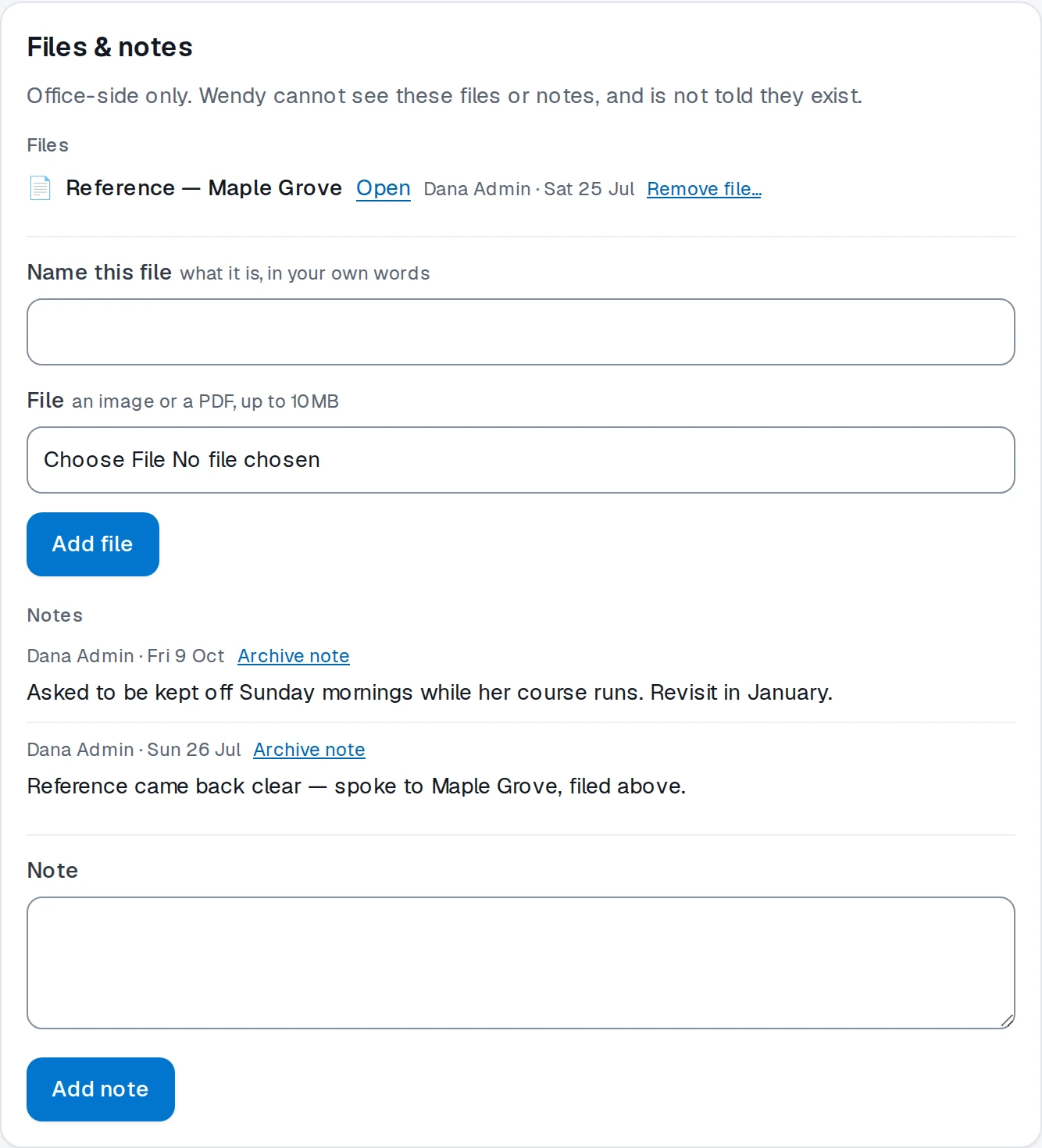
The people list and a person's file
Everyone by status, with what needs attention under their name. Their file keeps office-only notes and files they never see.
-
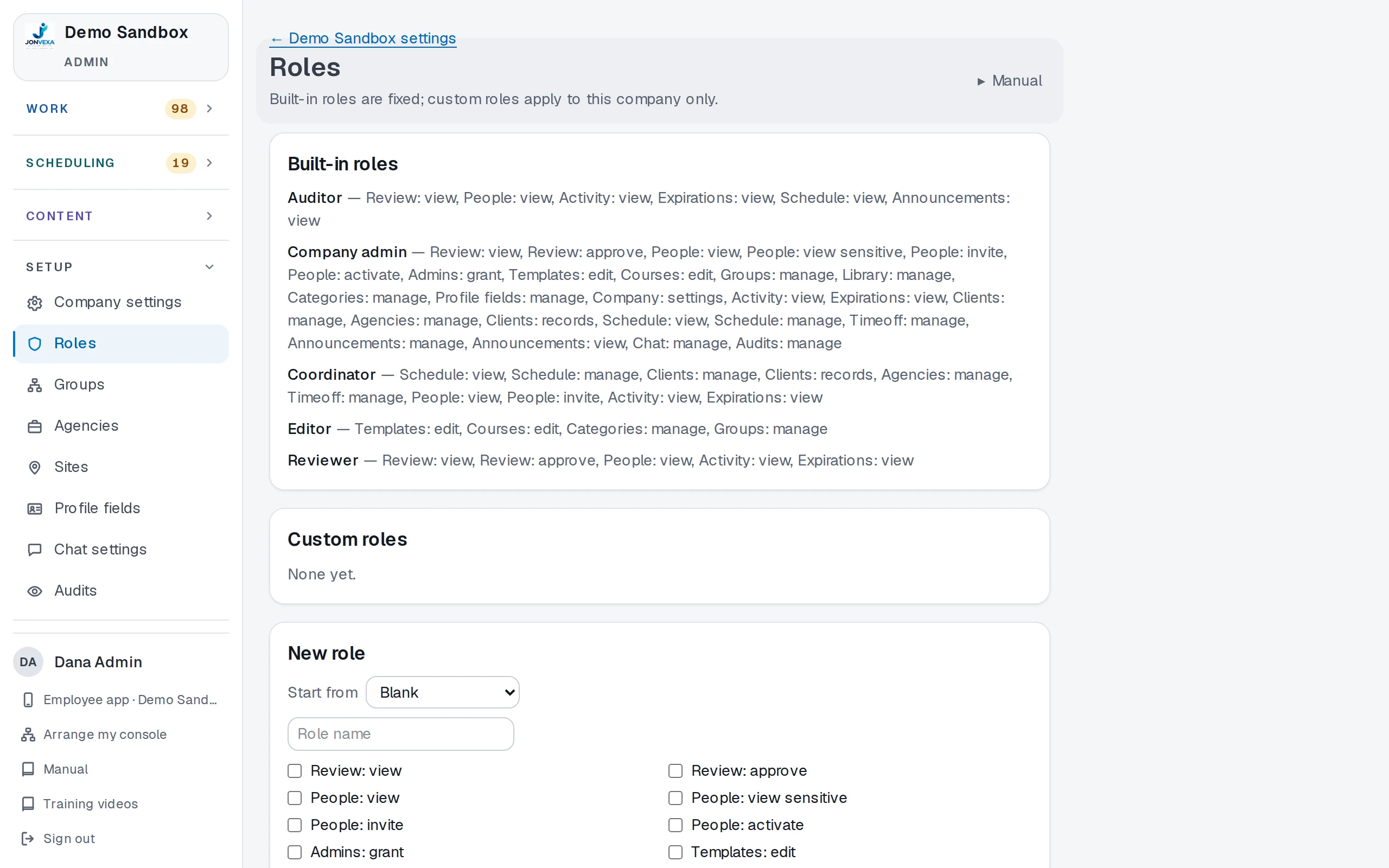
Roles and permission keys
Built-in roles for the usual jobs, and custom roles assembled from the same permission keys.
-
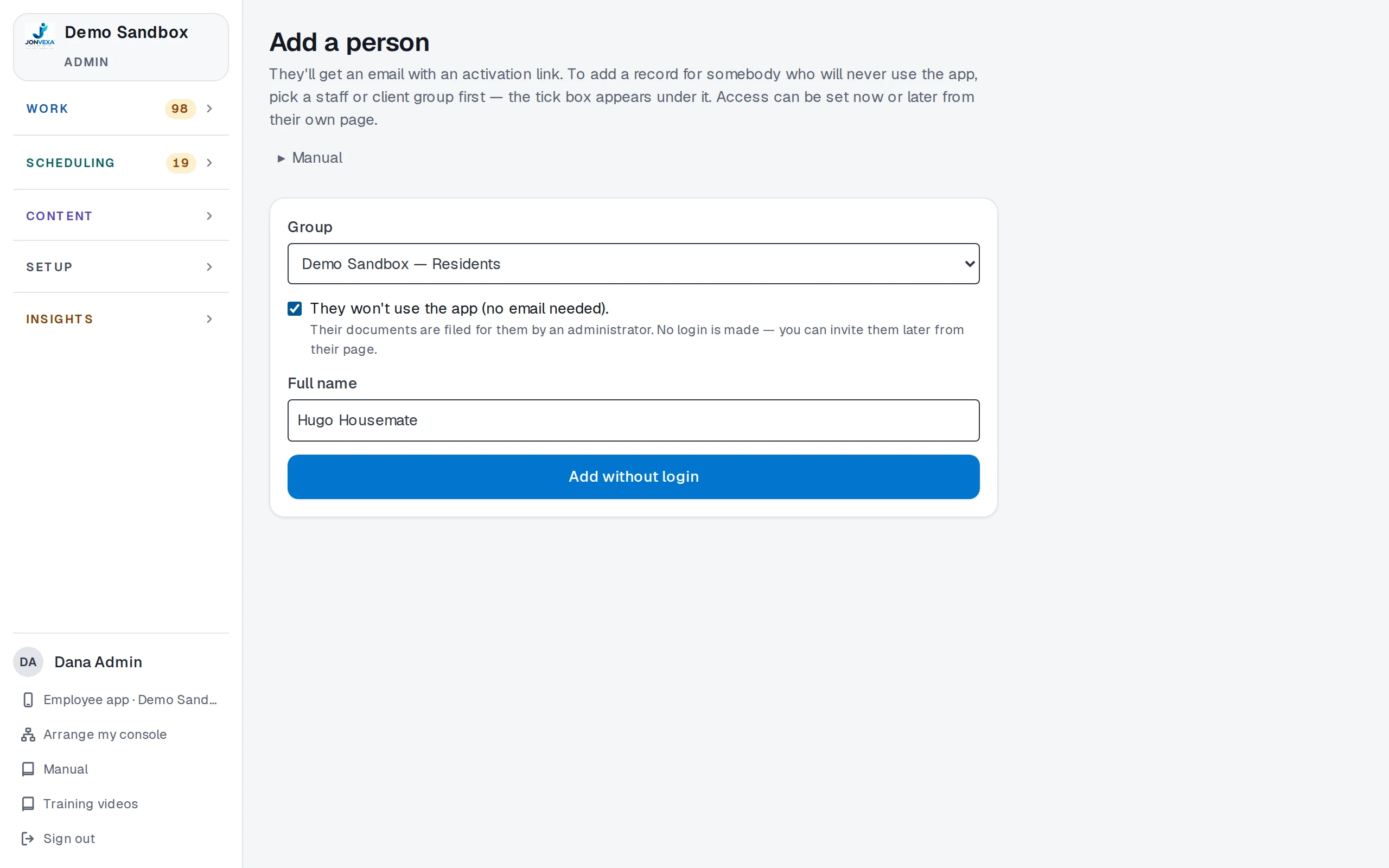
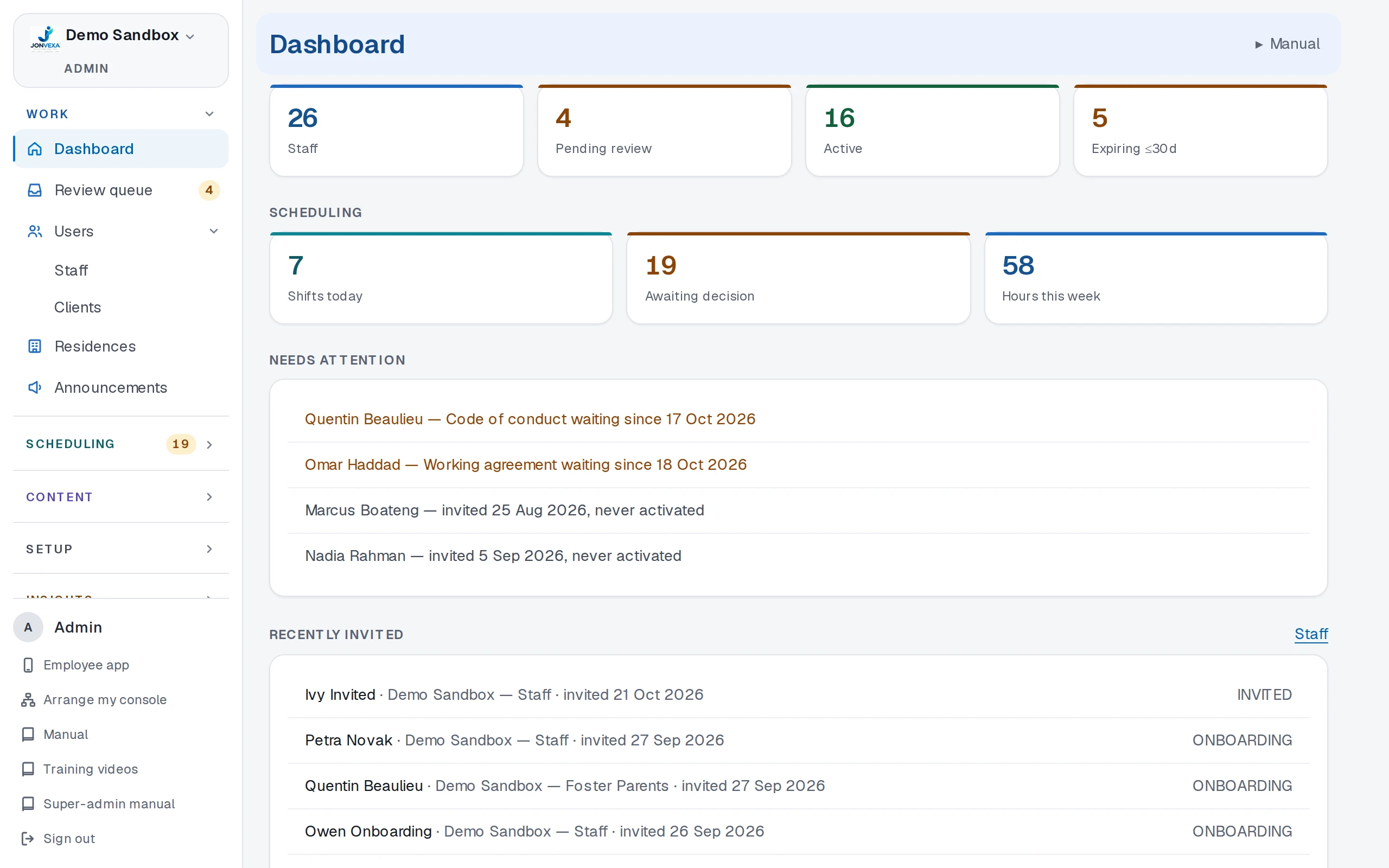
No login needed; several companies
Add someone who will never use the app and file their documents for them. Run several companies under one parent and switch between them.
11 · Audits and compliance
Give an auditor read-only access for one visit.
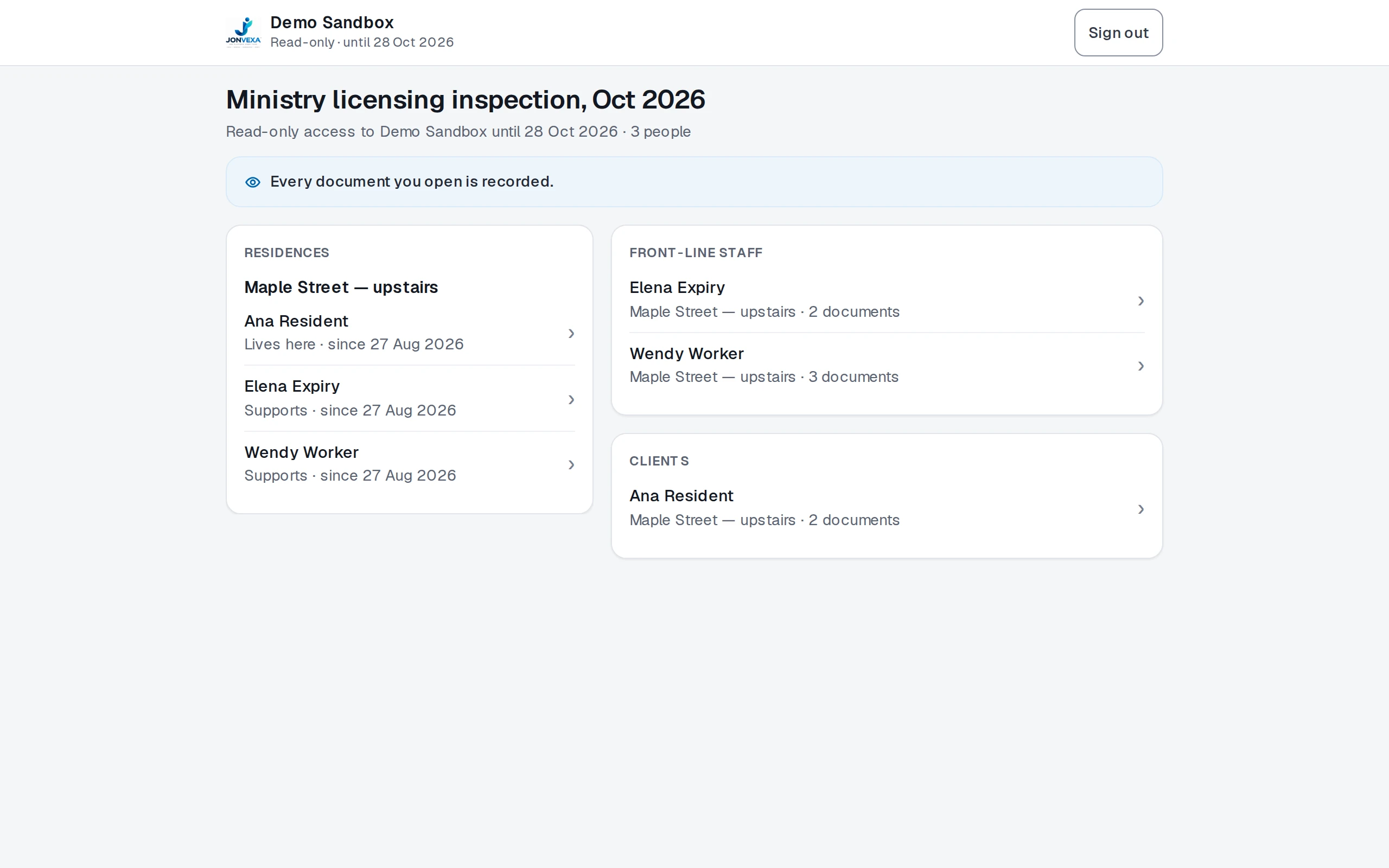
An inspector sees the people you choose, for the dates you choose, and every document they open is recorded.
-
An auditor's own door
Pick the residences, the people and the profile fields they may see, set an end date, and extend or revoke it at any time.
-
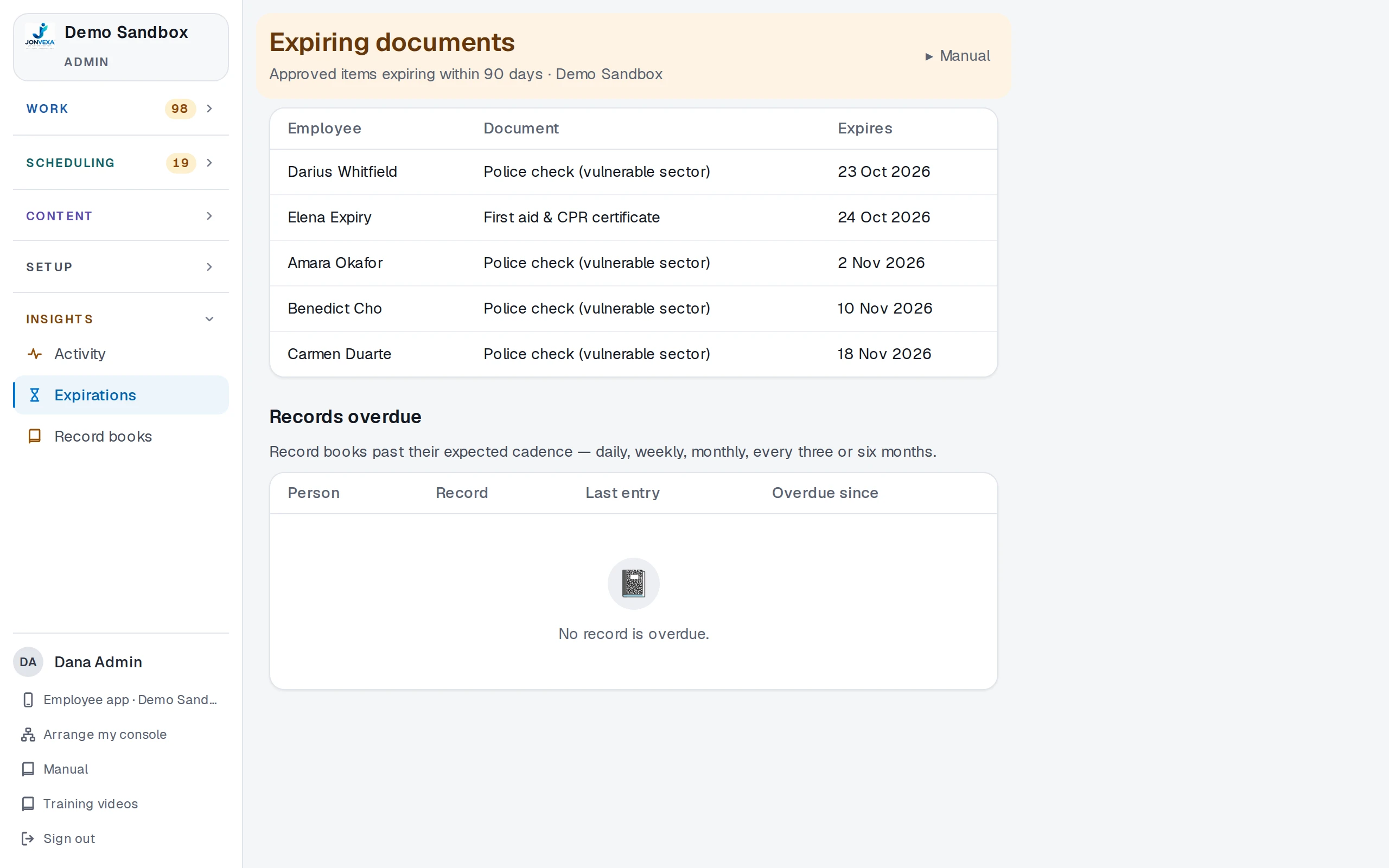
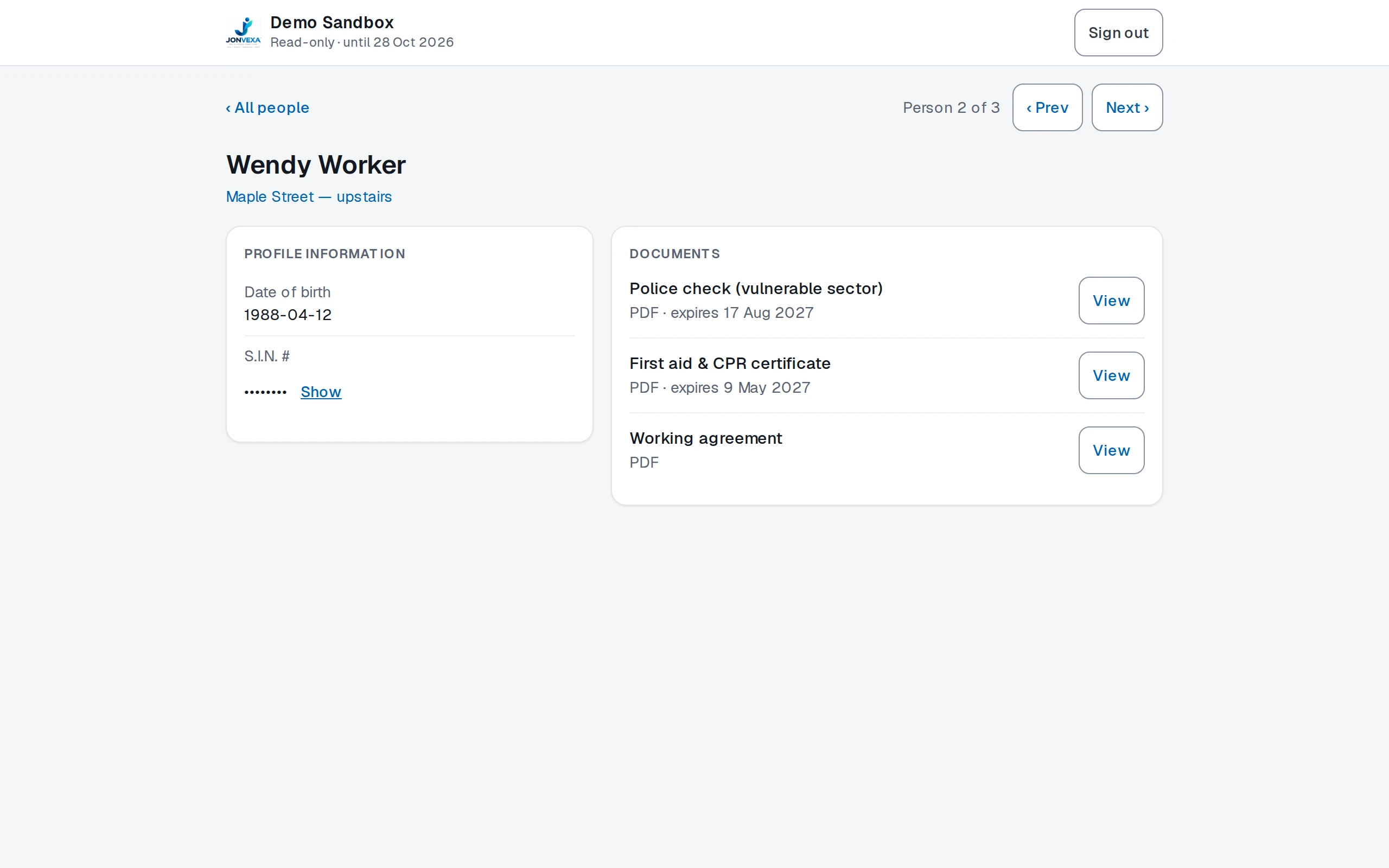
Expirations in one place
Before the visit, see every approved document that is about to expire. The auditor sees each person's page as one read-only file.
12 · Clients and the public side
A client portal, and a record for every agency and site.
The people you serve sign in to their own view, and the agencies and sites you work with each have a record.
-
The client's view
A client sees who is on shift today, who supports them, and the documents they have signed.
-
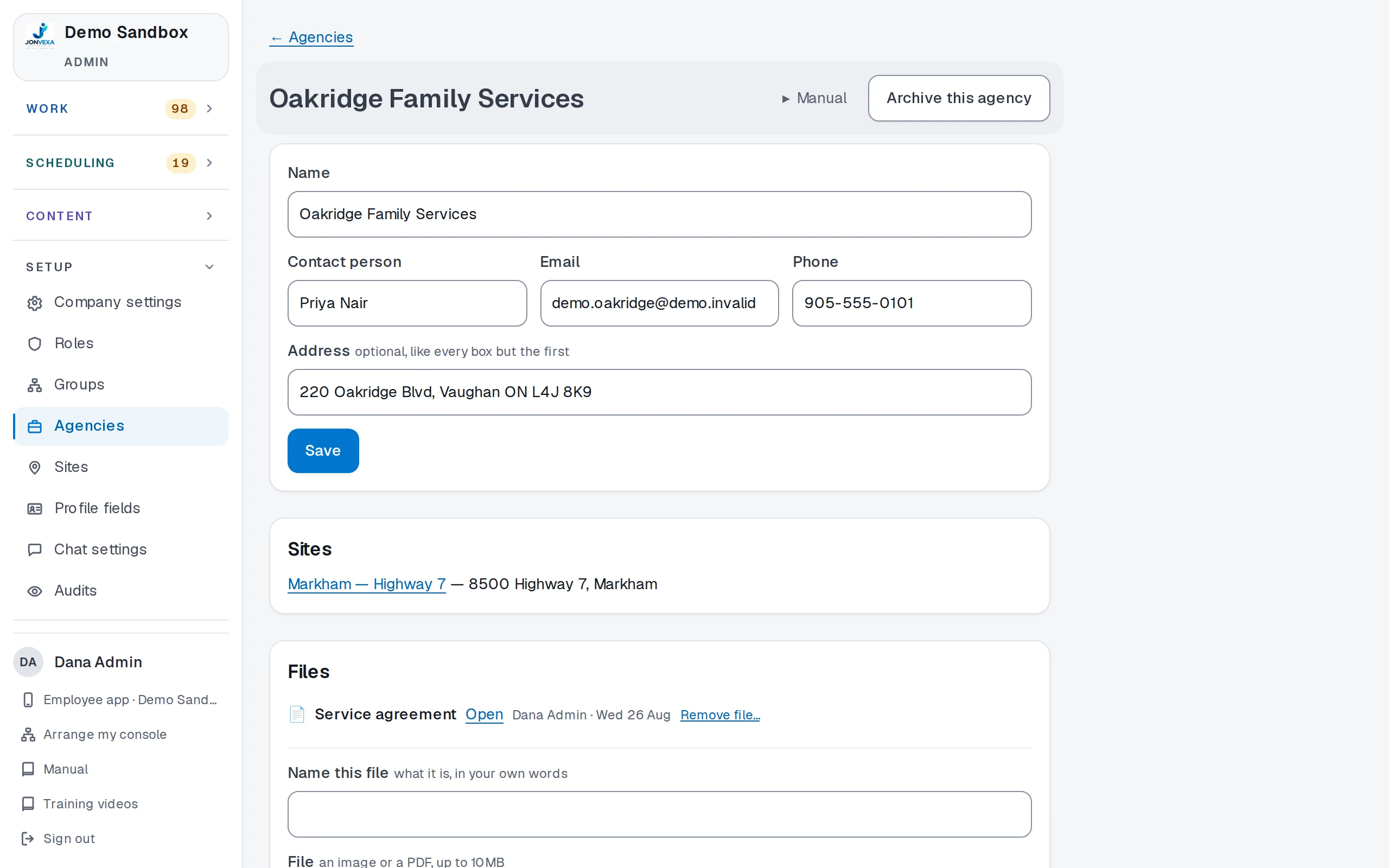
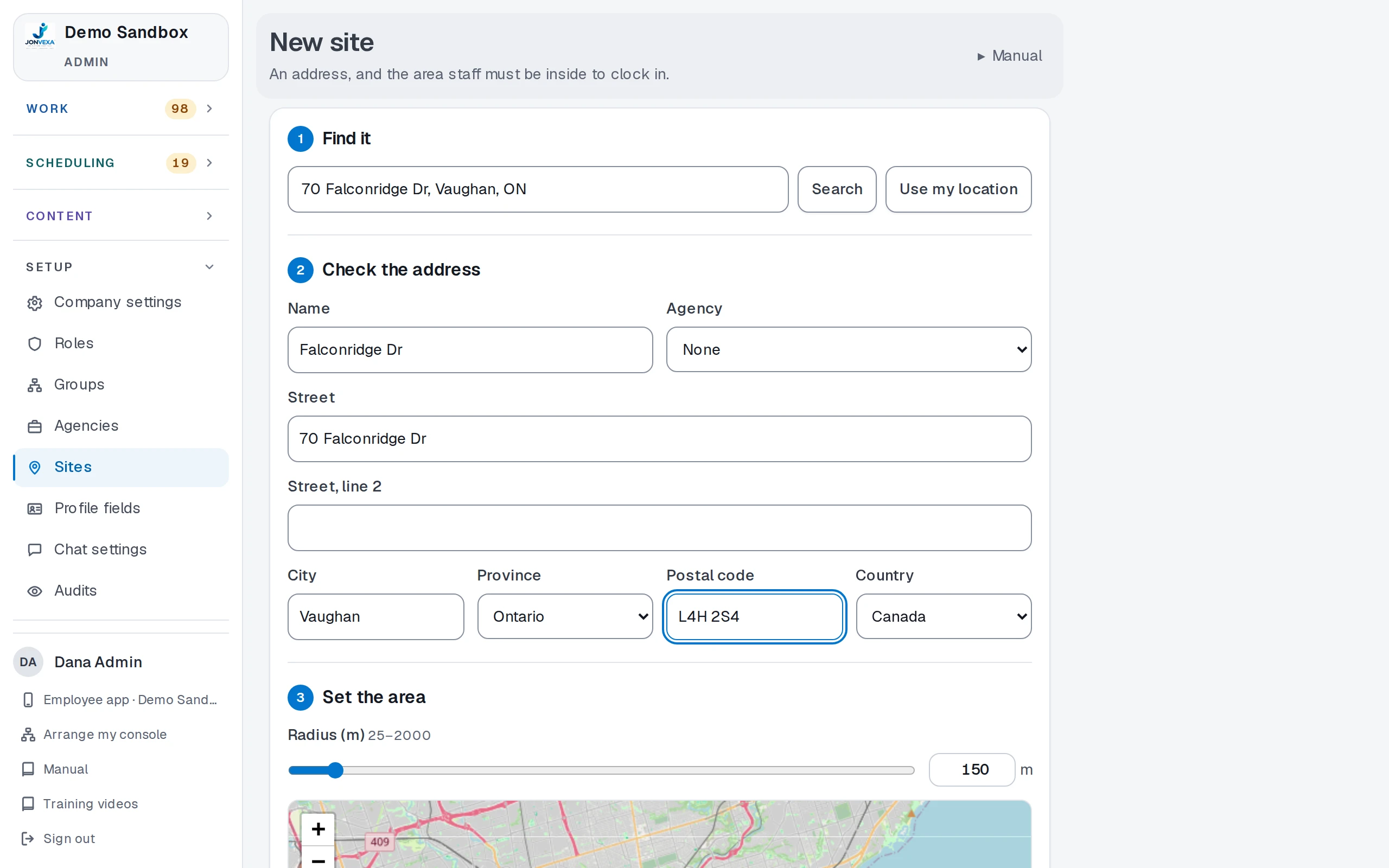
Agencies and sites
Keep each agency's contact details, files and sites. A site is an address with the area staff must be inside to clock in.
13 · Shaped to your workflow
Call things what you call them.
The words on the screens, the rules behind them and the companies you run are settings, not code.
-
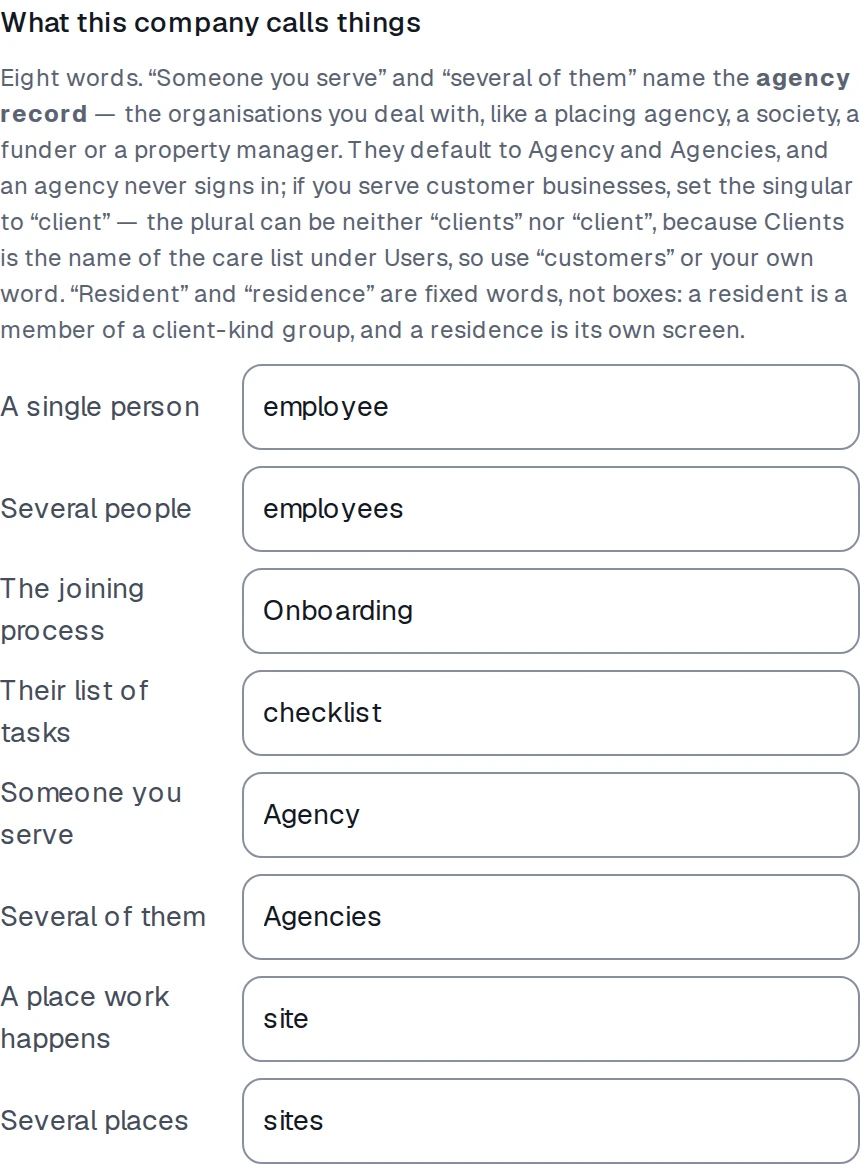
Vocabulary
Choose what the platform calls a person, the joining process, the checklist, the people you serve and the places work happens.
-
The switches: activation, attendance, signing, chat
Decide when someone becomes active, whether clocking asks for a signature, what happens outside a site's radius, and how chat behaves.
-
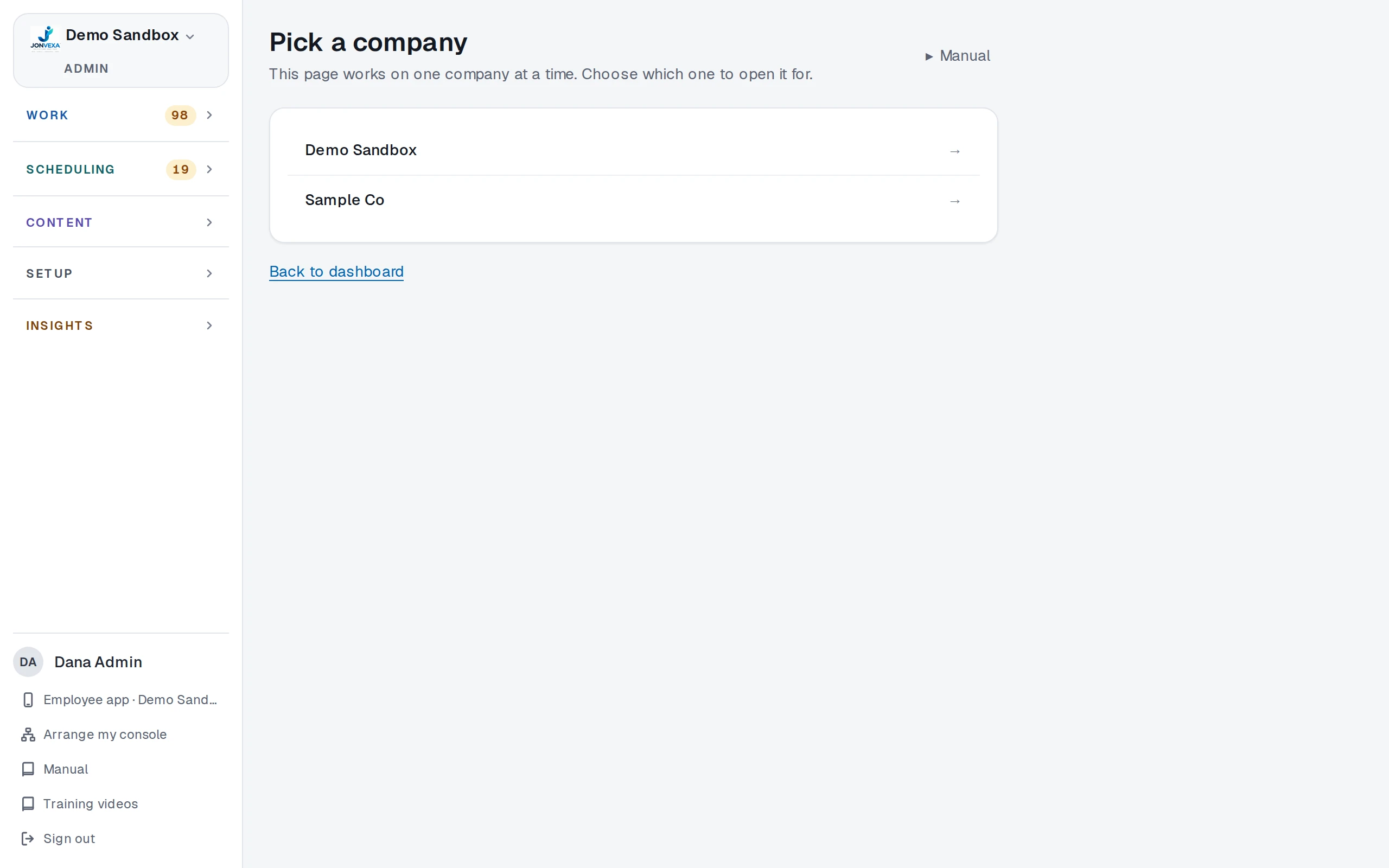
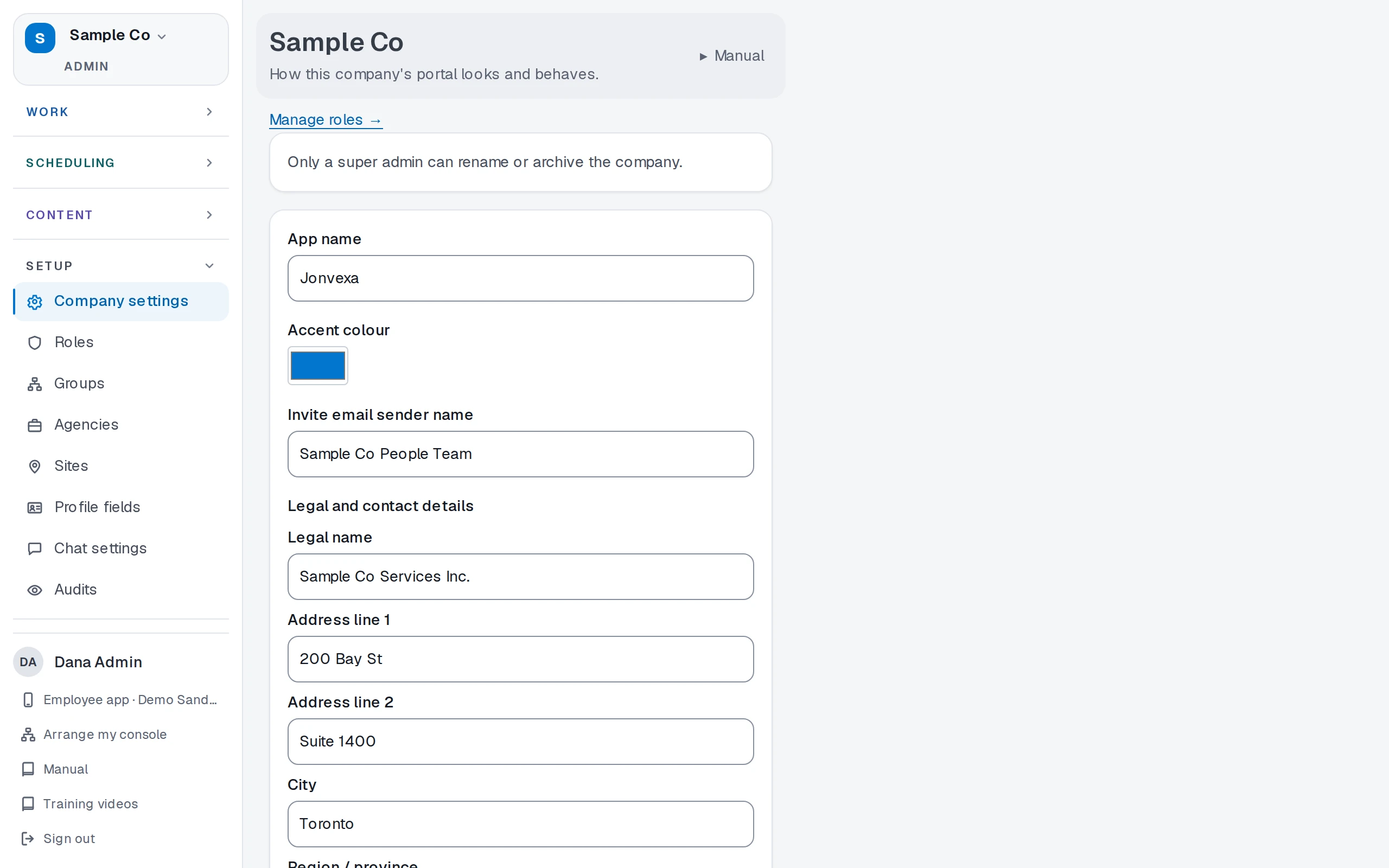
Several companies, each its own setup
Run more than one company from one sign-in. Each keeps its own name, details, groups and settings.
14 · Mobile, security, privacy
A phone app with no app store.
Your team opens the web address once and adds it to the home screen. Behind it, the records are kept to the standard a regulated operation needs.
-
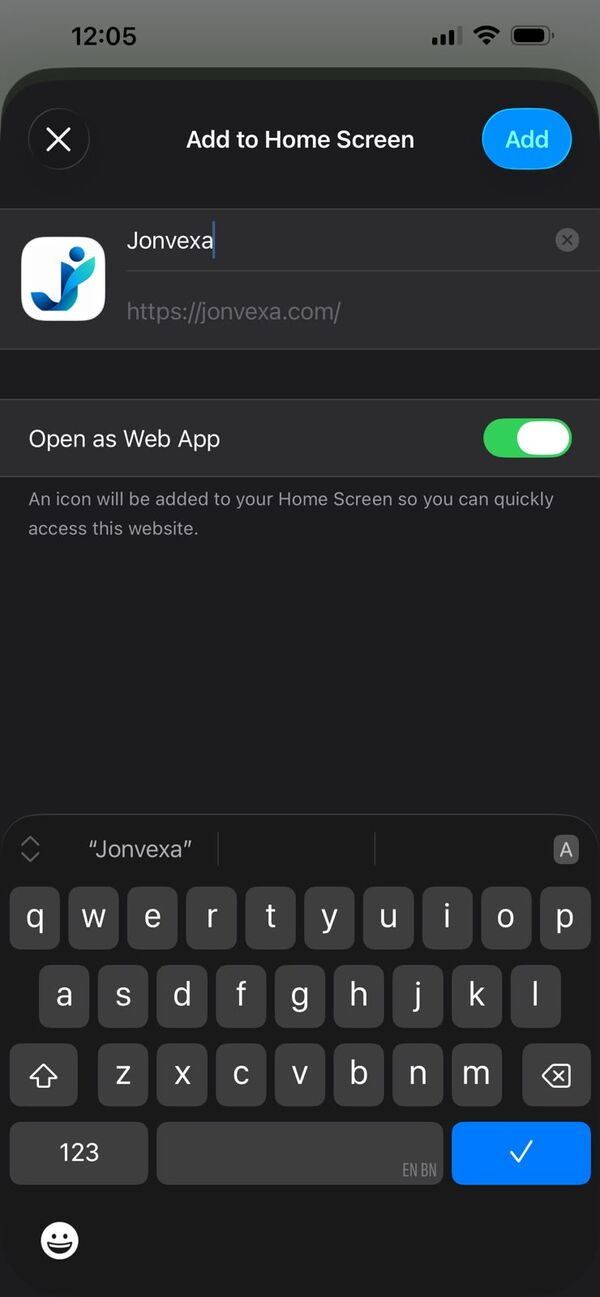
Install to the home screen
Sign in from the phone's browser, choose Add to Home Screen, and it opens like any other app.
-
Built for regulated work
What sits behind every screen:
- Sensitive fields, such as a SIN, encrypted at rest and masked on screen.
- Signatures sealed with an evidence page and a tamper-evident hash.
- Care records designed to health-privacy rules.
- Nightly backups, kept off-site.
- Role-based access, with an audit trail.
Need something we haven't built? Say so.
- Read-only access for an outside auditor, scoped to the people they are auditing.
- A resident who signs on paper, kept beside the forms everyone else signs on screen.
- Reopening an approved document when something changed after it was signed.